

Dynamic content in email is any part of a message that changes by recipient, or by the moment it is read, while the template stays the same. It is built three ways: merge fields and conditional blocks, both decided at send, and images drawn when the email is opened. Pick by when the content must be right: at the send, or at the read.
In automated emails, dynamic content is how one flow serves a whole list: the cart reminder names the item each shopper left, the renewal notice carries each member’s own date. This page explains the mechanics. Choosing what is worth tailoring in the first place is the job of email personalization.
What is dynamic email content?
It is content whose value is looked up rather than typed. A static email says “Hi there” to everyone; a dynamic one says “Hi Maya” to Maya and “Hi Tom” to Tom, from one template. The same idea covers a block only members see, or a countdown that is correct whenever the email is opened.
Email segmentation is different: it decides who receives an email at all, while dynamic content decides what each receiver sees inside it. Interactive email, where the reader taps and the message responds, is a third thing, and interactive email and dynamic email covers AMP and when it is worth the cost.
The three ways dynamic content is built
Merge fields, filled at send. A tag such as *|FNAME|* in Mailchimp or {{ first_name }} in Klaviyo is replaced with a value from the contact’s record when the message is built. Mailchimp’s help page: “Each time you send content that uses merge tags, we’ll pull the most recent data to replace the merge tag.” After that, the text is fixed.
Conditional blocks, chosen at send. A block is shown or hidden by a rule about the contact: the tier is Gold, they have ordered before. Platforms call these dynamic content blocks, conditional content, show/hide logic or smart content. Each recipient’s copy holds only the branch that matched.
Images drawn at open. The email carries an image address. When the mail client fetches it, a server draws the picture for that request, from values in the address and the time of the fetch. It is the only one of the three that can change after the email has left your platform, which is why countdown timers are built this way.
| Merge fields | Conditional blocks | Images drawn at open | |
|---|---|---|---|
| What changes | A word or a value inside text | Which block, of several, appears | The pixels of one image |
| When it is decided | At send | At send | At each image fetch |
| Data it can use | Contact fields, and event fields in triggered flows | Contact fields, groups or segments, lifecycle stage | Values in the image address, the time of the fetch |
| Can it change after the send? | No | No | Yes, with the time of the fetch |
| Shown with images off? | Yes | Yes | No, only the alt text |
| When the data is missing | A default value, or a blank | The last branch, or nothing at all | The image’s own fallback: a default, or a hidden layer |
| What usually goes wrong | “Hi ,” with an empty name | A contact who matches no branch | A kept copy shown on a later open |
When is dynamic content decided: at send or at open?
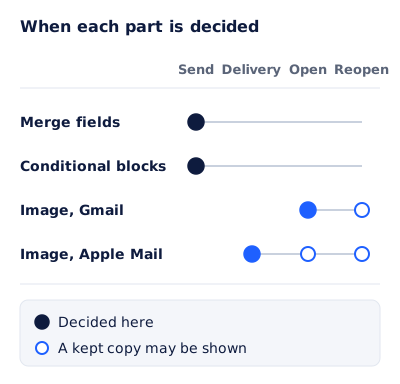
Send-time content is decided once, when the message is built, and every open shows the same thing. It works in every inbox, with images on or off.
Open-time content is decided at the image fetch, and the fetch is not always the reader’s open:
- Gmail. Google’s Workspace help says “When your users open email messages, Gmail uses Google’s secure proxy servers to serve images”. Google does not say how long its proxy keeps a copy, so plan for a reopen to show the picture from the first open.
- Apple Mail. Mail Privacy Protection “downloads remote content in the background by default”, “regardless of whether you engage with the email”. The picture can be drawn on delivery, and the open then shows that kept copy.
The same applies to anything fetched at open, including the live weather or store stock some vendors sell. So content decided at open should describe states that last hours or days: a cut-off at the end of Tuesday works, “the next 10 minutes” does not. How email image caching works sets out what each provider publishes.
The proxies also hide the reader. Apple’s page says that with its protection on, “Senders can’t use your IP address as a unique identifier”, so a rule based on country or device is a best guess. Anything that matters belongs in a value you supplied.
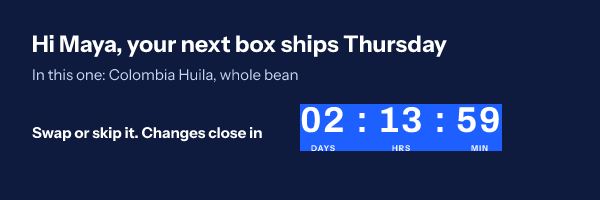
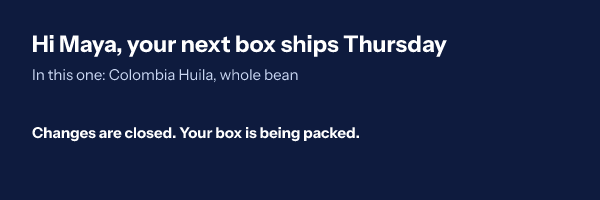
That is a coffee subscription’s weekly reminder, opened twice. On Sunday the clock counts to the Tuesday night cut-off. On Wednesday two rules against the time of opening hide the clock and change the line. A conditional block could not do that: it was settled on Saturday, when the email was built.
How do platforms build conditional content blocks?
Here is how Mailchimp, Klaviyo and HubSpot do it, as their own help pages describe.
Mailchimp: conditional merge tags
Mailchimp writes conditions as tags around the content: *|IF:|*, *|ELSEIF:|*, *|ELSE:|* and *|END:IF|*, and the opening and closing tags must sit in the same content block. A shipping message by loyalty tier, using an audience field named TIER:
*|IF:TIER=Gold|*
Free express shipping is on for your account.
*|ELSEIF:TIER=Silver|*
Free standard shipping on orders over $50.
*|ELSE:|*
Join the club for free shipping on your next order.
*|END:IF|*
The limits: conditional merge tags “don’t work in email subject lines or with unique URLs”, they are case sensitive, and they “won’t populate in test emails”. Check them in Preview Mode.
Klaviyo: show/hide logic
Klaviyo puts a condition on a block or section of a drag-and-drop template (“If you have a saved HTML template, create a drag-and-drop copy first.”). The logic builder “supports profile data formatted as text, numbers, and lists” and “does not support event data, dates, or booleans”; for those you write the condition in code, such as person|lookup:'Bag Preference' == 'Work'. Note that “If a recipient doesn’t match any variant and there’s no fallback, nothing shows in that spot”, and the canvas “doesn’t evaluate conditions”, so check each branch with Preview and a specific profile.
HubSpot: smart content
In marketing emails, smart content needs Marketing Hub Professional or Enterprise. You can “Add smart content to the subject line and modules of marketing emails”, but “Only contact segment membership and Lifecycle stage categories are available for marketing emails”. Preview as a contact shows every smart module as that contact gets it; a smart subject line needs a test email.
So a rule on a profile field works directly in Mailchimp and Klaviyo, while HubSpot needs a segment built on that field. A rule on what someone just did is custom code in Klaviyo. And HubSpot’s subject line rules have no equivalent in Mailchimp.
What happens when the data is missing?
Every dynamic field will meet a contact with nothing in it. Decide what they see before the send:
- Merge fields: set a default. Klaviyo’s first name guide uses
{{ first_name|title|default:'there' }}, and warns that “Without default text, the first name is left blank, so the greeting would read “Hey ,”.” Mailchimp sets a default per audience field. - Conditional blocks: always write the last branch. An
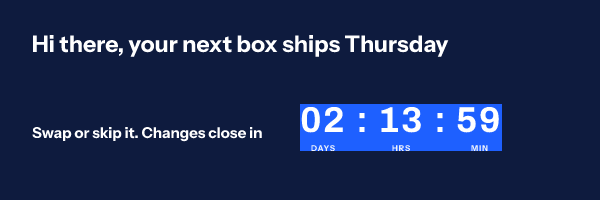
*|ELSE:|*in Mailchimp, a fallback variant in Klaviyo. Without one, a contact who matches nothing gets an empty space. - Images drawn at open: give every value a fallback. Draw a default, hide the value’s own layer, or hide the group of layers that depends on it.
How to test dynamic content before a flow goes live
A test send alone will not catch it: Mailchimp’s conditional tags do not populate in test emails, and Klaviyo’s canvas does not evaluate conditions. Use previews by contact for the logic, then seed sends for the rendering. A matrix to copy:
| Check | Contacts or moments to use | What to look for |
|---|---|---|
| Every merge field | One full profile, one with the field empty, one with an awkward value (very long, all capitals) | The default appears, and nothing overflows |
| Every conditional block | One contact per branch, plus one who matches none | The last branch catches everyone else |
| Every image drawn at open | A render of each state: before the deadline, after it, with values missing | Each state reads correctly on its own |
| Gmail | A seed address, opened, then reopened a day later | A reopen showing the first picture still makes sense |
| Apple Mail | A seed address with Mail Privacy Protection on | A picture drawn before the open still reads correctly |
| Images off | A seed with remote images blocked | The alt text and live text carry the message |
Finish by viewing the source of a seed email: the image address should arrive exactly as you pasted it.
Where images drawn at open fit
Use send-time content for whatever is known at the send and does not move: names, tiers, what someone bought. Use an image drawn at open when the truth depends on the moment, or when a value has to sit inside a designed picture that looks the same in every client.
In EmailTimer.app, rules on an image (Starter plan and up) read the time it is opened, a field in its signed address, the country or the device, then show or hide a layer, change text, an image or a color, or switch a variant. Country and device are often hidden by the proxies above, so treat them as best effort. Per-subscriber values such as a name or a deadline travel in a signed address minted for each recipient, on the Growth and Agency plans. A merge tag typed inside an image address is not filled in; where a merge tag can and cannot go in an image address shows the two arrangements that work, and personalized images covers what can be drawn per person.
Questions and answers
What is dynamic content in email?
Content in a message that changes by recipient, or by the moment of reading, while the template stays the same. It is built with merge fields and conditional blocks, decided at send, or with images drawn at open.
What is the difference between dynamic content and personalization?
Personalization is the decision about what to tailor and with which data. Dynamic content is the mechanism that puts it in the email.
Can dynamic content change after an email is sent?
Only content drawn at open, which in practice means images. Merge fields and conditional blocks are fixed when the message is built.
Do conditional blocks work in subject lines?
It depends on the platform. HubSpot lets smart content rules run on the subject line. Mailchimp says its conditional merge tags do not work there.
Does dynamic content work in Outlook and Apple Mail?
Send-time content works everywhere, because it arrives as ordinary HTML. An image drawn at open shows wherever images load; in Apple Mail with Mail Privacy Protection it can be fetched before the reader opens the message.
Sources
- Use Conditional Merge Tags (Mailchimp), read on 3 November 2026
- Getting Started with Merge Tags (Mailchimp), read on 3 November 2026
- Set Default Merge Values for an Audience (Mailchimp), read on 3 November 2026
- How to show or hide template blocks and sections based on dynamic variables (Klaviyo Help Center), read on 3 November 2026
- How to add a first name to an email, SMS, or push message (Klaviyo Help Center), read on 3 November 2026
- Create and manage smart content rules (HubSpot Knowledge Base), read on 3 November 2026
- Set up an image URL proxy allowlist (Google Workspace Admin Help), read on 3 November 2026
- Mail Privacy Protection and Privacy (Apple Legal), read on 3 November 2026
- Photo by Alexas Fotos on Pexels
Related
Put a countdown in the campaign you are writing now
The free plan covers 5,000 opens a month with no card. Starter is $19 a month for 250,000.