
An image mail merge puts a different picture into each copy of one document: a staff photo on each badge, a logo on each letter, a name drawn into each banner. In Word you do it with an IncludePicture field that reads a file path from your spreadsheet. In email the picture is an address the mail client fetches, so the merge needs one image address per row instead.
This page covers both, because the people who search for it want one or the other. The first half is the Word method, taken from Microsoft’s own support pages. The second half is the email version, which is what image personalization for email is built on: a recipient list goes in, one image address per row comes out, and each address draws that person’s own picture when the email is opened.
How do you mail merge pictures in Word?
Word has no picture merge field of its own. You nest a merge field inside an IncludePicture field, so that each record supplies a different file path and Word loads the file at that path. Microsoft’s field reference describes IncludePicture in one line: it “inserts the graphic specified in the field code”, with the syntax { INCLUDEPICTURE "FileName" [Switches] }.
The steps below follow the answer a Microsoft Community Support Specialist gave on Microsoft Q&A in July 2025, the clearest version Microsoft has published.
- Put every picture in one folder that will not move.
- Add a column to your spreadsheet, called something like
Image, and type the full path to each person’s picture in their row. Microsoft’s field reference says to “replace single backslashes with double backslashes”, as inC:\\Manual\\Art\\Art 22.gif. - In Word, choose Mailings, then Start Mail Merge, then Select Recipients and Use an Existing List, and pick the spreadsheet.
- Insert your text fields (name, company) from Insert Merge Field as usual.
- Where the picture goes, choose Insert, Quick Parts, Field, pick IncludePicture, and type any placeholder as the file name.
- Press Alt+F9 to show field codes. Select the placeholder inside the quotes and replace it with the
Imagemerge field from Insert Merge Field. Press Alt+F9 again. - Choose Finish and Merge, then Edit Individual Documents, then All.
- In the merged document, press Ctrl+A and then F9 to update every field, and answer Yes to the warning.
When it is done, the field code for the picture reads like this:
{ INCLUDEPICTURE "{ MERGEFIELD Image }" \d }
The \d switch, in Microsoft’s words, “reduces the file size by not storing graphics data with the document”. Leave it off if the merged file has to travel to someone who does not have your picture folder.
Why every record shows the same picture, or none
The merge preview shows the field before any path is filled in, so a blank or repeated picture in preview is normal. Step 8 is the one people skip: until the fields are updated in the merged document, Word keeps showing whatever it loaded first. A path with single backslashes, or a file renamed after the spreadsheet was written, gives a broken picture for that row only.
InDesign does the same job for print designers with a different convention. Adobe’s help page says to “type @ at the beginning of the column header name (for example, @Photos or @Logos)” and put a file path under it. The idea is the same in both programs: the row holds a path, and the program fetches the file while it builds the document. Variable data for email covers the print side in more depth.
Can a Word mail merge put a different picture in each email?
Microsoft’s article on sending bulk email from Word gives no steps for pictures. It says you need “a MAPI-compatible email program such as Outlook or Gmail” installed, that Word “sends an individual message to each email address”, and that “you cannot add attachments, but you can include links”. The picture method above is written for documents you print or save.
There is a deeper reason the Word method does not carry over. In Word, the path in each row points at a file on your own disk, and Word reads it while you merge. In email, nobody reads your disk. A picture in an email is either packed inside the message or, far more often in marketing email, an address that the recipient’s mail client requests when the message is shown. So the email version of an image mail merge needs a column of addresses, one per recipient, and something at the other end of each address that answers with the right picture.
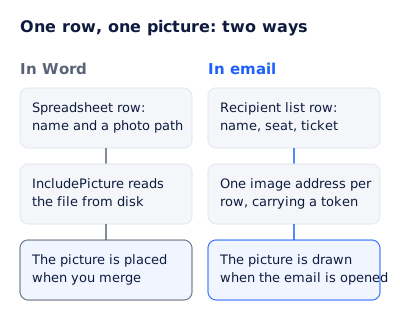
The email way: one image address per row
There are two ways to fill that column of addresses.
The first is to make every picture yourself. Export one PNG per person from a design tool, upload them all to a web host, and put each file’s address in a column. It works for 40 people. At 4,000, you are exporting the whole set again every time a date or a color changes.
The second is a renderer that draws each picture from one template. In EmailTimer.app this is a recipient list, included with the Growth and Agency plans on pricing:
- Design one template in the editor, with a variable for each column you want drawn:
{{first_name}}in a text layer,{{ticket}}as the contents of a QR code layer, and so on. Publish it. - Upload your spreadsheet as a CSV. Four column names have set meanings (
email,external_id,deadlineandtoken); every other column becomes a value the template can draw. Up to 500,000 rows and 200 MB. - Read the import report. A row that cannot be read is listed with its line number and the reason, and the rest of the file imports.
- Export the addresses. You get a CSV with the columns
token,email,external_idandurl, one signed image address per row. - Import that CSV into your email platform as a contact field, and use the snippet that takes its image source from that field.
- Send a test to yourself and to a colleague, and check that each of you gets your own picture.
Each address carries only the recipient’s token, so no name or email address appears in it. The image service looks up the row’s values from the token when the image is fetched. Minting image URLs in bulk has the API calls for the same flow, and merge tags and dynamic personalization explains why the values travel this way rather than as merge tags written into the image address.
A worked example: an event badge for every attendee
Name badges with photos are one of the classic Word mail merge jobs. Here is the email version: an attendee pass that carries the person’s name, company, seat and a QR code of their ticket number.
The CSV you upload:
email,external_id,first_name,last_name,company,seat,ticket
priya@example.com,A-1001,Priya,Shah,Harbor Goods,B14,NDD-40817
daniel@example.com,A-1002,Daniel,Okafor,Fernway Studio,F02,NDD-40822
The template has a text layer reading {{first_name}} {{last_name}}, one reading {{company}}, a seat chip reading Seat {{seat}}, and a QR code layer whose contents are {{ticket}}. Each variable is declared with what to do when its value is missing: the first name falls back to “Guest”, the company line is hidden, and the seat chip and its text are hidden together as a group.


The email around the picture stays the same for everyone. Only the image source differs, because it comes from the contact field you imported in step 5.
If the same people should get a named certificate after the event, the list you already have does that job too; certificates by email walks through it.
Word mail merge and email image merge compared
| Question | Word with IncludePicture | Email with a recipient list |
|---|---|---|
| What each row holds | A path to a picture file on disk | The values to draw: name, code, seat |
| When the picture is made | Before the merge, by you, one file per person | When each email is opened, from one template |
| What the reader gets | A printed or saved document | An image fetched from an address in the email |
| A missing value | A broken picture for that row | The fallback you set: a default, a hidden layer or a hidden group |
| Changing the design | Export every picture again | Publish the template again and export the addresses again |
| Size of the job | Fine for dozens; slow for thousands | Up to 500,000 rows per list |
On that design row: each exported address is pinned to the template version that was live when you exported it. That is deliberate, so an email already sent keeps showing what it was sent with. A design change for the next send means publishing and exporting again, which is one download rather than thousands of files.
What else can change from row to row
A badge is text and a QR code. The same recipient list can drive other layers, each from its own column:
- An image layer that shows one of your uploaded pictures, chosen by a value in the row, such as a product shot for the category someone bought from.
- A progress bar or a star rating, drawn from a number in the row.
- A countdown to a deadline in the
deadlinecolumn, so each person sees their own time left. - Rules that show, hide or recolor a layer when a value matches, such as a gold badge only for members whose tier is Gold.
Every value is fixed at the moment you upload the list. The picture is drawn at open, but it does not look anything up elsewhere: a count, a balance or a stock level is the one in your file. If the values need to come from your own system for each send, the API on the same plans mints addresses directly, and hyper-personalization goes into how far per-recipient email can go before it needs data you do not have.
Questions and answers
Can I mail merge pictures from Excel into Word?
Yes. Put the full path to each picture in a spreadsheet column, with double backslashes, and nest that merge field inside an IncludePicture field. After Finish and Merge, select all and press F9 so every picture loads.
Can I merge pictures that are pasted into Excel cells?
Not with the method Microsoft describes, which needs the path of each picture as text in a column. Save the pictures as files in one folder and list each file’s full path in its row.
Why does my mail merge show the same picture on every page?
The fields have not been updated since the merge. In the merged document press Ctrl+A, then F9. If one row is still wrong, check that its path exists and uses double backslashes.
Can I send a Word mail merge with a different picture in each email?
Microsoft’s bulk email article gives no steps for pictures and says attachments cannot be added. For email, put a different image address in each row instead, so each recipient’s mail client fetches their own picture.
Does the image address contain the recipient’s name?
Not with a recipient list. Each exported address carries a token, and the values are looked up on the server when the image is fetched.
What happens if a row is missing a value?
Each variable is declared with a fallback: draw a default, hide that layer, or hide the group of layers it belongs to. A row with no first name can read “Guest” instead of leaving a gap.
Sources
- Field codes: IncludePicture field (Microsoft Support), read on 4 November 2026
- How do I mail merge photos? Answer by a Microsoft Community Support Specialist, 2 July 2025 (Microsoft Q&A), read on 4 November 2026
- Use mail merge in Word to send bulk email messages (Microsoft Support), read on 4 November 2026
- Add and edit data merge fields in InDesign (Adobe Help Center), read on 4 November 2026
- Photo by Ann H on Pexels
Related
Put a countdown in the campaign you are writing now
The free plan covers 5,000 opens a month with no card. Starter is $19 a month for 250,000.