Why your Canva countdown GIF does not count down in email
By Danish Mohammed, founder. 5 min read
Check a GIF you already have
Choose a GIF and this reads it and says what is in it: the canvas, the frame count, the delays, the loop setting and the file size. It runs in your browser. The file is not uploaded, not to this site and not to anywhere else, and nothing about it is stored.
Any animated or still GIF. Files of other kinds are refused with a reason.
What is in the file
What that means
The ceilings sending platforms publish, and what happens when a timer passes one, are set out in why your timer stops after a minute.
Which versions of Outlook animate and which draw one frame is set out in countdown timers in Outlook.
Drop the GIF you downloaded from Canva into the checker above. It reads the file size, the frame count, the delays, whether the file loops and whether frame one covers the canvas. Those answers explain most of what a Canva countdown does in an inbox, and one fact about the format explains the rest.
A GIF stores frames and has no clock
A GIF holds a sequence of frames and a pause between each one. The GIF89a specification defines that pause as a delay in “hundredths (1/100) of a second”. It has no field for the date or the time of day, and nothing in the file can find out when it is being opened.
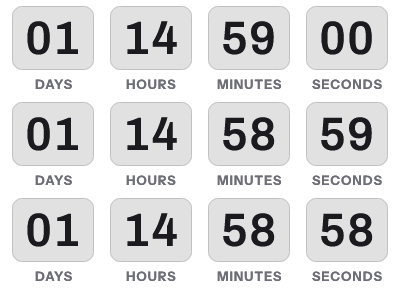
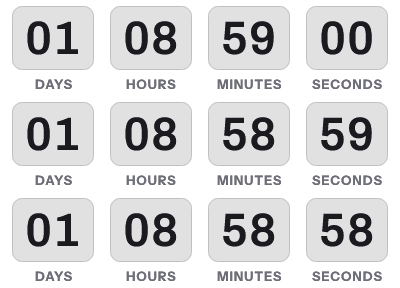
So the numbers in a downloaded countdown GIF are the numbers that were drawn at export. Everyone who opens the email sees the same sequence, whether they open it a minute after the send or a week later. If the animation shows 02:14:59 ticking down to 02:14:30, it shows that on Monday morning and again after the sale has closed.
Canva’s Apps directory lists a Countdown Timer app by TickCounter, headed “Create beautiful countdown timers in your designs”, with “flash sales promos” among its suggested uses. Whatever it shows inside Canva, a GIF you download from the design is a file, and the file is fixed.
What Canva’s GIF download gives you
Canva’s help article on downloading video and GIFs sets out the options. You choose GIF as the file type and “Set the Size, choose from 0.2x, 0.4x, 0.6x, 0.8x, 1x or manually enter your preferred size.” There is a transparent background toggle for GIFs, and the same article lists downloads with a transparent background among the options limited to paid Canva plans.
The same article sets length and resolution limits by plan. Canva Free allows “GIFs up to 1 minute in length with a max resolution of 1280 * 720px”. Canva Pro, Teams, Nonprofits and Education allow “GIFs up to 2 minutes in length with a max resolution of 1920 * 1080px”.
None of those settings make the numbers live. They change how big the file is and how long it plays.
What the checker tells you about your file
File size. A long animation at full design size is heavy for one image in an email. The 141 live renders of this product’s gallery designs weighed between 9.0 KB and 58.6 KB at email sizes. If a Canva export is many times that, bring it down with the size setting.
Frame count. More frames means a longer or smoother animation, and a heavier file. It does not make the countdown more accurate, because every frame was fixed at export.
First frame. Microsoft’s support page for Outlook says “If only the first frame of the animation appears, you have animations, or animated GIFs, disabled.” For those readers the first frame is the entire image. The checker tells you whether frame one covers the whole canvas. Look at it too: if it is a title card or a fade-in, those readers see that and nothing else.
Looping. A looping countdown jumps back to its starting number when it ends, which reads as a timer that has reset. Why your email timer is stuck covers what readers see when numbers repeat or freeze.
If you used a transparent background
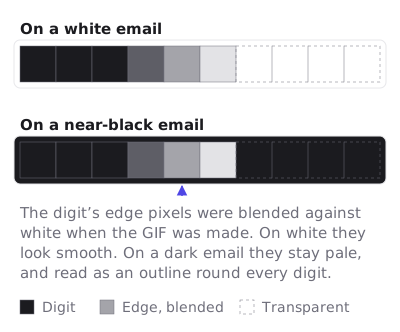
GIF transparency is on or off for each pixel. The specification’s “Transparency Index” marks pixels where “the corresponding pixel of the display device is not modified”, with nothing in between. So any smoothing on the edges of the digits is blended against one fixed colour when the file is made. If that colour was light, the digits carry a pale outline on a dark email. Countdown timers in dark mode covers the design that avoids it.
Keep the Canva design and make the numbers live
The design can stay. What changes is where the digits come from: a server that draws them on top of your artwork each time the image is fetched.
- Leave a flat area in the Canva design where the digits go. The timer paints the rectangle behind its digits in one solid colour, so a photo or gradient under the numbers will not survive.
- Download it from Canva as a PNG. Canva’s file type guide describes PNG as “Supports transparency, best for graphics.” You do not need transparency for this.
- Upload the PNG to your EmailTimer.App assets. Uploads can be PNG, JPEG, GIF or WebP, up to 5 MB and 6,000 pixels on the longest side. An uploaded GIF is drawn as a still, so do not upload the animated export.
- Make a template the size of the slot, usually 600 by 200, add an image layer that uses your upload, and let it cover the canvas.
- Add a timer layer over the flat area. Set its background to the exact colour of that area, then choose the style, units and deadline.
- Publish and paste the snippet into your email. Each fetch of the image now draws the time left at that moment.
The free plan covers 5,000 opens a month, and its listing includes three live images and the digital and underline styles. The other plans are on pricing.
If you only need to try a live timer first, the countdown timer generator makes one without an account. Use its HTML snippet rather than its download button. The generator says so itself: “A downloaded GIF counts from the moment it was made, not from the moment it is opened.”
Questions and answers
Can a Canva GIF show a live countdown in an email?
No. A GIF stores fixed frames and delays, with no clock, so every reader sees the numbers that were drawn when it was downloaded. A live countdown has to be drawn by a server when the image is fetched.
Why does my Canva countdown show the wrong time?
Because it shows the time from the moment it was exported. The further the open is from the export, the more wrong it is, and it is wrong by a different amount for every reader.
Why does my Canva GIF not move in Outlook?
Outlook shows only the first frame when animated GIFs are disabled, which Microsoft documents on its support page. Make the first frame a finished picture, or see countdown timers in Outlook for the version-by-version detail.
Can I import a Canva design into EmailTimer.App?
Not as a Canva file. Download the design as a PNG, upload it, and place a timer over it as in the steps above. A design built in Photoshop can be imported directly as a .psd, with its pixels kept.
Sources
- Downloading designs as video or GIF (Canva Help Center)
- Choose the right download file type for your Canva design (Canva Help Center)
- Countdown Timer, app by TickCounter (Canva Apps), read on 17 September 2026
- Graphics Interchange Format Version 89a (W3C copy of the specification)
- The animated graphic in my e-mail message doesn't work (Microsoft Support)
Related
Put a countdown in the campaign you are writing now
The free plan covers 5,000 opens a month with no card. Starter is $19 a month for 250,000.