Countdown timers and personalized images for Adobe Journey Optimizer
Your subscribers see how long is left on the offer, counted from the moment they open the message, and it goes into the Adobe Journey Optimizer campaign you have already built. One snippet, in the merge syntax Adobe Journey Optimizer already uses.
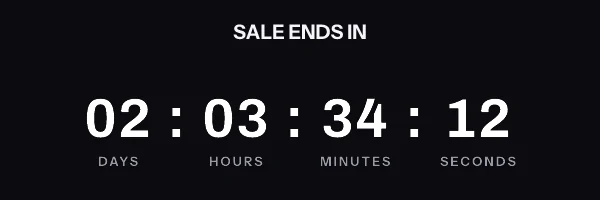
Adobe Journey Optimizer merge syntax
The tags you already use, around the image
The same merge fields that put a subscriber's name in your subject line go in the link and the alt text around the image, where Adobe Journey Optimizer fills them in as it sends. They never go inside the image address, for the reason in the warning further down. A name or a deadline drawn inside the image itself comes from an address signed for each subscriber, held in a contact field.
- First name
- {{profile.person.name.firstName}}
- Coupon code
- {{profile.loyalty.couponCode}}
- Deadline
- {{profile.offers.deadline}}
- Email address
- {{profile.personalEmail.address}}
Checked against Adobe Journey Optimizer's own documentation: Personalization syntax (Adobe Journey Optimizer documentation), read on 17 September 2026.
The snippet to paste into Adobe Journey Optimizer
Put it in email designer html source, or a reusable content fragment. There are two shapes, and which one you want depends on whether every subscriber gets the same deadline or their own. The editor generates whichever you pick, already filled in with your ids.
One image for the whole send
On every plan, including the free one. Everybody requests the same address, and the clock is worked out at the moment each person opens, which is what lets one address show a different time to every reader. The name and the code go in the link and the alt text.
<a href="https://yourstore.com/sale?code={{profile.loyalty.couponCode}}" target="_blank" rel="noopener">
  <img src="https://img.emailtimer.app/i/k7mQ2pXd.gif?w=w_8ha3fq&v=3&sig=YOUR_SIGNATURE" alt="{{profile.person.name.firstName}}, your 25% off ends at midnight tonight" width="600" height="200" border="0" style="display:block; width:100%; max-width:600px; height:auto; border:0;" />
</a>
A different image for each subscriber
On Growth and Agency. Generate one signed address per subscriber, import the column into
Adobe Journey Optimizer as a contact field called
etImageUrl,
and point the snippet at that field. This is the only way a deadline that differs per subscriber can
work, because the deadline is inside the signature too. A contact whose field is empty gets no
image, so check the field is filled across the whole segment before you send.
<a href="https://yourstore.com/sale?code={{profile.loyalty.couponCode}}" target="_blank" rel="noopener">
  <img src="{{profile.person.etImageUrl}}" alt="{{profile.person.name.firstName}}, your 25% off ends at midnight tonight" width="600" height="200" border="0" style="display:block; width:100%; max-width:600px; height:auto; border:0;" />
</a>
The addresses come from the batch endpoint in the REST API, or from a CSV export if you would rather not write code.
Setting it up in Adobe Journey Optimizer
Four steps, and the longest one is deciding what the timer should look like.
-
1
Build the image in EmailTimer.App
Set the timer style and the deadline, and decide which profile attributes you want drawn into the graphic. Choose Adobe Journey Optimizer as your platform.
-
2
Copy the Journey Optimizer snippet
The snippet uses the same double brace expressions the personalization editor produces, for example {{profile.person.name.firstName}}, so it reads as normal content to anyone reviewing the journey.
-
3
Paste it into the email in your journey
Open the email designer for the step, switch to HTML source, and paste the tag. A content fragment works well if the same banner appears at several points in the journey.
-
4
Validate the expression, then preview
Use Validate in the personalization editor to confirm the expression resolves, then preview with a test profile to see the countdown and the merged fields together.
Things that only matter in Adobe Journey Optimizer
Journey Optimizer personalization is Handlebars based, so expressions sit inside double braces and read straight from your XDM profile schema. Attribute paths follow your own schema, so confirm yours in the personalization editor rather than assuming the field names here.
Before procurement asks
You will have to explain this to someone in security
Running Adobe Journey Optimizer usually means a review before anything new goes near a send. The short version you can forward: an image URL goes in the template, the values it carries are the merge fields you choose, and no script runs anywhere. Nothing is installed inside Adobe Journey Optimizer and no data leaves your platform except what you put in that URL.
The Agency plan adds white-label image domains, so the URL your subscribers see reads as your own brand rather than ours, along with a separate workspace per brand or region and control over what each person on the team can touch. There is no dedicated IP option and no written uptime commitment; what the service does when something fails is on the status page.
What your Adobe Journey Optimizer subscribers will actually see
Journeys usually deliver to one person at a time rather than in a single broadcast, which means the gap between delivery and open is short and the countdown a subscriber sees is close to live.
What each client is documented to do
The Apple and Gmail rows rest on Apple's and Google's published documentation and on third-party testing. Neither company publishes a cache lifetime: Apple documents the prefetch, Google documents the proxy, and the two to three days is FreshInbox's 2021 testing. The Outlook and Yahoo rows are what we expect those clients to do, with no vendor document behind them. No row comes from a test by us yet, and we will publish dated screenshots when we have them. Sources: Apple on Mail Privacy Protection, Google on the Gmail image proxy, FreshInbox on Mail Privacy Protection image caching.
Adobe Journey Optimizer questions
Before you put a timer in Adobe Journey Optimizer
Where do Adobe Journey Optimizer merge tags go in the snippet?
In the link and the alt text, where Adobe Journey Optimizer fills them in as it sends. Never inside the image address, which is signed, so a value filled in after signing breaks the image for the whole send. On this page the four common ones are {{profile.person.name.firstName}} for a first name, {{profile.loyalty.couponCode}} for a code, {{profile.offers.deadline}} for a deadline and {{profile.personalEmail.address}} for the address. A name, a code or a deadline drawn inside the image itself comes from an address signed for each subscriber and held in a contact field, {{profile.person.etImageUrl}}. Journey Optimizer personalization is Handlebars based, so expressions sit inside double braces and read straight from your XDM profile schema. Attribute paths follow your own schema, so confirm yours in the personalization editor rather than assuming the field names here.
Where does the snippet go in Adobe Journey Optimizer?
Into a email designer html source, or a reusable content fragment. Open the email designer for the step, switch to HTML source, and paste the tag. A content fragment works well if the same banner appears at several points in the journey. Nothing is installed in your Adobe Journey Optimizer account and no permissions are granted to us, because the timer is an ordinary image tag pointing at a URL.
Will the countdown be accurate for my Adobe Journey Optimizer subscribers?
Journeys usually deliver to one person at a time rather than in a single broadcast, which means the gap between delivery and open is short and the countdown a subscriber sees is close to live. The general rule holds whichever platform you send from: a fixed deadline survives image caching intact, because the image counts toward a real timestamp, while an evergreen timer that starts at open time degrades when a client pre-fetches or caches. Apple Mail Privacy Protection fetches at delivery and testing reports it holds the image for two to three days, Gmail caches per recipient for a lifetime Google does not publish, and Outlook on Windows shows the first frame only.
Campaigns to build in Adobe Journey Optimizer
Each playbook says which timing model the campaign needs, which snippet it takes, and what to get right before you send it.
Setting this up on another platform
The snippet is the same everywhere. Only the merge syntax changes, and each page below carries the exact syntax that platform expects.
Put a timer in your next Adobe Journey Optimizer send
Free for 5,000 opens a month, $19 for 250,000, and the snippet above is the whole integration.