
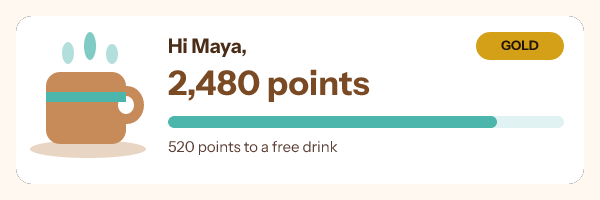
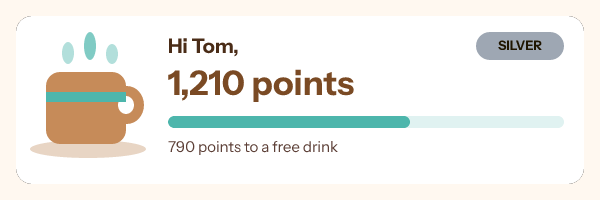
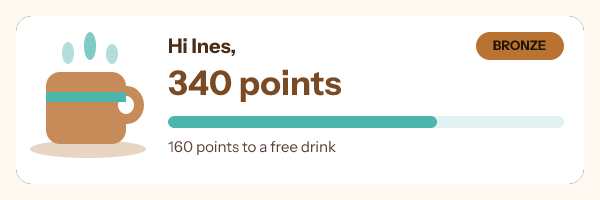
A loyalty points image in email shows each member their own balance, their tier and how far they are from the next reward, drawn into one image from fields your email platform fills when it sends, the way personalized images in email work. The balance is the one on file at the send, each tier picks its own colour or badge, and a member with nothing on file sees a join message instead.
Most loyalty emails already carry these numbers as a line of text: “You’re 520 points from a free drink.” This page is about putting them inside the designed card at the top of the email. It follows one invented programme, Beanstalk Rewards at a coffee chain, through the fields it declares, what four members see, how a reward code becomes a QR code, and the tag each platform writes. More designs, from a tier card to a year in review, are in the rendered examples.
Ways to show a points balance in an email
| Approach | Shows the number | Sits inside your design | Balance as of |
|---|---|---|---|
| A merge tag in the body text | Yes | Only as far as HTML text styling reaches in each mail client | The send |
| A ready-made image per tier, chosen by your platform’s dynamic content | The tier, not the number | Yes | The send |
| An image drawn from fields your platform fills (this page) | Yes | Yes | The send |
| An image service that calls your loyalty system when the email is opened | Yes | Yes | The open |
The first two need nothing beyond your email platform, and for a plain monthly statement the first is often enough. The last is what several enterprise image vendors sell: the image asks your loyalty API for the balance at the moment of the open. EmailTimer.app does that on Growth and Agency through a web source: your own HTTPS endpoint, read at open with a 1.5 second limit and a cache you set, with the field’s fallback if it does not answer. On every plan the number it draws is the one your platform had when it sent, and the section on freshness below says what that means for the copy.
What a points image carries
Usually five things. The member’s first name. The balance. The tier, as a word and a colour. The distance to the next reward, as a line of copy or a bar. And on a redemption email, a way to claim it: a code, plus a QR code for the till.
Each of these is a field in the template, and each field has a kind. The kind decides what counts as a usable value. A value that fails the check never reaches the picture: the field draws the fallback you set, or hides its layer.
Keep the same words in the alt text. W3C’s images tutorial says that when an image contains text, “the text alternative should contain the same words as in the image.” Your platform’s plain merge tags work in alt, so a member with images off still reads their balance.
The fields, and their kinds
These are the fields the Beanstalk card declares.
| Field | Kind | Rules set on it | When missing or unusable |
|---|---|---|---|
first_name |
Name | Letters, spaces, hyphens and apostrophes, 32 characters by default | Hides its layer |
points |
Number | Minimum 0, maximum 1,000,000 | Hides the member group |
tier |
Choice | Options gold, silver and bronze, shown as GOLD, SILVER and BRONZE |
Hides the member group |
progress |
Number | Minimum 0, maximum 100 | Hides the bar |
to_next |
Number | Minimum 0 | Hides its line |
A Number reads what platforms usually send: 2480, 2,480 or 2480.00. A Choice is matched without regard to case, so Gold picks the gold option, and a text layer shows the option’s label. A Choice takes up to 500 options, far more than a tier list needs.
Transforms shape a value on its way into the picture. Number formatting turns 2480 into 2,480. Multiply scales a number by a constant you type. No transform reads a second field, so the image cannot subtract a balance from a threshold. That leaves two ways to draw the distance to the next reward.
Your CRM sends the distance. Beanstalk’s next reward sits at a different balance for each tier, so its CRM sends to_next as a Number of its own, and progress as a percentage from 0 to 100. Any loyalty platform that already prints “points to go” in its own emails has this number somewhere.
One threshold for everyone. If every member’s next reward is at 2,500 points, declare a second Number field for the bar, fill it from the same points property, and give it a multiply transform of 0.04. A balance of 1,250 draws a bar at 50. Set that field’s minimum and maximum on the points scale, because they check the value your platform sends, before any transform runs. A balance past 2,500 fills the bar to the end, since a bar stops at 100. The copy then names the goal rather than the gap: “Free drink at 2,500 points”.
Tier colours and badges
The tier word comes from the Choice option’s label. Its colour or badge comes from one of two places.
A rule. In the Rules tab, write IF tier is gold THEN swap the colour of the badge to #D4A017, then the same for silver (#9EA7B3) and bronze (#B87333). The field only decides which rule matches. The colour is the one you typed, because a filled value can never set a colour by itself.
A badge picked from your uploads. Upload a badge image per tier from inside the editor, add an image layer for the badge, and set it to Picked by field on tier, with one upload per option. A tier your list does not know draws the layer’s own image, so a Platinum level that launches before its badge is ready shows your generic badge rather than a hole. Uploads take PNG, JPEG, GIF and WebP up to 5 MB.
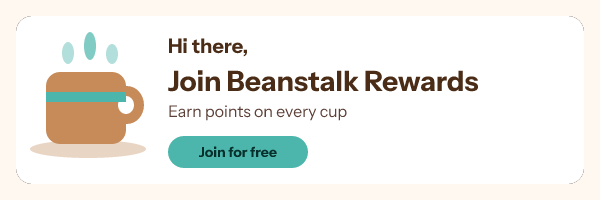
Four members, rendered
One template and four sets of values, drawn by the production renderer. Beanstalk Coffee and its members are invented.
Redeeming with a QR code
A redemption email swaps the progress for the reward. Beanstalk’s declares a Code field, reward_code, draws it as text, and uses it in a QR code layer whose payload is Beanstalk’s own redeem link with the field at the end:
https://beanstalk.example/redeem?code={{reward_code}}
Only three kinds of filled field can feed a QR payload: Code, Number and Choice. A Code or a Number cannot contain /, :, @, ?, # or &, and a Choice can only be one of the options you listed, so the part of the link you wrote stays yours. A member who edits their copy can change the characters at the end. They cannot send the QR code to another site. A filled field never carries a whole URL, and an email address can never come from one. A Code takes letters, digits, _ and -, up to 24 characters by default and 32 at most.
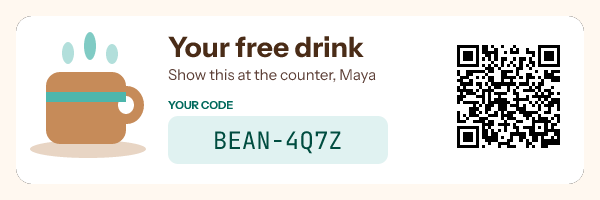
https://beanstalk.example/redeem?code=BEAN-4Q7Z, a fictional address. One Code field fills both the printed code and the QR payload.So treat a filled code as a claim your redeem page checks. That page has to confirm that the code exists, belongs to that member and has not been spent, the same check it runs on a code typed in at the till. Where a value must not change at all, put it in a link minted per member instead. A signed value beats a filled one, and minting is on Growth and Agency.
The QR layer draws black modules on white, with the four-module quiet zone that ISO/IEC 18004 specifies, at error correction level M. Keep the payload short. A shorter link needs fewer modules, so each one is drawn larger in the same square.
How fresh a balance is
The image is drawn when the email is opened. The number in it was decided earlier. Your platform fills each field as it sends, so a statement sent on Monday and opened on Thursday shows Monday’s balance, even to a member who bought three coffees on Tuesday. Opening it again next week shows the same number.
Write the card for that. Name the date: add a Date field for the statement date with a date format transform, and the card says “Your balance on 1 October”. A member who has spent points since then still reads it correctly. Then send close to the data, after your loyalty system’s latest sync has reached your email platform.
The one part of the picture that stays live is a countdown, because the renderer needs only the time. If points expire on a date, choose Personalized image with a countdown when you create the template, add a Date field, and tick This date drives the countdown. A date more than 90 days ahead counts as unusable unless you raise that limit, which goes up to 400 days, so an annual expiry fits. When the date is missing, the timer hides by default. You can show its ended state or count to the template’s own deadline instead. The same per-member deadline runs renewal and membership countdowns.
For where the line sits between a value your platform sent and data fetched at open, see what live data in an email image covers.
When a balance is missing, out of range or refused
Every value is checked when the image is drawn. Anything that fails resolves the field as missing, and the field’s fallback or hide setting takes over. The card never shows a raw tag, an empty box or half a number.
| What arrives for the field | What the member sees |
|---|---|
| Nothing, because the contact has no value | Your fallback, or the layer or group hidden |
| The platform’s own tag, left unfilled in a preview or test send | The same as nothing |
N/A or 2480 pts in points |
Your fallback, because it is not a number |
-40, or a balance above your maximum |
Your fallback, because it is out of range |
platinum when the options are gold, silver and bronze |
The text fallback, and the badge layer’s own image |
140 in progress |
No bar, because 140 is above the maximum of 100 |
A value cut short by an unencoded & or # |
Your fallback, never the part before the cut |
An open where values arrived but none could be drawn is not billed. An open where every field was empty is billed like any other, since a real member opened a real email. Each workspace also has a daily ceiling on personalized opens: 25 percent of the plan’s monthly opens per UTC day, which is 62,500 on Starter. Past it, the card shows its fallbacks until the UTC day ends, and those opens are not billed. A monthly statement to a large list can spend a quarter of the month’s opens in one morning, so raise the ceiling in settings before that send. It goes up to 100 percent, and a notice arrives the same day at 50 and 100 percent of it.
The tag for your platform
Your platform fills each field with its own merge tag, written after the signature in the image link. The snippet panel writes these for you once you map each field to a property in your platform. The table below shows the first-name tag and a points tag for four platforms, as each vendor documents them, read on 26 September 2026. Points and loyalty_points stand for whatever your own property is called.
| Platform | First name | A points property | Note |
|---|---|---|---|
| Salesforce Marketing Cloud | %%=URLEncode(AttributeValue("FirstName"),1,1)=%% |
%%=URLEncode(AttributeValue("Points"),1,1)=%% |
The third argument must be true, or a plain value is not encoded |
| Braze | {{${first_name} | url_param_escape}} |
{{custom_attribute.${points} | url_param_escape}} |
url_param_escape, not url_escape, which leaves & as it is |
| Klaviyo | {{ first_name|urlencode }} |
{{ person.Points|urlencode }} |
The dot form for a property name with no spaces, person|lookup:'Points Balance' for one with spaces |
| HubSpot | {{ contact.firstname }} |
{{ contact.loyalty_points }} |
HubL filters do not apply to tokens in email, so the tags go in raw |
HubSpot’s reference says its filters do not apply to tokens in email, so HubSpot tokens go in raw. Balances and tier names arrive fine. A first name containing & or # shows your fallback instead of a cut-off word. Every other platform, from Mailchimp to Oracle Eloqua, is in the merge tag guide.
Put together for Klaviyo, the Beanstalk card’s link looks like this, with a placeholder signature:
https://img.emailtimer.app/i/k7mQ2pXd.png?w=w_8ha3fq&v=3&fill=first_name.points.progress.tier.to_next&sig=f1.YOUR_SIGNATURE&first_name={{ first_name|urlencode }}&points={{ person.Points|urlencode }}&progress={{ person.Progress|urlencode }}&tier={{ person.Tier|urlencode }}&to_next={{ person.ToNext|urlencode }}&fill_end=1
Everything before sig is signed: the template, the version and the list of fields Klaviyo may fill. Only those five values can change. Anything a tracker appends after fill_end=1 is ignored.
How to set it up
- Create a template and choose Personalized image. If points expire on a date, choose Personalized image with a countdown instead. Start from a starting design or a blank canvas.
- Bring in your brand. Upload your logo and one badge per tier from inside the editor, and set the canvas Background to Image if the card sits on a branded ground.
- In the Fields tab, declare
first_name(Name),points(Number, with a minimum and a maximum),tier(Choice, one option per tier with the label to show),progress(Number, 0 to 100) andto_next(Number). Leave Your email platform can fill this ticked on each, and choose what each does when it is empty or unusable. - Add the layers: text with the field chips, a progress bar on
progress, and the badge. Make the badge a shape recoloured by a rule in the Rules tab, or an image layer set to Picked by field ontier. - For a redemption email, add a Code field and a QR code layer whose payload is your redeem link ending in that field.
- Open Sample contacts. Edit the three rows into a gold member, a silver member and a new one, then check the fixed rows, which include the longest accepted name, nothing on file and your platform’s tag left unfilled.
- Publish. In the snippet panel, choose your platform and map each field to its property. The mode reads Filled by Klaviyo when it sends, with your platform’s name in it.
- Paste the snippet into your platform’s HTML or code block and send yourself a test. Paste the image link from the test email into Check a test email to see what arrived for each field and what was drawn.
- After the real send, open Fill health on the usage screen. It counts, per field, how often a value was drawn, arrived empty or fell back, and why. It never shows the values themselves.
The full rules for each kind are in the fields reference, and plan limits are on pricing.
Questions and answers
Can each tier have its own colour?
Yes, in two ways. A rule in the Rules tab swaps the badge colour for each tier option. Or an image layer set to Picked by field shows a different uploaded badge per tier, and draws its own image for a tier it does not know.
Can members change their own points in the image?
On their own copy, yes. Anyone who has the email can edit a filled value, so the card is not an account statement. The edit is bounded: points must be a number between your minimum and maximum, the tier must be one of your options, and nothing else in the image moves. Where a value must never change, use a link minted per member, on Growth and Agency. If a doctored copy starts circulating, Stop filling fields on the template shows your fallbacks on every open within a minute.
What if a member has no tier?
The tier field resolves as missing and does what you set: draw a fallback, hide its layer, or hide its group. Beanstalk hides the member group and shows a join line in its place. A tier outside your options is treated the same way, and a badge picked by field draws its layer’s own image.
Can the QR code carry a member ID?
Yes, as a Code or Number field inside your own redeem or account link. It cannot carry an email address or a whole URL. The page at the other end should treat the ID as a claim to check, since a member can change it on their own copy.
Which plan do I need?
Fields your email platform fills work on every plan, from the dashboard, including Free at 5,000 opens a month. Starter is $24 a month for 250,000 opens, and pricing lists what each plan includes.
Does the balance update after the email is sent?
No. The number is the one your platform had at the send, and every later open of that email shows the same one. Name the statement date on the card, and send a new statement for a new balance. A countdown in the same image does keep moving, because it needs only the time.
Sources
- UrlEncode() (Salesforce Developers, AMPscript reference), read on 26 September 2026
- AttributeValue() (Salesforce Developers, AMPscript reference), read on 26 September 2026
- Supported personalization tags (Braze Docs), read on 26 September 2026
- Advanced Liquid filters (Braze Docs), read on 26 September 2026
- Glossary of variable filters (Klaviyo Developers), read on 26 September 2026
- Message personalization reference (Klaviyo Help Center), read on 26 September 2026
- HubL filters (HubSpot Developers), read on 26 September 2026
- Use personalization tokens (HubSpot Knowledge Base), read on 26 September 2026
- ISO/IEC 18004:2024, QR code bar code symbology specification (ISO)
- Images of text, Images Tutorial (W3C Web Accessibility Initiative)
Related
Put a countdown in the campaign you are writing now
The free plan covers 5,000 opens a month with no card. Starter is $24 a month for 250,000.