
Fields your email platform fills are values your email platform writes into an image link when it sends, after the signature, for the fields you mark as fillable in a template. That is how personalized images work. Each value is checked against its field’s kind and rules when the image is fetched. A value that is missing, cut short, refused or undrawable shows that field’s fallback. Every plan, from the dashboard.
To fill image fields from your email platform, you declare the fields once in the template and paste one snippet into your email. After the signature, your platform’s own tags do the rest: *|URL:FNAME|* in Mailchimp and {{ contact.firstname }} in HubSpot. The merge tag table has the URL-safe form for every other platform. None of it is on by default. When you create something in the dashboard you pick Countdown timer, Personalized image, or Personalized image with a countdown, and only the last two have fields. A plain countdown timer keeps the snippet it always had.
This page is the reference: every rule, limit and endpoint, with the link format for developers near the end.
How your email platform fills image fields
- You declare a field in the template’s Fields tab, give it a kind and a fallback, and tick “Your email platform can fill this”.
- You publish. The snippet panel, in the mode “Filled by {Platform} when it sends”, gives you a link whose signed part names those fields, with your platform’s tag for each one written after the signature.
- Your email platform replaces each tag with the contact’s own value as it sends each email.
- A mail client asks for the image. Apple Mail usually does it at delivery, and Gmail does it through its image proxy.
- The image service checks each value against its field’s rules. It draws the ones that pass and gives every other field its fallback, or hides its layer.
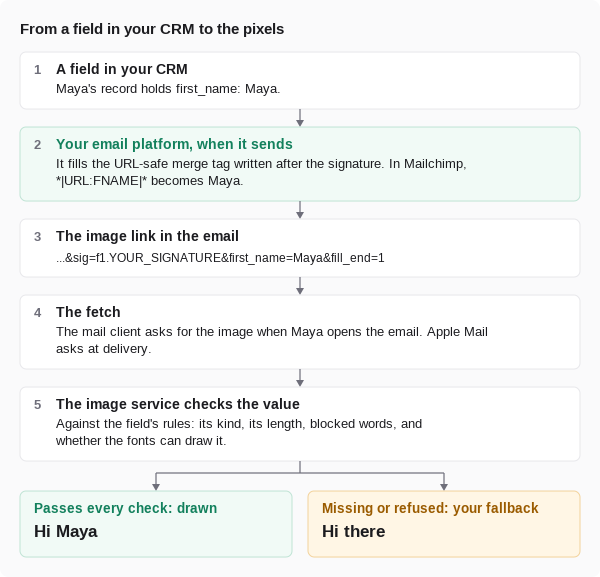
The link is all the image service gets. It never calls your email platform or your CRM, and it never fetches anything outside your workspace.
The link, part by part
Here is the link for a template with two fillable fields, as Mailchimp holds it before it fills the tags. The ids are made up and the signature is a placeholder.
https://img.emailtimer.app/i/k7mQ2pXd.png?w=w_8ha3fq&v=3&fill=first_name.points&sig=f1.YOUR_SIGNATURE&first_name=*|URL:FNAME|*&points=*|URL:POINTS|*&fill_end=1
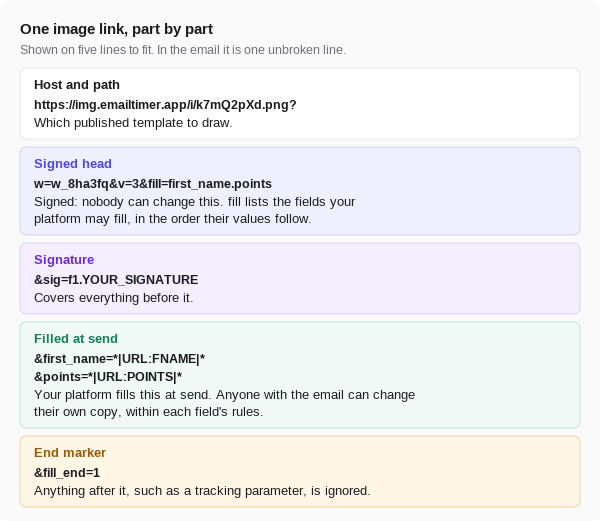
| Part | In the example | What it does |
|---|---|---|
| Host and path | img.emailtimer.app/i/k7mQ2pXd.png |
The image service and the template. A template with no timer layer gets a .png link |
| Signed head | w=w_8ha3fq&v=3 |
The workspace and the published version, plus any value signed into the link |
| Field list | fill=first_name.points |
The fields your platform may fill, joined by . and sorted. Signed |
| Signature | sig=f1.YOUR_SIGNATURE |
Covers the path and every parameter before it. Not the host |
| Values | first_name=…&points=… |
Your platform’s tags, one per listed field, in the list’s order. Not signed |
| End marker | fill_end=1 |
Closes the values |
Only the value of a listed field can change. The template, workspace, version, recipient token, watermark, send time, deadline and tz are all bound by the signature, and so is every value signed into the link. Change anything before sig and the request is refused before it reaches the image service, with a transparent image that shows as a blank space, as what a timer shows when it is not counting down describes. Write a system name such as w, deadline or tz after the signature and the whole request fails the same way.
The end marker exists for values that arrive broken. In a link, & starts the next parameter and # starts the fragment, the part a mail client never sends (RFC 3986, section 3.5). A platform that cannot encode “Marks & Spencer” writes it raw, and the image service receives company=Marks followed by a stray Spencer. Without a marker, that looks like a real value and the picture says “Marks”. With one, the rules are:
- Damaged, so the field shows its fallback: a raw
&or#inside a value, a link cut off beforefill_end=1, a field that appears twice, or a stray parameter between the values. Never half a word. A#also hides everything after it, so every later field shows its fallback too. - Ignored: anything after
fill_end=1, such as a tracking parameter your platform appends. - A blank space, for the whole image: anything added before
sig, a system name after it, or a parameter appended to a link that has no fillable fields.
Tags in alt and href keep their plain form, because there your platform fills them as text. “Copy raw link” in the publish panel copies the signed link with no values. It draws every fallback, which makes it the quickest way to see your empty state.
Field kinds
Each fillable field has one kind, and the kind decides what a value may hold before anything is drawn.
| Kind | Accepts | Length, default and most | Other rules |
|---|---|---|---|
| Name | Letters, marks, spaces and ' ’ - . |
32, up to 48 | Starts with a letter. Up to 4 words, one script per word. “J. R.” passes, “evil.com” does not |
| Text | Name’s characters plus digits and , ! ? & ( ) : / % |
40, up to 64 | No @, :// or www.. At most 6 digits in all, so no phone numbers |
| Code | Letters, digits, _ and -, starting with a letter or digit |
24, up to 32 | None |
| Number | Up to 15 digits, an optional sign, digit grouping, up to 6 decimals with the decimal mark you choose | None | Optional minimum and maximum |
| Date | An ISO date or date-time, D/M/YYYY or M/D/YYYY as you choose, or a 10 or 13 digit epoch | None | Day order is never guessed. The value’s own offset wins, then the field’s time zone, then the timer’s |
| Choice | One of the options you list, up to 500 | None | Matched without regard to case. A text layer can show the option’s label |
“Your email platform can fill this” starts ticked for every kind except Text. Text is the one kind that can carry a sentence, so ticking it shows a warning: “Anyone who has the email can change this text. If you know every possible value, use Choice.”
A field whose name looks like private data, such as password, token, card_number, iban or pin, cannot be made fillable. The editor says why: “This looks like private data. Anything filled into an image address can be seen by your email platform, your subscriber’s mail provider and us. Use a recipient list for it instead.” Name, Text and Code all refuse @, so an email address can never be drawn from a filled field.
Name and Text values also pass through blocked words. There is a built-in list, curated from a public CC BY 4.0 word list credited in the sources below, and it is tested against real given names that collide with profanity lists so that none of them is blocked. Name fields also refuse words that are never a name and often turn up in phishing, such as account, password, verify, bank, refund, winner and invoice. Your workspace can add up to 500 terms of its own. Matching is by whole word, after folding case and accents and undoing common digit-for-letter swaps.
Where a value can land
A filled value only goes where it is safe. The publish check refuses a template that breaks this table, and the renderer applies it again on every render, so a template published years ago still cannot be turned into a phishing QR code.
| Destination | Filled kinds allowed |
|---|---|
| Text in a text layer | All |
| A rule’s condition | All |
| Progress bar and star rating value | Number |
| QR code payload, inside the link you wrote | Code, Number, Choice |
| An image layer | Choice only, picking one of your own uploads with “Picked by field” |
| The countdown’s deadline | Date only, through “This date drives the countdown” |
| Image keys, timer labels, colours, backgrounds, fallback pictures | None |
A QR payload takes the value inside a link you wrote. Code and Number cannot express / : @ ? # &, and a Choice can only be one of your own options. So a filled value can finish your link but never point it somewhere else.
“Picked by field” maps each option of a Choice field to one of your uploads, up to 500. A value that matches no option draws the layer’s own image, so a layer is never dropped. No value is ever fetched as a URL.
Pricing lists what each plan includes.
When a value cannot be used
The checks run in a fixed order, and the first one that fails decides the outcome.
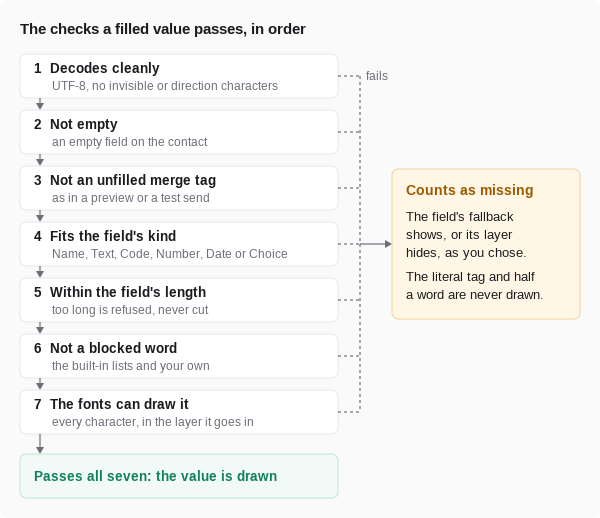
A value counts as missing when it is:
- empty, or only spaces
- still your platform’s merge tag, as in a preview or a test send that left it unfilled
- not valid UTF-8, or carrying invisible, control or direction-changing characters
- the wrong kind: letters in a Number, a date the field cannot read, a value that matches no option, or characters its kind does not allow
- longer than the field allows, which is never cut short to fit
- on a blocked list
- made of characters the fonts cannot draw
The literal tag is never drawn, and neither are empty boxes. Arabic, Hindi and other scripts the fonts cover are drawn. Japanese, Chinese and Korean names are drawn too, in any template published from the editor; a character no font covers shows the fallback. A platform that does not send UTF-8 gets the fallback for accented names.
Check a test email shows one outcome per field, and Fill health counts them per field over time. The API names them with these codes:
| Code | Meaning |
|---|---|
drawn |
The value passed and was drawn |
absent |
Nothing arrived |
damaged |
Split by a raw & or #, repeated, or cut off before fill_end=1 |
unfilled-tag |
Still your platform’s merge tag |
not-utf8 |
Not valid UTF-8 |
bad-chars |
Invisible, control or direction-override characters |
too-long |
Longer than the field allows |
mixed-script |
Letters from more than one script in a word |
blocked |
A blocked word |
not-a-number |
Not a number the field can read |
out-of-range |
Outside the field’s minimum and maximum, or a date outside its window |
not-a-date |
Not a date in the format the field reads |
not-a-choice |
None of the options |
cannot-draw |
The fonts cannot draw these characters yet |
not-fillable |
The published version does not let the platform fill this field |
superseded |
A value signed into the link, or one from a recipient list, took priority |
degraded |
A limit or the pause applied, so the field showed its fallback |
Fallbacks and hide policies
Each field says what happens when it has no usable value: show a fallback, hide its layer, or hide the layer’s group. The Fields tab shows the fallback in grey beside each field, or “hides its layer”.
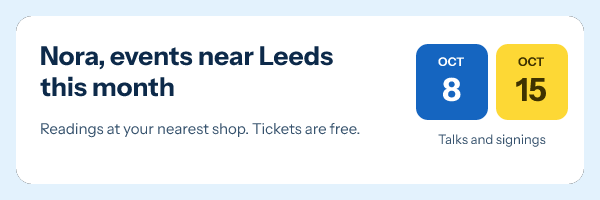
Nora’s copy of the link ends …&city=leeds&first_name=Nora&fill_end=1, with city first because the field list is sorted. The empty copy ends …&city=&first_name=&fill_end=1, the shape a link takes when the contact’s fields are empty.
A field’s fallback is a word or value you set, per field. It is not the template-level picture from what a timer shows when it is not counting down, which covers a template that cannot be drawn at all.
When a field could get its value from more than one place, the order is: a value signed into the link, then a value from a recipient list, then the filled value, then the fallback. Filled values rank last because they are the only ones anyone holding the email can edit.
Publishing checks that each fallback passes its own field’s rules. It also renders the template once with every fillable field at its longest allowed value. A layout that fails there cannot be published, and a text layer that overflows gets a warning, so a long name is caught before the send rather than in someone’s inbox.
Dates that drive the countdown
A Date field can set the deadline for each subscriber, on every plan. Tick “This date drives the countdown” in the field dialog, then choose what a missing or unusable date does:
- hide the timer, and the rest of the image is drawn as a still picture
- show the ended state
- count down to the template’s own deadline
New per-recipient timers start on hide.
A filled date more than 90 days ahead is unusable, and you can set that window anywhere up to 400 days. A date before the year 2000 is unusable too. A date in the past shows the ended state. So the most a stranger can show on their own copy is a countdown to a day within the window you set, 90 days by default, on a design you chose.
“How your platform sends it” in the field dialog sets the format the field reads, and its paste box flags a value that could go either way: “03/04/2026 reads as 3 April or 4 March. Pick the format your platform uses.” The time zone is never fillable, and neither is the deadline parameter.
One link serves the whole send. The snippet panel says what that means for a timer that starts at first open: “One link for the whole send means the countdown starts at the first open by anyone. Use a date field for a deadline per person.” A clock that starts at each person’s own first open still needs a link per person, from a recipient list or minted through the API on Growth and Agency.
Testing before a send
Four places, in the order you meet them.
Sample contacts in the editor. Three rows you can edit, a box to paste rows from a CSV export, and fixed stress rows: the longest accepted name, an Arabic name, a Japanese name, nothing on file, and your platform’s own tag left unfilled. Each row goes through the production renderer, with one line per field, such as “first_name: drawn” or “first_name: fallback, the fonts cannot draw these characters yet”.
A test send from your platform. A contact with no first name shows your fallback, which is the fallback working. A test that leaves the tags unfilled shows the fallbacks too, never the tag.
Check a test email in the dashboard. Paste the image link from a test email, and a Gmail proxy address works as well. It lists each field, what arrived and what was drawn, next to the render. Do not judge the image by opening its link in a browser tab: a tab in a current browser gets the fallbacks, on purpose, and Check a test email is the way to judge it.
Fill health on the Usage screen, after the send. Per field, over 24 hours and 7 days, it counts values drawn, values that arrived empty, and each fallback reason. It shows no values. A banner appears when more than 20 percent of a template’s filled opens in the last hour were unfilled tags. That points at a tag your platform is not filling, such as one with a misspelled field name.
When the fallbacks show for everyone, or the image is a blank space, personalized image not working goes through the causes one symptom at a time.
How to set it up
- In the dashboard, choose Personalized image, or Personalized image with a countdown when a date should count down in the same picture.
- Start from a starting design or a blank canvas. Upload your background and logo from inside the editor.
- In the Fields tab, add each field with its kind and its fallback or hide policy. “Your email platform can fill this” is ticked for every kind except Text.
- Put each field in a text layer, or use it in a rule, a progress bar, a QR code or “Picked by field”.
- Check the sample contacts, stress rows included, and publish.
- In the snippet panel, pick your platform. “Filled by {Platform} when it sends” is selected. Map each field to your platform’s field and copy the snippet.
- Paste it into an HTML or code block in your platform. Send yourself a test, then a second test to a contact with no value in those fields.
- Paste the image link from the test email into Check a test email.
- Send, and watch Fill health for fields that arrive empty or unfilled.
Limits, the daily ceiling and the pause
Every step between the link and the pixels has a bound. Past one, the image shows the fallbacks.
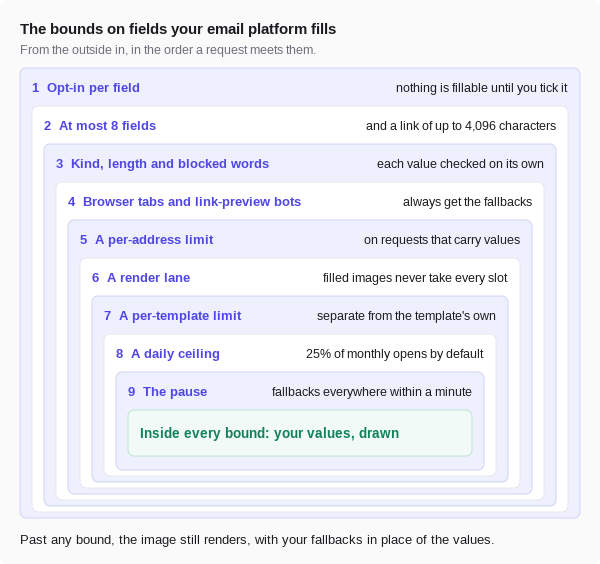
| Bound | Size | Past it |
|---|---|---|
| Your opt-in | Nothing is fillable until you tick it, field by field | Not applicable |
| Fields | Up to 8 per template, so up to 8 merge tags in one image link, placed in any layers | A ninth cannot be published |
| Length | 768 characters for one raw value, 4,096 for the whole query | The fallbacks |
| Browser tabs and link previews | The link opened in a tab, and preview bots such as Slack, WhatsApp and LinkedIn | The fallbacks |
| Per IP address | 600 filled requests a minute that miss the cache | The fallbacks |
| Render lane | 32 of each render worker’s 64 slots | The fallbacks, not billed |
| Per template | A burst of 1,000, then 100 a second per worker | The fallbacks, not billed |
| Per workspace, per UTC day | 25 percent of the plan’s monthly opens, at least 1,000 | The fallbacks, not billed, with a notice |
| Pause | “Stop filling fields” | The fallbacks within a minute |
A browser tab is told apart by the Fetch Metadata headers a browser sends with a page load. The per-IP, lane and per-template numbers come from load tests and can move. This page changes when they do.
The daily ceiling defaults to a quarter of the month:
| Plan | Opens a month | Filled opens a day, by default |
|---|---|---|
| Free | 5,000 | 1,250 |
| Starter | 250,000 | 62,500 |
| Growth | 1,000,000 | 250,000 |
| Agency | 5,000,000 | 1,250,000 |
Set it anywhere from 0 to 100 percent in workspace settings. You get a notice the same day at 50 percent and at 100 percent. Without a ceiling, filled renders at full speed could use up a month of opens in one day. The ceiling is separate from your monthly allowance: past 110 percent of the allowance, renders carry a small watermark, as plan quota and the watermark explains. Past the daily ceiling, filled images show the fallbacks until the next UTC day.
“Stop filling fields” is on the template page and in workspace settings. In the dashboard’s words: “Every open of this template shows your fallbacks within a minute. Images already cached elsewhere can keep a filled value for up to a day.”
What anyone who has the email can change
The values after the signature are not signed. That is the price of letting your platform fill them when it sends: anyone holding the email can edit their own copy of the link.
Here is what remains after every bound, stated plainly. Anyone holding the email can make a short, letters-only name that is not on any list appear on their own copy of the image, and screenshot it. The bounds keep it short, letters only, one script, off QR codes and links, and stoppable in a minute.
They cannot change the design, the colours, the template’s deadline or any signed value. They cannot pick an image you did not upload. No field takes an email address or a link, and a Name or Text field takes no phone number.
If a value must never change, keep it out of the part your platform fills. Mint a link per recipient through the API, which signs each value into it, or upload a recipient list, which puts only an opaque token in the link. Both are on Growth and Agency, and minting links in bulk covers the first.
Billing
| What the render drew | Billed |
|---|---|
| At least one filled value | Yes |
| Every fillable field absent: the raw link, or a contact with those fields empty | Yes, like any open |
| Values present, none drawn: unfilled tags, refused, damaged, or undrawable | No |
| Degraded by the render lane, the per-template limit or the daily ceiling | No |
While Stop filling fields is on, every open shows the fallbacks. A test send that leaves your tags unfilled costs nothing. A real open where the contact’s fields are empty is a real open, and it counts like any other. How opens are counted has the rest of the rule.
Caching and privacy
A filled image with no running countdown may be kept by browsers for an hour and by shared caches for up to a day. One with a running countdown keeps the short cache life every live timer has. Filled images are never written to the image service’s shared Redis cache.
No log line carries a value. Request logs record the image link with every value replaced, and the edge keeps no request logs at all.
A value in a link can be seen by whoever holds the email, by the sending platform, by the recipient’s mail provider and its proxies, and by EmailTimer.app. Where recipient data goes follows a value hop by hop, and sets out the two routes that keep data out of links.
Platforms
Every platform’s tag goes after the signature, in the URL-safe form where the platform has one. Mailchimp’s cheat sheet, read on 27 September 2026, says *|URL:YOUR_MERGETAG|* “Encodes the value of your merge tag for inclusion in a URL”, and its example turns a space into +. The image service reads + as a space, as the URL Standard’s form parsing does.
Some platforms document no way to encode a value for a link, and HubSpot is one: its reference says filters do not apply to tokens in email. Their tags go in raw, and the snippet panel says what that costs: “{Platform} cannot make a value safe for a link. Names and cities arrive fine. A value containing & or # shows your fallback instead of a cut-off word.”
The merge tag table gives every platform’s tag for the link, with its status: documented, with the date the vendor’s page was read, or unconfirmed, with the note to check with a test send. The merge tag image URL builder runs in your browser. It builds the finished link for the platform you pick, and reads a link copied from a test email.
The link format, for developers
Grammar
- The signature decides how a link is read. A
sigof 64 lowercase hex characters is a plain link, verified exactly as before.f1.plus 64 lowercase hex is a fill link. Nothing else verifies, and no link sent before this form existed changed its answer. - The API writes the head in this order:
w,v,r,wm,sent, signed values sorted by name,fill, thensig. The head may not repeat a key, must holdw,vandfill, and may not hold a listed field orfill_end. fillholds 1 to 8 names, each matching^[a-z][a-z0-9_]{0,39}$, joined by.in strictly ascending order, so the list is sorted and has no duplicates..is unreserved in RFC 3986, so no builder or platform re-encodes it. A comma would become%2C, and%252Cthrough a pipeline that encodes twice.- These names can never be filled, and the list is frozen for
f1:sig w v r wm fill fill_end sent deadline dur tz country device. Every one of them exceptfill_endis refused anywhere aftersig. - The signature is HMAC-SHA256 over the path and the head, with a key derived for this form alone, so a plain link’s signature can never pass as a fill signature.
- The tail is read in order after the URL Standard’s decoding, so
+is a space. A value made only of percent escapes and letters, digits or-._~, with at least one escape, gets one more decode, for platforms that encode twice, and never a third. Then comes Unicode NFC normalization (UAX #15). Tabs and line breaks become spaces, runs of spaces collapse to one, and the ends are trimmed. fill_end=1closes the tail, for the reason set out above: from a platform that cannot encode, “Marks & Spencer” becomes the fallback, never “Marks”.
Minting through the API
POST /urls, and each item of POST /urls/batch, takes fill. true means every field the pinned version declares fillable, and a list of names means just those:
{ "templatePublicId": "k7mQ2pXd", "fill": ["first_name", "points"] }
Alongside url, templateId, publicId and version, the answer then carries:
"fill": {
  "keys": ["first_name", "points"],
  "append": "&first_name={first_name}&points={points}&fill_end=1"
}
To use append, URL-encode each value, replace the braces with it, and add the result to the end of url. A sender that builds its own emails needs no second call. Without fill, the answer is byte for byte what it was before.
A mint is refused with fill_not_fillable when the version does not declare a field fillable, fill_reserved for a name that can never be filled, fill_in_params when a name is also in params (or params holds fill or fill_end), and fill_too_many past 8 names.
Inspecting, settings and stats
| Method and path | What it does |
|---|---|
POST /urls/inspect |
Reads a link: { url } in, the signature, the form, the template and version, and each field’s received, outcome and drawnAs out. Takes our host, your verified white-label hosts and a Gmail proxy address. 30 a minute per workspace, and the body is never logged |
GET and PUT /fill-settings |
{ enabled, dailyCeilingPercent, blockedTerms } for the workspace |
PATCH /templates/{id}/fill |
{ "paused": true } stops filling for one template |
GET /templates/{id}/fill-stats?days=7 |
Outcome counts per field per day, and today’s use of the ceiling |
GET and PUT /esp-field-maps/{platform} |
The workspace’s map from template fields to the platform’s fields, so the next template and the next teammate start with it |
The public API, these routes included, is on Growth and Agency, as the API reference sets out. The dashboard does the same things on every plan.
Questions and answers
Which plans include fields your email platform fills?
Every plan, Free included, from the dashboard. Free covers 5,000 opens a month. Minting fill links through the public API is on Growth and Agency. The free countdown generator makes countdown timers only and never fills fields. A timer from the free generator works for 500 opens without an account, and for 1,000 once you sign in and claim it.
How many fields can a template fill?
Up to 8 per image, one merge tag per field, in whichever layers you put them in the editor. A field used in two layers, such as a first name in the greeting and again in the sign-off, counts once. For more values than that, mint a link per recipient or use a recipient list, on Growth and Agency.
Can a subscriber change a value?
Yes, on their own copy, within that field’s rules. They can type a short name that passes the Name rules and screenshot the result. They cannot change the design, the signed values, the deadline outside a Date field’s window, or any image other than your own uploads.
Are filled values logged?
No. No log line carries a value, request logs replace every value, and the edge keeps no request logs. Fill health counts outcomes per field and never stores the values themselves.
What does a test send show?
Your fallback, wherever the test contact has no value or the tag was left unfilled. The tag itself is never drawn. Paste the image link from the test into Check a test email to see each field, what arrived and what was drawn.
How do I stop it quickly?
Choose “Stop filling fields” on the template page, or in workspace settings for every template at once. Every open shows your fallbacks within a minute. Copies already cached elsewhere can keep a filled value for up to a day.
Does it work on a white-label domain?
Yes, unchanged. The signature covers the path and the query, not the host, so a fill link works on a white-label image domain exactly as it does on img.emailtimer.app.
Sources
- RFC 3986: Uniform Resource Identifier (URI), Generic Syntax (IETF)
- URL Standard, application/x-www-form-urlencoded parsing (WHATWG)
- Unicode Standard Annex #15: Unicode Normalization Forms (Unicode Consortium)
- Fetch Metadata Request Headers (W3C)
- All the merge tags cheat sheet (Mailchimp), read on 27 September 2026
- List of Dirty, Naughty, Obscene, and Otherwise Bad Words, by Shutterstock and its contributors (CC BY 4.0), the source the built-in blocked words are curated from
Related
Put a countdown in the campaign you are writing now
The free plan covers 5,000 opens a month with no card. Starter is $24 a month for 250,000.