
A personalized image that shows its default instead of the subscriber’s value usually means the value never arrived in a usable form: the merge tag was not filled (a preview or a test send), the field is empty for that contact, or the value was not URL-encoded and an & or # cut it short. An image that does not appear at all is a different problem: images are blocked, or the image address itself is broken.
These causes apply to any image service that draws values your email platform fills into the image link. The picture rarely breaks; the value on its way to it does. So the question is which step lost the value, and for whom. The second half of this page covers an EmailTimer.app image, which checks every value against its field’s rules before drawing it, and how personalized images work explains the whole path.
Find your symptom
Who sees the default tells you where to look. If everyone does, the cause is something every contact shares, such as the tag or the block it sits in. If only some people do, the cause is in their values.
| Symptom | Likely cause | Where to look |
|---|---|---|
| Default in a preview or a test send | The platform had no contact data to fill | Nothing is broken. Test with a real contact |
| Default for everyone in the real send | A misspelled tag, another platform’s syntax, a block that does not fill tags in an image link, or a stored copy of the image | The source of a test email |
| Default for some subscribers | An empty field, or a value the image service refused | Those contacts’ records |
| One field shows its default, the rest are drawn | An & or # in a value from a platform that writes values raw |
That contact’s record |
| No picture at all | Images turned off in the mail client, or a broken image address | A test email with images on |
| Someone else’s name | A forwarded email | Nothing to fix |
| An old number | Values are written at the send, and copies are cached | The send date |
If the image comes from EmailTimer.app, its own section below adds the causes only it has, such as a changed signed part or the daily ceiling.
The default for everyone
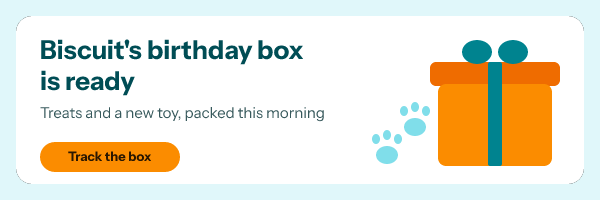
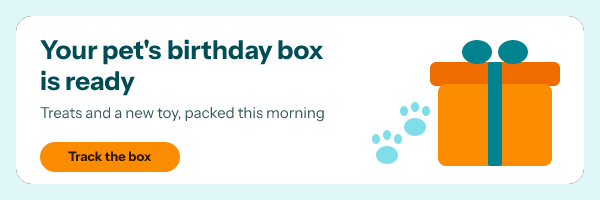
The second picture is the default doing its job. What needs explaining is why it reached an owner whose record says Biscuit. When every subscriber gets it, check these in order.
A preview or a test send. Some platforms send a test with the tags still unfilled. Mailchimp’s merge tag troubleshooting page says it plainly: “When you send a test email, we can’t replace the tags with any data because we only have the email address you provided.” What an image service does with an unfilled tag varies. Some draw the literal tag; EmailTimer.app treats it as missing, so the test shows your fallback rather than *|URL:FNAME|* in your brand font.
A misspelled tag, or another platform’s syntax. “Merge tags are case sensitive,” the same page says, and they “must match exactly what appears in our merge tag cheat sheet.” A tag the platform does not recognise goes out as written, or goes out empty. A tag written in another platform’s syntax goes out as plain text.
A block that does not fill tags in an image link. Mailchimp’s Image block is built for files: in the new builder you “choose Upload Image or Browse Images from the content studio”, per its Image block page. It does not fill merge tags inside an image link, so the link reaches the image service with the tags still in it. Paste the HTML into a Code block instead (“In the Code menu, type or paste in your code”, says the Code block page). The tag there is *|URL:FNAME|*, which the cheat sheet says “Encodes the value of your merge tag for inclusion in a URL”. The Mailchimp setup page shows the same block holding a countdown timer.
A copy of the image instead of the link. Some platforms copy images into their own storage when you import or save a design. A copy made while the tags were unfilled is a picture of your defaults, sent to everyone. Why a countdown timer is not showing names the platforms that document this. In a test email’s source, the image should still point at your image service’s address.
The default for some subscribers
When most people get their own picture and a few do not, the cause is in those contacts’ values.
- Nothing on file. The contact field is empty. This is what a default is for.
- An
&or#from a platform that writes values raw. HubSpot’s HubL filters reference says filters work on personalization tokens “on HubSpot CMS and blog pages, but not in emails”, so a HubSpot token goes into the link unencoded. In a link,&separates parameters (WHATWG URL Standard) and#starts the fragment, which is never sent (RFC 3986, section 3.5). So “Marks & Spencer” arrives in two pieces. Names are usually safe; company names often are not. Personalized images in HubSpot covers the workarounds. - Accented names from a platform that does not send UTF-8. “José” in an older encoding arrives as a character an image service may refuse or draw wrong.
- A value the service refused. Most services check a value before drawing it: its length, its characters, sometimes a list of blocked words. EmailTimer.app’s rules are below.
Someone else’s name, or last week’s number
A forwarded email carries the original recipient’s link, values and all, so the new reader sees the original name. Nothing is wrong. Anyone who holds the email can read a value in the link, so keep data out of it if it should not travel with a forward.
Values are written by your platform when it sends. A points balance in the picture is the balance on send day, however late the open, and a re-open may come from a cached copy. One image link usually serves the whole send, so a countdown that starts at first open starts at the first open by anyone. Why your timer shows the wrong time covers other clock problems.
If the image comes from EmailTimer.app
EmailTimer.app checks each value your email platform fills when the mail client fetches the image. A value that fails any check counts as missing, and the field shows your fallback, or hides its layer if you chose that. The literal tag is never drawn, and neither is half a word. An open where values arrived and none could be drawn is not billed.
| Symptom | Likely cause | Where to look |
|---|---|---|
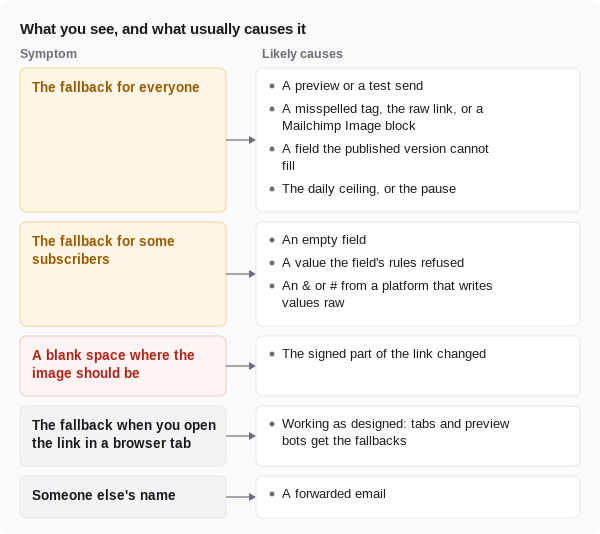
| Fallback for everyone in the real send | The raw link instead of the snippet, a field the published version cannot fill, the daily ceiling, or Stop filling fields | Check a test email, then the snippet panel |
| Fallback for some subscribers | A value the field’s rules refused | Fill health, per field and reason |
| A blank space where the picture should be | The signed part of the link changed | The link in a test email, against your snippet |
| Fallback when you open the link in a browser tab | Working as designed | Check a test email |
| Someone else’s name, or last week’s number | The same as for any service, above; browsers can keep a filled image for an hour and shared caches for a day | The send date |
The raw link, or a field the published version cannot fill
Copy raw link copies the signed link with no values after it, and it draws every fallback for everyone. For a campaign, copy the snippet from the mode Filled by Mailchimp when it sends (your platform’s name appears in place of Mailchimp). The snippet panel writes the tags from its mapping table, which pairs each field in the template with a field in your platform, so check any platform field you typed there.
Nothing is fillable until you tick Your email platform can fill this on the field, which starts ticked for every kind except Text. The link is also tied to one published version (v=3 means version 3), and everything before sig is signed. If you ticked the box, or added the field, after copying the snippet, your link does not list that field in fill=. Publish, then copy the snippet again. Adding a tag to the old link by hand makes things worse, because a name the signed list does not include costs the value before it.
Values the field’s rules refuse
Fill health, on the usage screen, counts per field over 24 hours and 7 days how often a value was drawn, arrived empty or fell back, and why. It never shows the values.
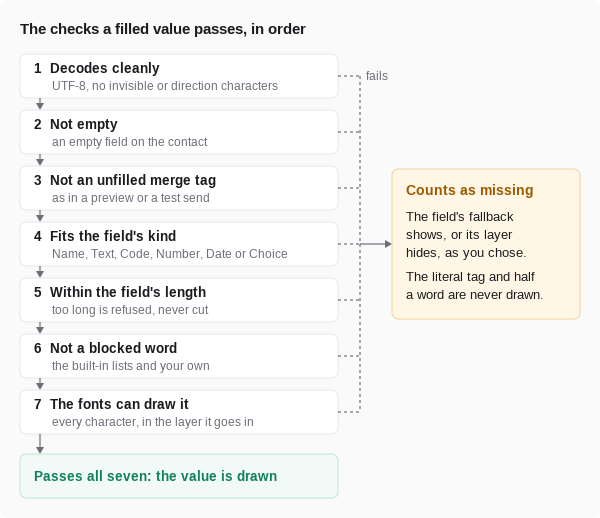
The reasons, in plain words (a field set to hide its layer shows a missing line instead):
- The wrong kind of value. Name takes letters, marks, spaces and
' ’ - ., up to four words, so “Call 0800 123 456” and “evil.com” are refused and “J. R.” passes. Text refuses@,://,www.and more than six digits in all. Choice must match one of your options, ignoring case. A Number must sit between your minimum and maximum, and a Date must read in the order you chose, because day and month are never guessed. - Too long. Name allows 32 characters by default and 48 at most, Text 40 and 64, Code 24 and 32. Over the limit is refused, never cut.
- On a blocklist. A built-in list, a “not a name” list for Name fields (account, password, verify, bank, refund, winner, invoice and a few more), and your own blocked words in workspace settings. Real given names that also sit on profanity lists are tested against the built-in list and pass, so if a real name is refused, check your own list first.
- An
&or#from a platform that writes values raw.fill_end=1at the end of the link lets the image service see the split: the field shows its fallback, never “Marks”. A#also cuts off every field after it. - Accented names from a platform that does not send UTF-8, and invisible or direction-changing characters. These are refused rather than guessed at.
- A character no font covers. It shows your fallback rather than an empty box. Arabic, Hindi, Japanese, Chinese, Korean and other scripts the fonts cover are drawn, in any template published from the editor.
- A date outside the window. When a Date field drives the countdown, a date more than 90 days ahead (you can raise that to 400) or before 2000 is unusable, and a past date shows the ended state. For a missing or unusable date the timer does what you chose: hide, show the ended state, or count to the template’s own deadline. New per-subscriber timers hide by default.
A blank space, or the “image unavailable” card
Everything before sig is signed, including fill=, the list of fields your platform may fill. After the signature come your platform’s values, then fill_end=1, and only those values can change. If anything in the signed part changes, the request fails its check before any value is read, and the answer is a transparent image. Most mail clients show it as an empty space the size set on your <img> tag.
| Where an extra or changed parameter lands | What the reader sees |
|---|---|
Before sig, or an edit to the signed part |
A blank space |
After sig, under a system name such as w, v, tz or deadline |
A blank space |
| Among the filled values, under any other name | The value before it shows its fallback |
After fill_end=1 |
No change: it is ignored |
| Anywhere in a link with no fillable fields, such as a plain countdown timer | A blank space |
So a click-tracking parameter added at the end does no harm, while a link edited by hand does. Compare the link in a test email with your snippet, character by character, up to sig.
The grey “image unavailable” card comes from the image service itself, when it cannot draw a request for reasons that have nothing to do with your values. What a timer shows when it is not counting down lists them.
The fallback when you open the link in a browser tab
This one is deliberate. Open the image link in a tab of a current browser, or paste it into Slack, WhatsApp or LinkedIn, and you get the fallbacks. A current browser marks a tab it opens with Sec-Fetch-Dest: document, while an image inside an email is requested with Sec-Fetch-Dest: image (W3C Fetch Metadata), and link-preview bots are recognised by their user agent. An older browser that sends no such header may show the values, which is one more reason to judge the image with Check a test email rather than a tab. Nobody can type their own words into your link and pass it around as a page on your image domain. To see what a subscriber saw, paste the link into Check a test email in the dashboard, which accepts a Gmail proxy address too.
The daily ceiling, or the pause
Each workspace has a daily ceiling on personalized opens, so a flood of made-up values cannot use up your month: 25 percent of your plan’s monthly included opens per UTC day, with a minimum of 1,000. That is 1,250 on Free, 62,500 on Starter, 250,000 on Growth and 1,250,000 on Agency. You can set it from 0 to 100 percent in workspace settings, with a notice the same day at 50 and at 100 percent. Past it, every image shows the fallbacks until the next UTC day, and those opens are not billed. The shorter limits on bursts work the same way while they last. The pause, Stop filling fields on the template page or in workspace settings, shows everyone the fallbacks on purpose until it is switched off, so check whether a teammate turned it on during an incident.
Set it up so values arrive
- Create a template and choose Personalized image, or Personalized image with a countdown if the picture needs a clock.
- In the Fields tab, add a field for each value. Choose what it holds (Name, Text, Code, Number, Date or Choice) and what happens when it is empty or unusable: show a fallback, hide the layer, or hide its group.
- Leave Your email platform can fill this ticked. Text needs you to tick it, with a warning: “Anyone who has the email can change this text. If you know every possible value, use Choice.”
- Publish. In the snippet panel, pick your platform, keep the mode Filled by Mailchimp when it sends (it names your platform), and map each field to your platform’s field.
- Copy the snippet, not the raw link, into an HTML or code block. In Mailchimp, a Code block.
The reference for fields your email platform fills has every kind’s rules, and merge tags in an image link has the tag for each platform.
How to check a personalized image before you send
- A test with real data. Mailchimp suggests “Preview Mode with Enable live merge tag info toggled on, or send a live email to a small test segment of your audience.” HubSpot lets you receive a test “as a specific contact” through its Preview as contact menu (HubSpot test email help). This works with any image service.
- Sample contacts, in EmailTimer.app. Edit the three rows in the editor into real cases from your list. Fixed rows add the longest accepted name, an Arabic name, a Japanese name, nothing on file and your platform’s tag left unfilled, each drawn by the production renderer with a line per field such as “first_name: drawn”.
- Check a test email. Paste the image link from that email to see, per field, what arrived, what was drawn and why.
- Read the link. The merge tag image URL builder reads a pasted link in your browser and flags an unfilled tag, a split value or a system name after the signature. It does not check the signature or the field rules.
- Fill health after the send. A banner appears when more than 20 percent of a template’s filled opens in the last hour were unfilled tags, which is what a misspelled tag looks like across a list.
Questions and answers
Why does my test email show “Hi there”?
The test went out with the tag unfilled, or the test contact has no first name. Your fallback was drawn, which is the fallback working. Test with a live preview, a small live segment, or a test sent as a chosen contact.
Why is the name cut short?
Never because of a bad value: a value cut on the way, or over the field’s length, shows your fallback. A name ending in an ellipsis, such as “Alexandria O…”, comes from a field set to shorten long values.
Why do some names show and others do not?
The link is fine. The names that fall back are empty, refused by the field’s rules, too long, on a blocklist, or split by an & or #. Fill health gives the reason per field.
Can a tracking parameter break the image?
Not one added at the end, because anything after fill_end=1 is ignored. One that lands before sig leaves a blank space, and one between two values costs the value before it.
Why does the image look different in a browser?
A browser tab or a chat app’s link preview gets the fallbacks on purpose, so nobody can share a copy of your image with their own words in it. Check a test email shows what the subscriber got.
How do I stop the image filling fields during an incident?
Switch on Stop filling fields on the template page, or in workspace settings for every template. In the app’s words: “Every open of this template shows your fallbacks within a minute. Images already cached elsewhere can keep a filled value for up to a day.”
Next: why your countdown timer is not appearing at all if no image appears with the link intact, and why your timer shows the wrong time if the picture is right and the clock is not.
Sources
- Troubleshooting Merge Tags (Mailchimp Help), read on 27 September 2026
- All the Merge Tags Cheat Sheet (Mailchimp Help), read on 27 September 2026
- Use Image Content Blocks in the New Builder (Mailchimp Help), read on 27 September 2026
- Use Code Content Blocks in the New Builder (Mailchimp Help), read on 27 September 2026
- HubL filters (HubSpot Developers), read on 27 September 2026
- Send a test marketing email (HubSpot Knowledge Base), read on 27 September 2026
- URL Standard, application/x-www-form-urlencoded parsing (WHATWG)
- RFC 3986: Uniform Resource Identifier (URI), Generic Syntax (IETF)
- Fetch Metadata Request Headers (W3C), read on 27 September 2026
Related
Put a countdown in the campaign you are writing now
The free plan covers 5,000 opens a month with no card. Starter is $24 a month for 250,000.