
HubSpot personalizes text with tokens and swaps whole modules with smart content, and its HubL reference says filters such as urlencode do not apply to personalization tokens in emails. You can still write {{ contact.firstname }} into the image link, after the signature, with no filter on it, the way personalized images in email work. Names and cities arrive whole, and a value containing & or #, such as “Marks & Spencer”, shows the fallback you set instead of a word cut in half.
EmailTimer.app checks each value against its field’s rules when the mail client fetches the image, and draws the picture from the ones that pass. It works on every plan, the free one included, from the dashboard. The same rich text module can also hold a HubSpot countdown timer, and one image can carry a name and a countdown together.
Dynamic images HubSpot can do on its own
HubSpot comes first here, because for a lot of emails its own features are enough.
| HubSpot feature | What changes per contact | Where it stops |
|---|---|---|
| Personalization tokens | Text in a rich text module, a subject line or a coded template | Live text set by the mail client, outside your artwork |
| Smart content | A whole module, by list membership or lifecycle stage | One version per rule, each one made in advance |
| Personalized links | The link on an image or button module | The picture itself stays the same for everyone |
| A property that holds an image URL | Which image file is shown | Every file has to exist before the send |
Tokens. HubSpot’s token article says “With personalization tokens, you can show personalized content to your contacts based on their property values.” In a coded template the first name is written {{contact.firstname}}. A token is text, so the mail client sets it in whatever font it has, beside your images rather than inside them. With no value and no default, “the token will be left blank for contacts who don’t have a value for that property.”
Smart content. This needs Marketing Hub Professional or Enterprise. In email, the rules read Contact List Membership or Contact lifecycle stage, and HubSpot explains why: “Because emails are sent to known contacts, you can’t use smart content categories based on anonymous information like device type or referral source.” A smart rule on an image module can show customers one picture and leads another. Each version is a file somebody designed.
Personalized links. On any HubSpot plan, an image module’s Link field can be built from a token, with a fallback link for contacts who lack the value. The click is personal. The picture is the same for everyone.
An image URL property. HubSpot’s developer guide to programmable email shows an image whose source comes from CRM data, <img alt="{{ home.name }}" src="{{ home.hero_image }}" …>, on Marketing Hub Professional for standard objects and Enterprise for HubDB and custom objects. The simpler version is a single-line text contact property holding the address of an uploaded file, used as the image source in a rich text module’s source code. Each contact gets a picture that already exists.
If every picture you need already exists, one per plan or one per region, smart content or an image URL property does the job. You need nothing from us.
When you need a rendered image
The gap is a value inside a design: “Sam, Acme Robotics is on Pro” set in your typeface over your own background, and identical in Gmail and in classic Outlook. A file per contact is out of the question for that, and a smart rule cannot hold one version per company.
A personalized image is drawn for each request from the values in its link. You design it once, with your own uploaded logo and background, and declare the fields HubSpot may fill. HubSpot writes each contact’s values after the signature when it sends. Add a timer layer and the same picture can count down to each contact’s renewal date.
Why HubSpot tokens go into the image URL raw
HubSpot’s filters reference decides this. Read on 29 September 2026, the HubL filters page says: “You can apply HubL filters to personalization tokens, such as contact and company tokens, on HubSpot CMS and blog pages, but not in emails.” So the urlencode filter, which would make a value safe for a link, is not available on a token in marketing email. The snippet writes {{ contact.firstname }} after the signature just as you would type it in body text.
One wrinkle, for anyone who reads both pages. HubSpot’s token article lists HubL filters among the things a coded template can use, and the filters reference makes no exception for coded email templates. The raw token does not depend on which reading is right, because the worst a raw value can do is show your fallback.
Most values survive the trip. The URL Standard has the mail client encode a space or an accented letter when it fetches the picture, and the image service decodes it again, so “Mary Jo” and “Zoë” are read as typed.
Two characters do not survive. In a link, & starts the next parameter, and # starts the fragment, the part a client never sends to the server (RFC 3986, section 3.5). Raw, “Marks & Spencer” reaches the image service as company=Marks followed by a stray Spencer. The link ends with fill_end=1, so the service can tell the value was split, and it draws the field’s fallback rather than “Marks”. A # cuts off everything after it, the end marker included, so that field and every field after it in the link show their fallbacks. A + in a value reads as a space.
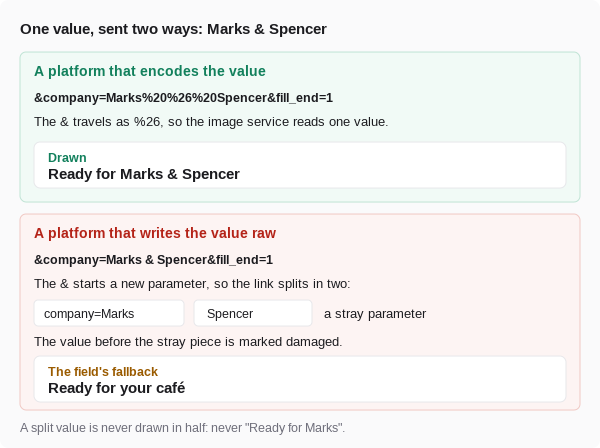
Every platform that writes its tags raw follows the raw-tag rule, and that page has the encoded form for the platforms that offer one.
Choosing a field kind for HubSpot
Since the token goes in raw, the field’s kind does more of the work. Each field in the template has one, and the kind decides what a value may contain before it is drawn.
| HubSpot property | Field kind | Effect of a raw ampersand |
|---|---|---|
| First name | Name | None, because a name cannot contain one |
| Plan, tier or region | Choice | None, as long as no option contains one |
| Renewal date | Date | None, because a date has no ampersand |
| Company or product name | Text | That field shows your fallback |
Name is for first names. It takes letters, marks, spaces and ' ’ - ., up to four words and 32 characters by default (48 at most), so “J. R.” passes and “evil.com” does not. For the names that break a layout, the editor’s sample contacts include the longest name the field accepts.
Choice suits plans, tiers and regions. You list the options, up to 500, and a value matches one without regard to case, so pro and PRO land on the same option, which a text layer can draw as its label, “Pro”. List each option the way HubSpot writes it into the email: one test send shows whether your dropdown property sends its internal value or its label. A value that matches no option shows the fallback.
Date lets a HubSpot date property drive the countdown for each contact, on every plan. Tick “This date drives the countdown” in the field dialog, and paste a value from a test email into “How your platform sends it” so the box names the format it reads. A missing or unusable date can hide the timer, show the ended state, or count to the template’s own deadline.
Text is for free text, such as a company name, and it is where & turns up. “Your email platform can fill this” starts off for Text, and turning it on shows the warning: “Anyone who has the email can change this text. If you know every possible value, use Choice.” Text refuses @, ://, www. and more than six digits, so a filled company name cannot become a link or a phone number.
When your values often carry &, such as a B2B list full of names like “Smith & Sons”, mint a link per contact through the API instead, on Growth or Agency. The values are then signed into the link, so they arrive encoded and nobody can change them. Store each link in a single-line text property and point the image at it with src="{{ contact.et_image_url }}". The plans are on pricing.
Where the snippet goes in HubSpot
Use a rich text module. HubSpot’s rich text instructions give the gesture: “To access the module’s source code, click the Advanced dropdown menu and select Source code.” Paste the snippet into that dialog and save changes. A second rich text module keeps the image apart from your body copy. On Marketing Hub Professional or Enterprise, a coded template in the design manager takes the same snippet.
Pick HubSpot in the snippet panel, in the mode “Filled by HubSpot when it sends”. With your own template, workspace and signature in place of the placeholders, the snippet for Ledgerly, the example below, looks like this:
<img src="https://img.emailtimer.app/i/k7mQ2pXd.png?w=w_8ha3fq&v=3&fill=company.first_name.plan&sig=f1.YOUR_SIGNATURE&company={{ contact.company }}&first_name={{ contact.firstname }}&plan={{ contact.subscription_plan }}&fill_end=1" width="600" height="200" alt="{{ contact.firstname }}, your team's month in Ledgerly" style="display:block;border:0" />
Everything before sig is signed when you publish, including fill=company.first_name.plan, the list of fields HubSpot may fill, in alphabetical order. After the signature come HubSpot’s tokens in that order, and fill_end=1 closes the list. Anything appended after fill_end=1 is ignored. The token in alt keeps its plain form, because there HubSpot fills it as text. Under the snippet, the panel says it in one line: “HubSpot cannot make a value safe for a link. Names and cities arrive fine. A value containing & or # shows your fallback instead of a cut-off word.”
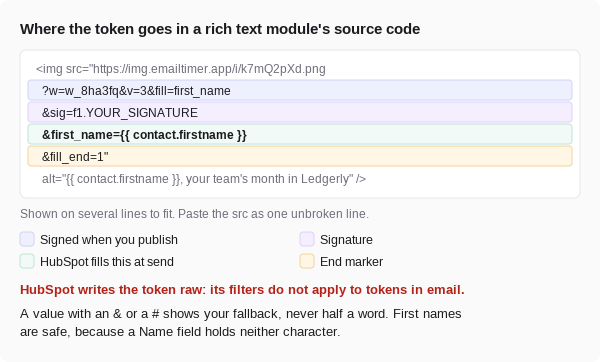
Expect one oddity in the editor. HubSpot’s rich text article says “HubL code added to rich text module source code will not render in the editor, but rather when the page itself is rendered.” So in the editor the link still holds the literal tokens, and the picture shows your fallbacks. An unfilled tag counts as missing on purpose, which is why nobody ever sees {{ contact.firstname }} drawn in pixels.
Four contacts, rendered
Ledgerly is an invented B2B software brand, and its monthly usage email opens with this image. It has three fields: first_name (Name), company (Text, with “your team” as its fallback) and plan (Choice, with labels such as Pro and Team). Every picture below came out of the renderer.
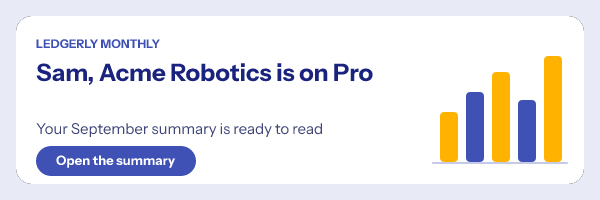
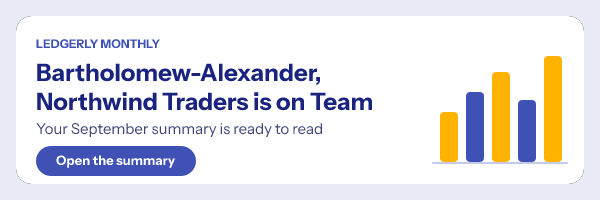
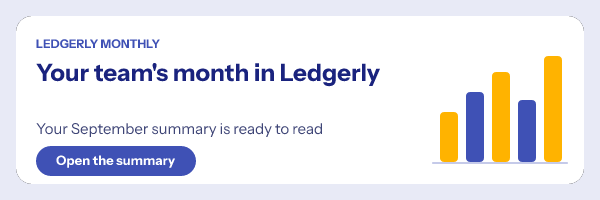
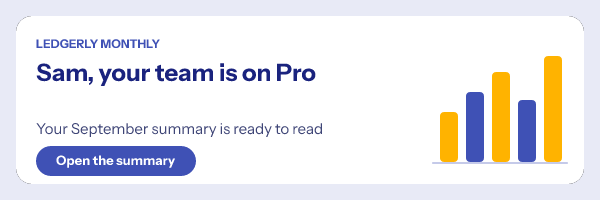
The fourth case never shows “Marks” on its own and never breaks the image, but that contact does lose their company name. If much of your list looks like that, use the minted link described above.
Workflows and sequences
Workflow emails take the same snippet. HubSpot’s token article says “if you have a Marketing Hub Professional or Enterprise account, and you have Edit access to workflows, you can insert a personalization token that matches the type of record that will be enrolled in your workflow into an automated marketing email or internal notification”. The token in the image link is filled at each send, like the one in the greeting. Custom tokens from a workflow’s Send email action, written {{custom.key}} on Marketing Hub Enterprise, are raw in the image link like any other token.
Company tokens need one check. HubSpot says “Only a contact’s primary company will be referenced by company tokens.” The Ledgerly snippet reads the contact’s own Company name property, {{ contact.company }}, which avoids the question.
One link serves the whole send. A countdown that starts at first open therefore starts at the first open by anyone who received that email. For a deadline per contact, use a Date field. A clock from each person’s own first open still needs a per-person link, on Growth or Agency.
Sequences are a different tool. HubSpot’s article on sales templates and snippets documents tokens from contact, company, deal, ticket and sender properties, each with a fallback value, and says nothing about a token inside an image link. So this page covers marketing email. If you try the snippet in a sales template, send it to yourself and check the image link in Check a test email first.
What a contact can change, and what stops abuse
The values after the signature are not signed, so anyone holding the email can edit their own copy of the link. Only the value of a listed field can change. The template, the workspace, the version, the template’s own deadline and every signed value stay fixed, and a system name written after the signature makes the whole image come back blank. Each value still has to pass its field’s kind and length, names and text also the blocked words, and no text kind accepts @, so an email address is never drawn.
The bounds sit around that:
- Nothing is fillable until you tick “Your email platform can fill this” on the field.
- Opening the image link in a browser tab, and link previews in Slack, WhatsApp, LinkedIn and others, get the fallbacks.
- A per-IP limit serves the fallbacks to anyone requesting filled images too fast.
- Each workspace has a daily ceiling on filled opens: 25 percent of the plan’s monthly included opens per UTC day, at least 1,000. Past it, images show the fallbacks and those opens are not billed.
- “Stop filling fields” pauses a template or the whole workspace, and every open shows the fallbacks within a minute. Copies cached elsewhere can keep a filled value for up to a day.
What remains, stated plainly: anyone holding the email can make a short, letters-only name that is on no list appear on their own copy of the image, and screenshot it. Where a value must never change, mint the link per contact. Every rule is in fields your email platform fills.
Test before you send
Start in the editor, where the sample contacts render through the production renderer, stress rows included, with a line per field such as “first_name: drawn”. Japanese, Chinese and Korean names are drawn too, in any template published from the editor.
In HubSpot, open the Preview and test dropdown and choose Send test email. Pick a real contact under Preview as contact, so the test carries that contact’s values. HubSpot notes that “Only verified email addresses can receive test emails.” Send a second test as a contact with no first name. That one shows your fallback, which is the fallback working. If HubSpot writes a default value for the empty token, the image draws that word instead, so keep the fallback in one place.
Then copy the image link from the test email (a Gmail proxy address works) into Check a test email in the dashboard. It lists each field, what arrived and what was drawn. Do not judge the image by opening its link in a browser tab: a tab always gets the fallbacks. After the real send, Fill health counts drawn values, empty ones and each fallback reason per field, and raises a banner when more than 20 percent of a template’s filled opens in the last hour were unfilled tags.
How to set it up
- In the dashboard, choose Personalized image, or Personalized image with a countdown if a renewal date should count down in the same picture.
- Start from a starting design or a blank canvas. Upload your logo and background from inside the editor.
- In the Fields tab, add
first_nameas a Name field,companyas a Text field andplanas a Choice field with its options. Set a fallback for each, and tick “Your email platform can fill this” oncompany, where it starts off. - Put each field in a text layer, check the sample contacts, including the stress rows, and publish.
- In the snippet panel, pick HubSpot. “Filled by HubSpot when it sends” is selected. Map
first_nametofirstname,companytocompanyandplanto your plan property’s internal name, then copy the snippet. - In HubSpot, open a rich text module, choose the Advanced dropdown, then Source code, paste the snippet and save changes.
- Send a test email with a real contact under Preview as contact, then a second as a contact with no first name.
- Paste the image link from a test into Check a test email.
- Send, or add the email to a workflow, and watch Fill health for fields that arrive empty or unfilled.
Questions and answers
Can HubSpot add a contact’s name to an image by itself?
Not into the pixels. Tokens put a name in live text beside the image, and smart content or an image URL property swaps the whole picture. Drawing the name into the artwork needs an image rendered for each request.
Why can’t I use the urlencode filter in a HubSpot email?
HubSpot’s HubL filters page says filters on personalization tokens work “on HubSpot CMS and blog pages, but not in emails”. So the token goes after the signature raw. A value with & or # shows your fallback, and everything else arrives as typed.
What happens to a company name with an ampersand?
“Marks & Spencer” is split at the &, so the company field shows its fallback and the other fields are still drawn. The picture never shows “Marks” on its own. Where many values carry &, mint a link per contact through the API on Growth or Agency, which signs the values in encoded form.
Can I use a contact property that holds an image URL?
Yes. That is HubSpot’s own way to swap a whole picture per contact, and it needs no image service when every picture already exists as a file. This page covers drawing each contact’s values inside one design.
Does this work in a workflow email?
Yes. A marketing email in a workflow takes the same snippet, and HubSpot fills the token in the image link at each send. Tokens in automated emails need Marketing Hub Professional or Enterprise.
Which plan do I need?
On this side, every plan, from the dashboard, including Free with 5,000 opens a month. Links minted per contact through the API are on Growth and Agency. On HubSpot’s side, the rich text module route works in any marketing email, while smart content in email, coded templates in the design manager and tokens in workflow emails need Marketing Hub Professional or Enterprise. The plans are on pricing.
Sources
- HubL filters (HubSpot Developers), read on 29 September 2026
- Use personalization tokens (HubSpot Knowledge Base), read on 26 September 2026
- Create and manage smart content rules (HubSpot Knowledge Base), read on 26 September 2026
- Personalize links in marketing emails (HubSpot Knowledge Base), read on 26 September 2026
- Create emails with programmable content (HubSpot Developers), read on 26 September 2026
- Edit content in rich text modules (HubSpot Knowledge Base), read on 26 September 2026
- Create default values for personalization tokens (HubSpot Knowledge Base), read on 26 September 2026
- Send a test marketing email (HubSpot Knowledge Base), read on 26 September 2026
- Use custom tokens in automated emails (HubSpot Knowledge Base), read on 26 September 2026
- Add personalization tokens to a template or snippet (HubSpot Knowledge Base), read on 26 September 2026
- Create and edit sequences (HubSpot Knowledge Base), read on 26 September 2026
- RFC 3986: Uniform Resource Identifier (URI), Generic Syntax (IETF)
- URL Standard, application/x-www-form-urlencoded parsing (WHATWG)
Related
Put a countdown in the campaign you are writing now
The free plan covers 5,000 opens a month with no card. Starter is $24 a month for 250,000.