
Build the image link your email platform fills
Pick your email platform and paste the raw link from the publish panel. The builder reads
the fields your template lets the platform fill and writes the image link with each URL-safe
merge tag in place and fill_end=1 last, which is
how personalized images work. It runs in your browser and sends
nothing to us. It does not create an image either: that needs a template published from the
dashboard, on any plan.
Build or read an image link
Pick your platform and paste the raw link from the publish panel. The builder writes the
link your platform fills when it sends: each field's URL-safe merge tag after the
signature, in the order the link lists them, and fill_end=1 last. It runs in
this tab and sends nothing anywhere.
1. Your email platform
The tags come from the same table as the platform pages on this site.
2. The raw link
In the dashboard, publish the template and choose Copy raw link. It ends with
sig=f1. and 64 characters, and lists the fields your platform may fill in
fill=.
This is the example link. Its signature is a placeholder, so it would come back as a blank, transparent image. Paste your own raw link to get a link you can send.
Image address, for the src
What goes where
The image tag
Before you send
- Send yourself a test. A contact with nothing in a field shows that field's fallback, which is the fallback working.
- Copy the image address out of the test email and paste it into the Read tab above, or into Check a test email in the dashboard, which also checks the signature and each field's rules.
- Opening the image address in a browser tab shows every fallback, on purpose, so judge it from the email.
Paste the image address from a test email. This reads it the way the image service does and says what each field will show. It reads the address and nothing more: it does not check the signature or the field rules. Check a test email in the dashboard does both.
In the test email, right-click the image and copy its address. A Gmail proxy address works
too: the original address after its # is read.
The whole link fails
Fields your platform fills
The rest of the link
This reads the address. It does not check the signature or the field rules, so a value that arrived can still show its fallback. Check a test email in the dashboard does both. To see the picture itself, paste the address into the render test.
One link, two contacts
The example link, filled by Mailchimp for two people and drawn by the image service. Maya has a first name and a points balance on file. The second contact has neither, so both fields fall back and the template's own line takes their place.
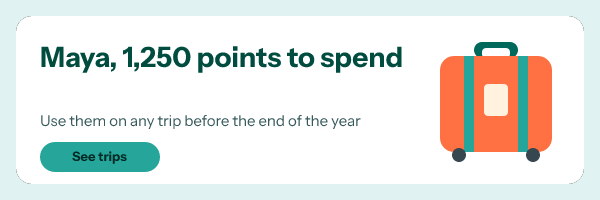
first_name=Maya and points=1250 arrived, and the
template groups the digits.

What the merge tag image URL builder writes
One link for the whole send, which your email platform fills with each subscriber's own values, after the signature. Here is the example from the Build tab, written for Mailchimp:
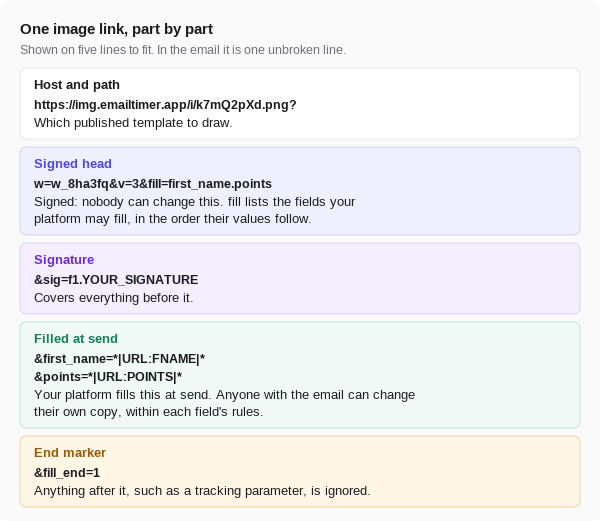
https://img.emailtimer.app/i/k7mQ2pXd.png?w=w_8ha3fq&v=3&fill=first_name.points&sig=f1.YOUR_SIGNATURE&first_name=*|URL:FNAME|*&points=*|URL:POINTS|*&fill_end=1
Everything before sig is signed, including fill, the list of
fields the template lets your platform fill. Nobody can change that part. After the
signature come the platform's merge tags, one per field in the order fill lists
them, and then fill_end=1. When the platform sends, it replaces each tag with
the contact's value, so Maya's copy of the email carries first_name=Maya and a
contact with nothing on file carries an empty value.
The Build tab also writes the plain tag for each field, for alt text and for the link around the image. Those two are not part of the signed link, so they take the tag as you write it in body text. The URL-safe form belongs after the signature.
Why the URL-safe merge tag matters
A value travels inside the link, and some characters in a link have jobs of their own. An
& starts the next parameter. A # ends the part of the link any
server receives. So "Marks & Spencer", written as it is, arrives as "Marks " followed by a
stray parameter called " Spencer". The URL-safe form of a tag encodes the value before it goes
in, and Marks%20%26%20Spencer arrives whole.
Every platform writes the URL-safe form its own way. In Mailchimp it is *|URL:FNAME|*,
the URL: modifier on the plain *|FNAME|*, which Mailchimp's
merge tag cheat sheet says
"encodes the value of your merge tag for inclusion in a URL" (read on 27 September 2026). Its own
example turns "I love monkeys" into I+love+monkeys, and the image service reads
each + as a space. The
merge tag table sets out the form
for every platform side by side, with the day each vendor's page was read.
What happens to a value your platform cannot encode
Some platforms write a value exactly as it is on file. HubSpot is one: its
HubL filters reference says
filters apply to personalization tokens on CMS and blog pages "but not in emails" (read on
27 September 2026), so {{ contact.firstname }} goes in raw. Names and cities arrive
fine. A value with an & or a # in it does not.
The image service does not guess what the rest of that value was. It marks the value damaged,
and the field shows its fallback, never half a word. fill_end=1 is what makes that
possible. A stray parameter before it marks the value in front of the stray as damaged, and so
does a field that appears twice. A link that stops short of it, because a mail client or a
# cut it, marks its last value damaged too. Anything after
fill_end=1, such as a tracking parameter added to the link, is ignored.
Reading a link from a test email
The Read tab takes the image address from a test email, or the address Gmail shows for its
image proxy, whose original sits after the #. It walks the link the way the image
service does and lists each field: the value that arrived, a merge tag your platform left
unfilled, a value cut by an & or a #, a field that never
arrived. It also names a system name after the signature, which fails the whole link.
It cannot tell you whether a value passes its field's rules, or whether the signature is right. The first needs the template and the second needs your workspace's secret, and Check a test email in the dashboard has both. Judge the picture from the email, too: opening the image address in a browser tab shows every fallback, on purpose. To load an address and see what comes back, use the render test.
Making the image itself
The builder writes text, and the image comes from a template you publish in the dashboard. There you declare each field with its fallback and tick Your email platform can fill this. That works on every plan, Free included, which covers 5,000 opens a month; pricing has the rest. The field reference covers the kinds, the limits and what counts as unusable.
The free countdown timer generator makes countdown timers only and never fills fields. A timer from the free generator works for 500 opens without an account, and for 1,000 once you sign in and claim it.
Questions
Questions and answers
Six questions about the builder, with short answers.
Does this send my link anywhere?
No. Both tabs run in your browser. There is no form that posts, and the page never loads the image, so the link you paste stays in the tab. Close it and the link is gone.
Does it make an image?
No. It writes the link your platform fills, and it reads a link you paste. The image comes from a template published in the dashboard, which works on every plan, Free included. The free countdown timer generator makes countdown timers only and never fills fields.
Which platforms does it cover?
All 21 on the integrations list. Each is marked documented, with the day its vendor's documentation was read, or unconfirmed, with a note to check the tag with a test send. A platform that writes a value as it is, such as HubSpot, gets a note that a value containing & or # shows your fallback.
Why does my link say it has no fillable fields?
Because its signature is the plain kind: 64 characters with no f1. in front. Open a field in the template, tick Your email platform can fill this, and publish. The publish panel then offers the snippet Filled by your platform when it sends, and Copy raw link beside it copies the link this page needs.
Can I use it for another vendor's links?
The Read tab reads any web address. It lists each parameter and names any merge tag still in it. The Build tab writes EmailTimer.app links only, because the signed part and the closing fill_end=1 are this product's format.
Can someone change what their image says?
Only a value after the signature, and only on their own copy of the email. Each value is checked against its field's rules, and one that fails shows the fallback. The signed part, including the list of fields, cannot change: an edit there makes the image come back blank.