
To put a subscriber’s own name, miles or renewal date inside a designed image in Salesforce Marketing Cloud, the way personalized images in email work, paste the image link into an HTML block in Content Builder and let AMPscript fill each field when the email sends, wrapped in URLEncode with its third argument set to true: %%=URLEncode(AttributeValue("FirstName"),1,1)=%%. Anything missing or unusable draws the fallback you set.
This works on every EmailTimer.app plan, Free included, from the dashboard (pricing has the open allowances). Nothing is fillable until you tick “Your email platform can fill this” on a field, and a plain countdown timer’s snippet stays as it was. Marketing Cloud’s own dynamic images, Dynamic Content and Einstein Content Selection among them, choose between files you made, and for some jobs they are the better tool, so they come first.
Dynamic images Marketing Cloud can do on its own
Each row below comes from Salesforce’s own documentation, read on 26 September 2026.
| Option | What changes per subscriber | Where the picture comes from |
|---|---|---|
| Dynamic Content | The content block shown, by rule | Blocks you built in Content Builder |
| Enhanced Dynamic Content | Text and image URLs you list | A delimited file you import |
AMPscript setting the src |
The image address | Files that exist before the send |
| Einstein Content Selection | One image, chosen at open | A catalog of images you upload |
| Live Image | Image A or image B, switched on a trigger | Retired in the April 2021 release |
| Open Time Email, in Marketing Cloud Personalization | Content and product recommendations, chosen at open | Images generated per catalog item and template |
| Personalization strings | Alt text, link text and copy | The subscriber’s record, as text |
Dynamic Content shows a content area “according to the rules that you define based on the subscriber’s attributes or data extension column values”, with default content for anyone no rule matches. A subscriber who matches two rules gets the first. Enhanced Dynamic Content builds the same thing from an imported “delimited file containing text and image URLs”. For five tier banners, either one is the right tool, and neither needs an outside service.
AMPscript can set an image’s src from a data extension column, or pick one with Iif() or Lookup(). That works for as long as every picture exists as a file before the send.
Einstein Content Selection is, in Salesforce’s words, “a no-code, open-time experimentation tool for personalized content”. You upload a catalog of images tagged with attributes such as a loyalty level, and Einstein picks one per subscriber when the email opens.
Live Image switched an email from image A to image B at open: at a date and time, a number of days after the send, a count of impressions or clicks, or by hand. Salesforce’s Create Content Blocks page still lists the block, but the Live Image page itself says “Content Builder Live Image is retired in the April 2021 release” and points customers to Einstein Content Selection or the Content Block SDK.
Marketing Cloud Personalization is a separate Salesforce product. Its Open Time Email campaigns “deliver content and product recommendations personalized at the time a recipient opens an email”, as HTML you paste into whichever system sends your email. Publishing a template creates “an initial set of images for all items that match the item type of the template”, stored on its CDN, and a product needs a name, a URL, an image URL and stock to get one.
Personalization strings such as %%FirstName%% fill alt text, link text and copy. An unpopulated one “will appear blank in the email”.
So Marketing Cloud can choose between pictures, at the send or at the open. What this page adds is the other job: Priya’s name and her 12,400 miles set in your typeface, inside your design, for every member on the list.
When you need a rendered image
You need one when the value is the design. Every member has a different mileage total, and nobody exports a file per member. A greeting that sits on a photograph has to be set in your brand face and look identical in Outlook and Gmail, which HTML text laid over an image cannot promise. And if the same card should count down to a renewal date, the timer and the name belong in one picture.
EmailTimer.app draws each picture when the mail client asks for it. The template is yours: your uploaded background, your logo as an image layer, your own pictures, and a text layer for each field. The loyalty points and tier images page shows the pattern for points, tiers and progress bars.
The personalized image tag for Marketing Cloud
For each field your template lets Marketing Cloud fill, this is the tag that goes after the signature in the image link:
%%=URLEncode(AttributeValue("FirstName"),1,1)=%%
URLEncode(…, 1, 1). Salesforce’s UrlEncode() reference gives the function three arguments. The second, boolEncodeAllChars, when true “converts all spaces and non-ASCII characters in a URL parameter string to their hexadecimal character codes”. The third, boolEncodeAllStrings, is the one that matters here. When it is true, the function “converts any text string that you pass as the first parameter into a version that is safe to use in URLs. If false, the function only converts a string into a URL-safe version if the unsafe characters are part of a URL parameter string.” A first name is not a URL, so without the third argument it goes out exactly as typed. Salesforce writes the two switches as true, true; the snippet writes 1,1, the form The AMPscript Guide documents for the same two arguments.
Spaces and accents arrive encoded. Salesforce’s reference says they become hexadecimal character codes. The image service reads a space sent as %20 or as +, the way the WHATWG URL Standard does, so “Mary Ann” is drawn as “Mary Ann”, and it decodes an accented letter’s escapes, so “Zoë” and “José” are drawn as written. Your test send is the proof.
Why plain %%FirstName%% is wrong in the link. A raw value lands in the address as typed. In a query, & starts the next parameter and # ends the query (RFC 3986 and the WHATWG URL Standard). “Marks & Spencer” would reach the renderer as “Marks “ followed by a stray parameter. The image service marks that value damaged and draws your fallback, never half a word, but the subscriber still loses their name. Salesforce describes URLEncode’s result as “safe to use in URLs”, though its reference does not name the & itself. Before you rely on it for a value that contains one, send yourself a test and paste the image address into Check a test email.
AttributeValue() rather than a bare attribute. Salesforce’s reference says the function “returns null if no data is found”, where a direct reference to a missing attribute can fail the send. It reads subscriber profiles, data extension fields, journey entry source attributes and MobilePush attributes. An empty value reaches the image as an empty field, and the field’s fallback applies.
One recent change: the UrlEncode() reference says the function “treats all input strings as literal text”, and since July 2026 it no longer expands functions embedded in a string. Pass it a function or a variable, as above, never a quoted string holding %%=v(@name)=%%.
This tag’s status is documented, from Salesforce’s reference as read on 26 September 2026, rather than tested with a real send. The URL-safe tag for every platform lists it beside the others, and your own test send is the check that counts.
Where it goes in Content Builder
Paste the snippet into an HTML content block. Salesforce’s block list says “HTML Content allows you to paste in HTML or upload HTML in Content Builder”, and a Free Form block takes it too. In the dashboard’s snippet panel, choose Salesforce Marketing Cloud and the mode Filled by Salesforce Marketing Cloud when it sends writes the snippet for you. For a template with three fillable fields it looks like this:
<a href="https://lumenair.example/miles">
  <img src="https://img.emailtimer.app/i/k7mQ2pXd.png?w=w_8ha3fq&v=3&fill=first_name.miles.tier&sig=f1.YOUR_SIGNATURE&first_name=%%=URLEncode(AttributeValue('FirstName'),1,1)=%%&miles=%%=URLEncode(AttributeValue('Miles'),1,1)=%%&tier=%%=URLEncode(AttributeValue('Tier'),1,1)=%%&fill_end=1" alt="%%FirstName%%, your miles this year" width="600" height="200" style="display:block; width:100%; max-width:600px; height:auto; border:0;" />
</a>
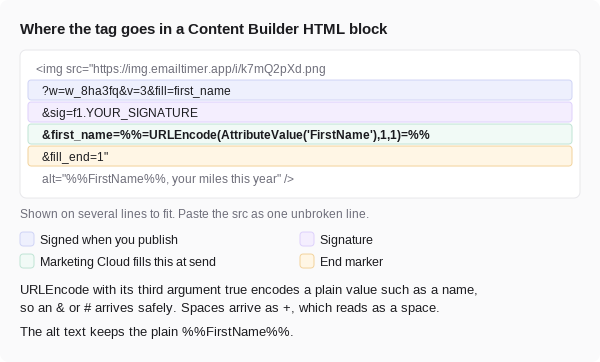
Four things to check in the pasted block:
- The part before
sig=stays exactly as copied. It is signed, and one changed character gives every subscriber a blank space where the image should be. - The fields after the signature come in the same order as the names in
fill=, withfill_end=1last. - A tracking parameter appended after
fill_end=1is ignored. One added before it breaks the image. - The alt text and links keep the plain
%%FirstName%%. Only the image link needs URLEncode.
Inside src, the attribute names sit in single quotes, AttributeValue('FirstName'), so the double quotes around src stay balanced for any editor that reads the HTML before Marketing Cloud runs the AMPscript. AMPscript takes either quote mark, and Salesforce’s own examples use both.
If you assemble a link yourself, “Copy raw link” in the publish panel gives you the signed link with no values, which draws every fallback. The merge tag image URL builder takes that raw link and writes the Marketing Cloud tags after the signature in the right order.
Four subscribers, rendered
One template for Lumen Air, an invented airline, and four subscribers’ values. The engine drew each picture below.




The fourth one is worth a second look. A Name field accepts letters, marks, spaces and a few punctuation marks, starting with a letter, so digits fail it and the field shows “traveller”. Each field is checked on its own, which is why the miles and the tier survive. Arabic, Hindi, Japanese, Chinese, Korean and other scripts the fonts cover are drawn, in any template published from the editor.
Data extensions, journeys and dates
Sendable data extensions. AttributeValue('Miles') reads the Miles column of the data extension the email is sent to. The mapping table in the snippet panel is where you type each column name once, and every snippet you copy after that uses it.
Journeys and triggered sends. AttributeValue also reads journey entry source attributes, so the same tag works in a Journey Builder email. One rule matters more in a journey, because a journey email is written once and sent for months. A fill link is one link for the whole send, so a countdown that starts at first open starts at the first open by anyone. Give each person their own deadline with a date field instead.
A field on another data extension. Lookup() returns “the data in a specific column from a data extension”, and when more than one row matches it returns the first, so match on something unique such as the subscriber key. Salesforce’s language guide says inline AMPscript runs one function per section and lets functions nest, so the lookup sits inside URLEncode:
%%=URLEncode(Lookup('Lumen_Miles','Miles','SubscriberKey',_subscriberkey),1,1)=%%
A renewal date that drives the countdown. Choose Personalized image with a countdown, declare a Date field and tick This date drives the countdown. Each subscriber then counts down to their own date, on every plan. With no format, FormatDate() follows your business unit’s locale, which in Salesforce’s US example gives 8/5/2024 1:41:23 PM. Give it a format instead. The FormatDate() reference lists the strings yyyy, MM, dd, HH, mm and ss for Marketing Cloud Engagement, and a date format plus a time format come out joined by a space:
%%=URLEncode(FormatDate(AttributeValue('RenewalDate'),'yyyy-MM-dd','HH:mm:ss'),1,1)=%%
That sends the date and the time joined by an encoded space, which the image service reads as 2026-10-01 17:00:00, a form a Date field in ISO order accepts. The value carries no offset, so set the field’s time zone to the zone your dates were written in. The format strings come from Salesforce’s reference, not from a live send, so paste a test email’s image address into Check a test email and compare the date it shows with the column.
The Date field has limits of its own. A date more than 90 days ahead (you can raise that to 400) or before the year 2000 counts as unusable. A past date shows the ended state. A missing or unusable date does what you chose: hide the timer, show the ended state, or count to the template’s own deadline, and new per-recipient timers hide it by default. If the countdown is all you need, with no name in the picture, the Salesforce Marketing Cloud countdown timer guide covers that setup.
Tiers and other known values. Declare the tier as a Choice field with the options blue, silver and gold, matched without regard to case; anything else shows the fallback. With Picked by field, the same field can choose a badge from your own uploads, up to 500 options.
What a subscriber can change, and what stops abuse
Anyone holding the email can edit the part of the link after the signature, on their own copy of the image. They can change the value of a listed field and nothing else. The template, version, deadline, time zone and every signed value stay bound, and a system name added after the signature fails the whole request. Each value must pass its field’s kind and length, and a name or text value the blocklist too, so a Name field takes a short, letters-only name and never a link or a phone number.
Opening the image address in a tab of a current browser gets the fallbacks, and so do link-preview bots. Behind that sit a per-IP limit, a cap on the image service’s render slots, a per-template bucket and the workspace’s daily ceiling (25 percent of the plan’s monthly included opens per UTC day, minimum 1,000). Past the render slots, the bucket or the ceiling, the image shows your fallbacks and the open is not billed. Stop filling fields, per template or for the whole workspace, makes every open show the fallbacks within a minute, though copies already cached elsewhere can keep a filled value for up to a day.
What remains, stated plainly: someone with the email can make a short, letters-only name that is not on any list appear on their own copy, and screenshot it.
Salesforce’s Content Builder help says not to include personally identifiable information, such as an email address, in email links. No text field here accepts @, and names such as password, token or IBAN cannot be made fillable at all. For anything your privacy team wants out of links, a recipient list puts only an opaque token in the address, on Growth and Agency. The security review page answers the questions an enterprise reviewer sends, and how fields your email platform fills work has the full reference.
Test before you send
Start with Subscriber Preview. Salesforce says it “uses the selected subscriber’s data strictly to render personalization and dynamic content”, so it is the quickest way to see each tag become a value in the image link. Use a test subscriber, as Salesforce’s own tip suggests: attribute changes made in preview “permanently apply to that subscriber”.
Then send a test to yourself from a test subscriber with no FirstName. You should see your fallback, which is the fallback working. Salesforce notes that “A test send counts as a send in the application and against the threshold you purchased”, so a short seed list is enough.
Copy the image address from that test email and paste it into Check a test email in the dashboard. A Gmail proxy address works too. It shows each field, what arrived and what was drawn. Do not judge the result by opening the address in a browser tab, which gets the fallbacks on purpose.
After the real send, Fill health on the usage screen counts drawn, empty and each fallback reason per field, over 24 hours and 7 days, and shows no values. A banner appears when more than 20 percent of a template’s filled opens in the last hour were unfilled tags, the sign that tags reached inboxes without Marketing Cloud filling them.
How to set it up
- In the dashboard, create a template and choose Personalized image, or Personalized image with a countdown if the card also needs a timer. Start from a starting design or a blank canvas, and upload your background, logo and pictures from inside the editor.
- On the Fields tab, declare each field with its kind and fallback:
first_nameas Name with the fallback “traveller”,milesas Number with a minimum and maximum,tieras Choice. Tick Your email platform can fill this on each one, then check the sample contacts, which include the longest accepted name, nothing on file and Marketing Cloud’s tag left unfilled. - Publish.
- In the snippet panel, choose Salesforce Marketing Cloud. The mode Filled by Salesforce Marketing Cloud when it sends is selected.
- In the mapping table, enter each field’s Marketing Cloud attribute:
FirstName,Miles,Tier. - Copy the snippet and paste it into an HTML content block in Content Builder. For a date that drives the countdown, wrap that one attribute in
FormatDate()as shown above. - Preview a test subscriber, send a test to yourself, and paste the image address into Check a test email.
- Send, or activate the journey, and watch Fill health through the first hour.
Questions and answers
Does Salesforce Marketing Cloud have its own personalized image feature?
It has several ways to vary an image per subscriber: Dynamic Content and AMPscript choose between images you prepared, Einstein Content Selection picks from your catalog at open, and Open Time Email in Marketing Cloud Personalization generates images per catalog item. Live Image was retired in the April 2021 release. For a value from the subscriber’s own record set inside your design, use a rendered image.
Why URLEncode with 1 and 1?
The third argument makes URLEncode encode any string, not only the parameters of a URL, into what Salesforce calls “a version that is safe to use in URLs”. The second encodes spaces and non-ASCII characters. Salesforce’s reference writes both as true. It does not name the &, so check a value containing one with a test send.
Can the image use a field from another data extension?
Yes. Wrap Lookup() inside URLEncode, as shown above, and match on a unique key such as the subscriber key, because Lookup returns the first matching row.
Will this work in a journey or a triggered send?
Yes. AttributeValue reads journey entry source attributes as well as data extension fields, so the same HTML block works in a Journey Builder email. Drive any countdown in a journey from a date field.
What does a test send show before the data is loaded?
Your fallback. An empty attribute arrives as an empty field, and a tag that was never filled is never drawn, so a test subscriber with no data sees exactly what your fallback shows. Paste the image address into Check a test email to see which of the two happened.
Can a subscriber change their own miles in the picture?
On their own copy, within your rules. Miles is a Number, so it draws only between the minimum and maximum you set, and the tier draws only as one of your options. Nobody else’s image changes. Where a value must never change, use a recipient list, whose link carries only an opaque token while the values stay on our side, or a link minted per subscriber through the API, where the values are signed. Both are on Growth and Agency.
Does this work in Marketing Cloud Next?
Salesforce’s AttributeValue() reference, read on 26 September 2026, marks the function available in Marketing Cloud Engagement and not in Marketing Cloud Next, while UrlEncode() is marked available in both. This page is written for Marketing Cloud Engagement, where Content Builder and Email Studio sit. On Next, keep URLEncode with both arguments, reference the field the way Next documents it, and check the result with Check a test email.
Sources
- UrlEncode() (AMPscript for Marketing Cloud, Salesforce Developers), read on 26 September 2026
- AttributeValue() (AMPscript for Marketing Cloud, Salesforce Developers), read on 26 September 2026
- Lookup() (AMPscript for Marketing Cloud, Salesforce Developers), read on 26 September 2026
- FormatDate() (AMPscript for Marketing Cloud, Salesforce Developers), read on 26 September 2026
- Adding AMPscript to Your Content (Salesforce Developers), read on 26 September 2026
- UrlEncode (The AMPscript Guide), read on 26 September 2026
- Personalization Strings in Marketing Cloud Engagement (Salesforce Help), read on 26 September 2026
- Create Content Blocks (Salesforce Help), read on 26 September 2026
- Dynamic Content (Salesforce Help), read on 26 September 2026
- Live Image (Salesforce Help), read on 26 September 2026
- Einstein Content Selection (Salesforce Help), read on 26 September 2026
- Open Time Email Campaigns and Templates (Marketing Cloud Personalization, Salesforce Developers), read on 26 September 2026
- Image Generation in Open Time Email Campaigns (Marketing Cloud Personalization, Salesforce Developers), read on 26 September 2026
- Subscriber Preview and Test Send (Salesforce Help), read on 26 September 2026
- RFC 3986: Uniform Resource Identifier (URI), Generic Syntax (IETF)
- URL Standard, application/x-www-form-urlencoded parsing (WHATWG)
Related
Put a countdown in the campaign you are writing now
The free plan covers 5,000 opens a month with no card. Starter is $24 a month for 250,000.