
Here are twelve personalized images in email, each drawn by EmailTimer.app’s renderer rather than mocked up: a welcome greeting, a loyalty card, a birthday offer with its own deadline, a cart card, a coupon with a QR code and seven more. Each one lists the fields it uses and shows the picture a subscriber with nothing on file gets instead.
Every value in them comes from your email platform. You mark a field as one your platform can fill, and when the campaign sends, the platform writes each subscriber’s value into the image link with its own merge tag. That works on every plan, Free included, from the dashboard. For timers on their own, see the countdown timer examples.
How to read these examples
Each example has two renders. The first is the picture for a subscriber whose fields are filled. The second is the picture for a subscriber with nothing on file, which is also what a preview or a test send shows while the tag is still unfilled. Under them sits a table of the fields: the name as the template declares it, its kind, what the field does when it has no usable value, and where the value lands in the picture.
| Example | What each subscriber gets | Kinds |
|---|---|---|
| Welcome greeting | Their first name | Name |
| Renewal reminder | Company, plan and a countdown to their renewal date | Text, Choice, Date |
| Trial ending | Name, days left and a progress bar | Name, Number |
| Tier card | Name, tier, points and a progress bar | Name, Choice, Number |
| Coupon with a QR code | Name, a code, and a QR code that carries it | Name, Code |
| Year in review | Name, boxes, top pick and money saved | Name, Number, Choice |
| Birthday offer | Name and a countdown to their own deadline | Name, Date |
| Cart card | Product picture, name, price, stars and a hold countdown | Choice, Number, Date |
| Back in stock | Their size and a stock band | Choice, Number |
| Event pass | Name, seat, and a ticket QR code | Name, Code |
| Destination offer | A city picture picked from uploads, a name and a fare | Choice, Name, Number |
| Arabic and Hindi greetings | A name in the subscriber’s own script | Name |
Every field has one of six kinds, and the kind decides what a value may contain:
- Name: letters, spaces and
' ’ - ., starting with a letter, up to four words and 32 characters by default. - Text: a name’s characters plus digits and a little punctuation, 40 characters by default, with no
@, no web address and no more than six digits. - Code: letters, digits,
_and-, 24 characters by default. - Number: up to 15 digits, with an optional minimum and maximum.
- Date: an ISO date, a day and month in the order you choose, or an epoch time.
- Choice: one of the options you list, up to 500, each with the label it shows.
A value that breaks its kind’s rules is treated as missing, so the field’s fallback applies: a word such as “there”, or its layer or its group hidden. Most of these designs go one step further and use a rule to show a different line when a field is empty. The note under each table says which rules a design uses.
The brands are invented. The product tiles, destination tiles and artwork in them were drawn in code for this page, so there is no stock art or photography below. Where a design has a countdown, the page shows its first frame; the email gets a 30-frame animation that loops. The byte sizes in each caption are what an inbox fetches, measured from the engine’s own output on 27 September 2026.
The alt text on each render reads out the drawn words, which is what the W3C’s accessibility tutorial asks of an image of text: “the text alternative must contain the same text presented in the image”. In your own email, merge tags in the alt text keep their plain form. Only the image link needs the URL-safe one.
Welcome and lifecycle
Welcome greeting
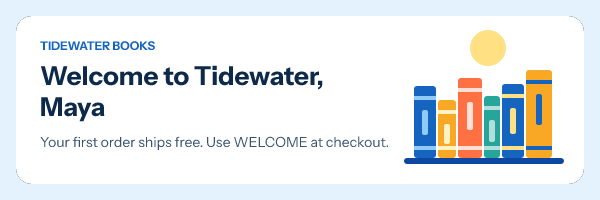
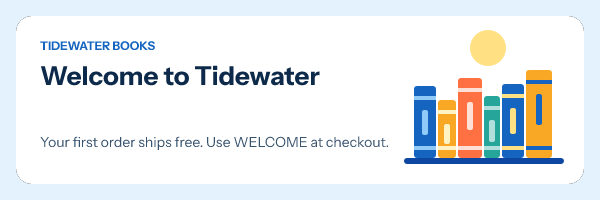
One field, and the smallest thing a personalized image can do. Tidewater Books greets a new member by name over its own artwork. With no first name on file, the sentence closes after the brand name and still reads as a finished greeting.
| Field | Kind | Fallback | Lands in |
|---|---|---|---|
first_name |
Name | Hides its layer | Text layer, and a rule’s condition |
Rule: the plain line “Welcome to Tidewater” hides whenever first_name has a value, so exactly one of the two greetings shows.
A Name value has to look like a name. A sign-up form that let someone type “Verify your account” into the first-name box does not put that sentence on your artwork: “verify” and “account” are on the built-in not-a-name list, so that subscriber gets the plain greeting.
Renewal reminder with a countdown per customer
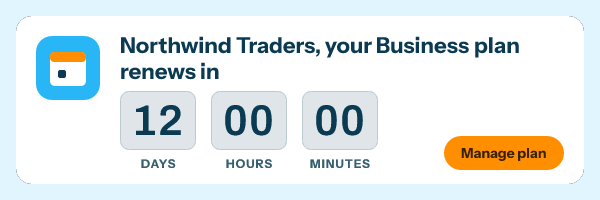
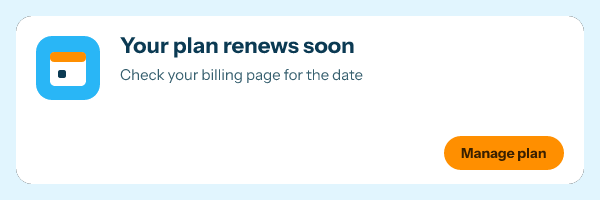
A B2B renewal names the company, the plan and the day it renews, and every customer’s day is different. Brightdesk’s renewal date is a Date field set to “This date drives the countdown”, so one published template counts down twelve days for Northwind Traders and a different span for every other account on the list.
| Field | Kind | Fallback | Lands in |
|---|---|---|---|
company |
Text | Hides its layer | Text layer, and a rule’s condition |
plan |
Choice: business shows as “Business” |
Hides its layer | Text layer |
renews_on |
Date | The timer hides | The countdown’s deadline, and a rule’s condition |
Rules: with no company or no date, “Your plan renews soon” shows instead of the headline; with no date, “Check your billing page for the date” shows as well.
Text is the one kind that is not fillable by default. Ticking “Your email platform can fill this” on it brings up a warning that anyone who has the email can change the text, and a company name is a fair use because no list of options could cover every customer. Two details matter here. A platform that cannot URL-encode a value cuts “Marks & Spencer” at the &, and the renderer then treats the value as missing rather than drawing “Marks”. And an annual plan can renew more than 90 days out, which is the default window for a filled date; the field’s setting goes up to 400 days.
Trial ending, with days left as a bar
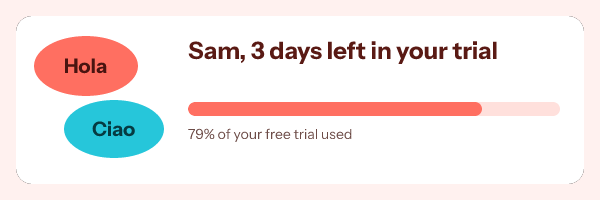
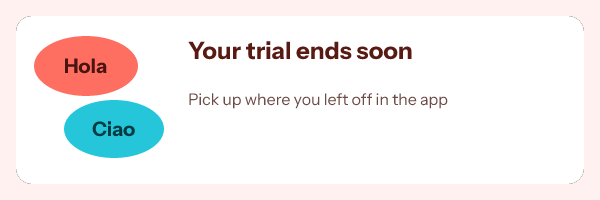
Loop Language sends a trial reminder with the days left written out and the trial drawn as a bar.
| Field | Kind | Fallback | Lands in |
|---|---|---|---|
first_name |
Name | Hides its layer | Text layer, and a rule’s condition |
days_left |
Number, 0 to 60 | Hides its layer | Text layer, and a rule’s condition |
progress |
Number, 0 to 100 | Hides its group | Progress bar and text layer, and a rule’s condition |
Rules: with no name or no days left, “Your trial ends soon” shows; with no progress, “Pick up where you left off in the app” shows under it.
This picture has no clock, and that choice has a cost. The number is the one on file at the send, so an email opened two days later still says 3 days. If late opens matter to you, drive a countdown from the trial’s end date instead, the way the renewal example does.
Loyalty and rewards
Tier card with points and progress
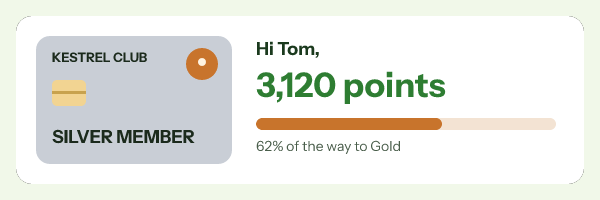
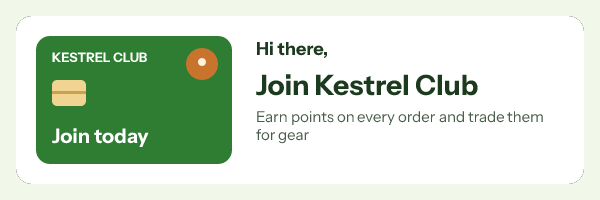
Kestrel Outfitters shows each member their tier, their balance and how far they are from the next tier. The loyalty points and tier page takes this kind of design further, with every tier and a redeem code.
| Field | Kind | Fallback | Lands in |
|---|---|---|---|
first_name |
Name | “there” | Text layer |
tier |
Choice: silver shows as “Silver” |
Hides its group | Text layer, and the conditions of the rules below |
points |
Number | Hides its group | Text layer, printed as 3,120 |
progress |
Number, 0 to 100 | Hides its group | Progress bar and text layer |
Rules: the card takes a colour per tier, the join panel hides for members, and the line under the bar names the next tier (“62% of the way to Gold” for Silver).
The tier is a Choice rather than Text for a reason. Your programme has a fixed set of tiers, so a value outside it, typed by hand or by someone editing the link, is not an option and the member group hides.
Coupon code with a QR code
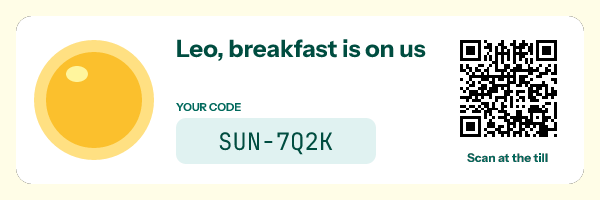
Sunny Side Diner prints each guest’s code and puts the same code in a QR code for the till.
| Field | Kind | Fallback | Lands in |
|---|---|---|---|
first_name |
Name | Hides its layer | Text layer, and a rule’s condition |
coupon |
Code | Hides its group | Text layer, and the QR code, at the end of https://sunnyside.example/redeem?code= |
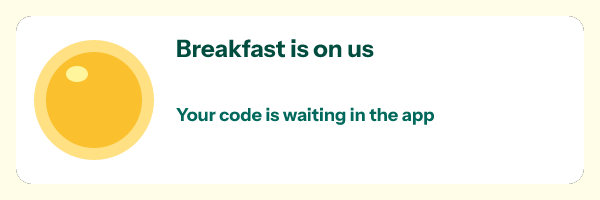
Rules: with no name, “Breakfast is on us” shows; with no code, “Your code is waiting in the app” shows.
The link inside the QR code is one the designer wrote into the template. The filled code only goes on the end of it, and a Code value is letters, digits, _ and -, so nobody can turn the QR code into a link to another site by editing their copy of the email. A filled field can never supply the whole link.
Year in review
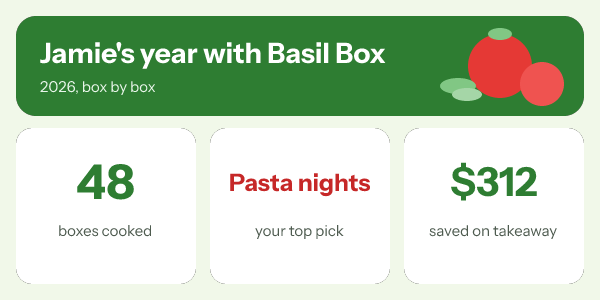
Basil Box sends each customer their year on one card: boxes cooked, top pick and money saved. With the name, that is four fields in one picture; a template can let your platform fill up to eight.
| Field | Kind | Fallback | Lands in |
|---|---|---|---|
first_name |
Name | Hides its layer | Text layer, and a rule’s condition |
boxes |
Number | Hides its group | Text layer, and a rule’s condition |
top |
Choice: pasta shows as “Pasta nights” |
Hides its group | Text layer |
saved |
Number, in cents | Hides its group | Text layer, printed as $312 |
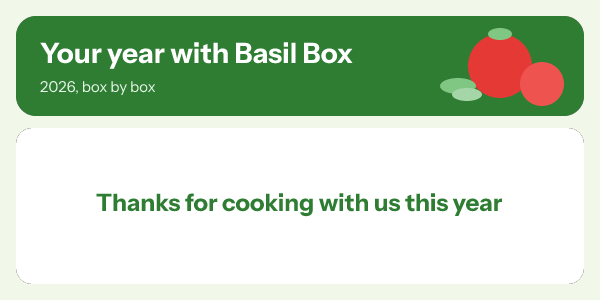
Rules: with no name, “Your year with Basil Box” shows; with no box count, a thank-you card takes the place of the stats row.
The saving arrives in cents as a plain whole number. The template divides it by 100, rounds it to whole dollars and puts the dollar sign in front.
Ecommerce
Birthday offer that ends for each person
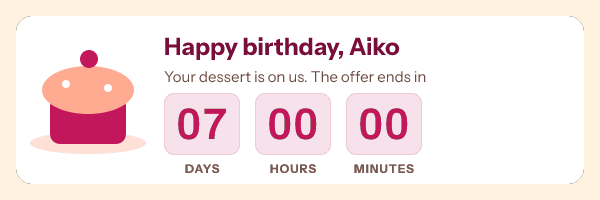
Pink Pepper Kitchen gives each subscriber a dessert for a week from their birthday. The deadline is a Date field that drives the countdown, so everyone on the list gets their own week from one template. The name and birthday guide covers awkward names and the timing in more depth.
| Field | Kind | Fallback | Lands in |
|---|---|---|---|
first_name |
Name | Hides its layer | Text layer, and a rule’s condition |
offer_ends |
Date | The timer hides | The countdown’s deadline, and a rule’s condition |
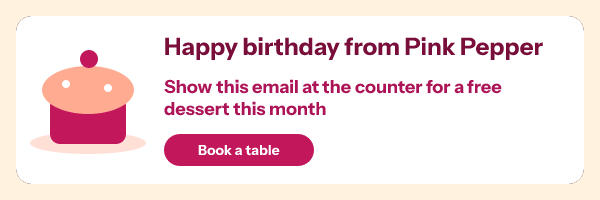
Rules: with no name, “Happy birthday from Pink Pepper” shows; with no date, the countdown line gives way to an open offer and a Book a table button.
For a missing or unusable date you choose between hiding the timer, showing the ended state, or counting to the template’s own deadline. New per-recipient timers start on hide, which suits a birthday: a greeting counting down to nothing is worse than no clock. A date already in the past shows the ended state.
Cart card with the product picked from your uploads
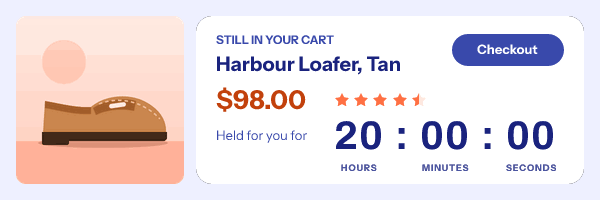
Harbour Street Shoes shows the shoe left in the cart, its price, its rating and how long the cart is held. The product picture is chosen by a Choice field from the shop’s own uploads, a setting the editor calls “Picked by field”. The product and cart guide goes deeper on prices and holds.
| Field | Kind | Fallback | Lands in |
|---|---|---|---|
product |
Choice: loafer-tan shows as “Harbour Loafer, Tan” |
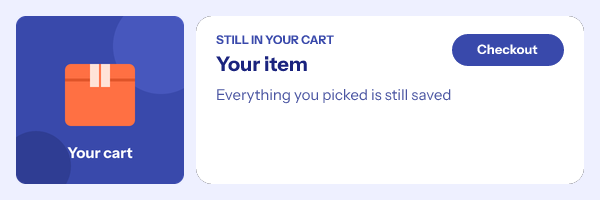
“Your item”, and the layer’s own “Your cart” tile | Image layer (“Picked by field”), and a text layer |
price |
Number, in cents | Hides its layer | Text layer, printed as $98.00, and a rule’s condition |
rating |
Number, 0 to 5 | Hides its layer | Star rating |
hold_until |
Date | The timer hides | The countdown’s deadline, and a rule’s condition |
Rules: with no hold, “Held for you for” hides with the timer; with no price, “Everything you picked is still saved” shows.
“Picked by field” chooses among your uploads, up to 500 options for one field. It never fetches a product picture from a URL, and a product code that is not one of the options draws the layer’s own image. A price in a filled field can be edited by anyone who has the email, within the minimum and maximum you set. If a displayed price must never change, mint a link for each shopper through the API instead (Growth and Agency).
Back in stock, in their size
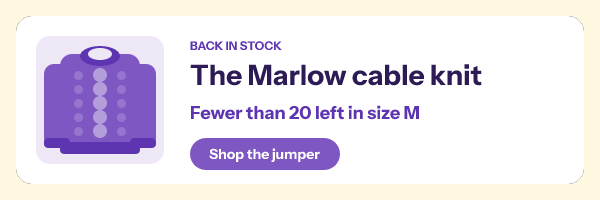
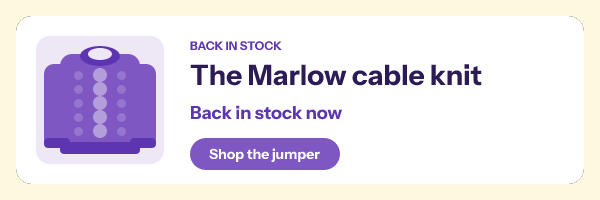
Marlow Knitwear tells a subscriber that the jumper they wanted is back in their size.
| Field | Kind | Fallback | Lands in |
|---|---|---|---|
size |
Choice: m shows as “M” |
Hides its group | Text layer, and a rule’s condition |
stock_band |
Number, 1 to 100 | Hides its group | Text layer |
Rule: “Back in stock now” hides whenever there is a size.
“Fewer than 20” is the band at the moment of the send, and it does not change at open: the renderer never reads your stock levels. Send a band rather than an exact count, and only send it while it is true.
Events and travel
Event pass with seat and ticket QR
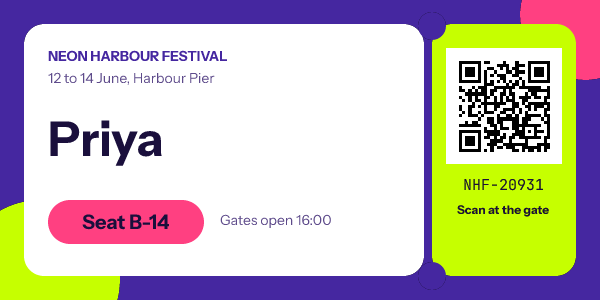
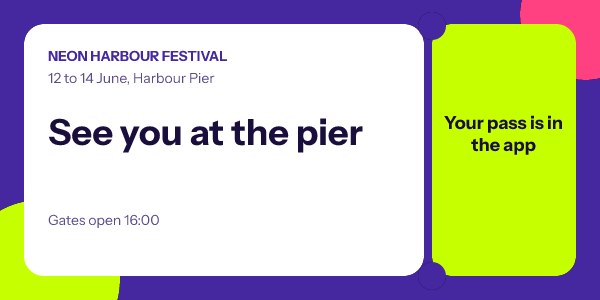
Neon Harbour Festival puts the guest’s name, seat and ticket QR code on a pass-sized image.
| Field | Kind | Fallback | Lands in |
|---|---|---|---|
first_name |
Name | Hides its layer | Text layer, and a rule’s condition |
seat |
Code | Hides its layer | Text layer, and a rule’s condition |
ticket |
Code | Hides its group | Text layer, and the QR code, at the end of https://neonharbour.example/t/; a rule’s condition |
Rules: with no name, “See you at the pier” shows; with no seat, the seat pill goes and the gate time moves left; with no ticket, “Your pass is in the app” shows on the stub.
Treat a pass in an email as a convenience copy. Anyone holding the email can change a Code value on their own copy, so check the ticket number against your own records at the gate, as you would for a printed ticket.
Destination offer, image picked by field
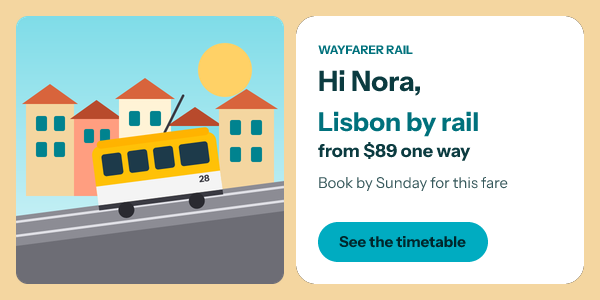
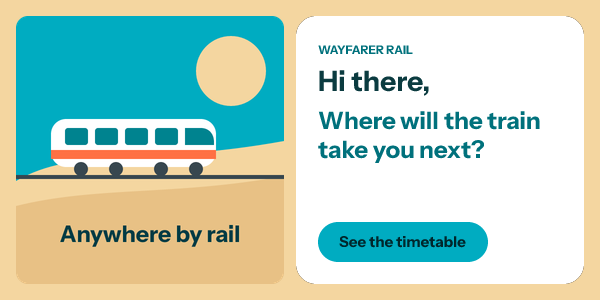
Wayfarer Rail shows each subscriber the city they looked at, picked from the rail company’s own set of destination tiles, with the fare it wants to lead with.
| Field | Kind | Fallback | Lands in |
|---|---|---|---|
first_name |
Name | “there” | Text layer |
city |
Choice: lisbon shows as “Lisbon” |
Hides its group, and the layer’s own “Anywhere by rail” tile | Image layer (“Picked by field”), a text layer, and a rule’s condition |
fare |
Number, 1 to 5,000 | Hides its group | Text layer |
Rule: “Where will the train take you next?” hides whenever there is a city.
The option’s value is what your platform sends (lisbon) and its label is what the picture prints (“Lisbon”), so a CRM that stores lower-case codes still gets a properly written city. Matching ignores case, so Lisbon and LISBON pick the same tile. One Choice field can map up to 500 options to your uploads.
Names in any script your fonts cover
Arabic and Hindi greetings
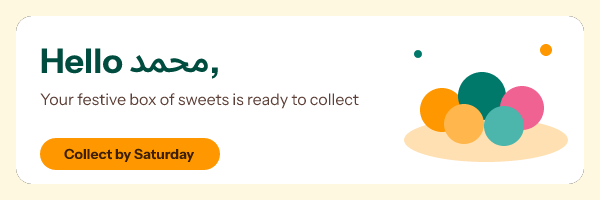
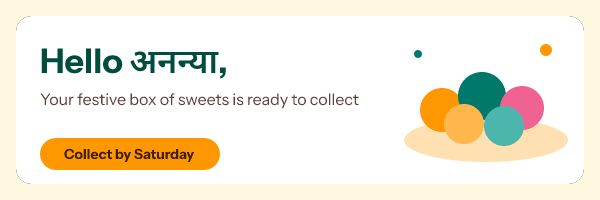
Saffron Street Sweets greets its customers in whatever script their name is written in. The renderer sets محمد right to left inside an English sentence, as the Unicode bidirectional algorithm describes, with its letters joined. It draws अनन्या with its Devanagari conjunct shaped. Each word has to stay in one script, so a name that mixes Latin and Cyrillic letters in one word shows the fallback.
| Field | Kind | Fallback | Lands in |
|---|---|---|---|
first_name |
Name | “there” | Text layer |
No rules. The field’s own fallback word covers the missing case, which makes this the simplest design on the page to rebuild.
Japanese, Chinese and Korean names are drawn in full in any template published from the editor. The renderer checks that its fonts can draw every character of a filled value before drawing it, so a character no font covers shows “there” rather than a row of empty boxes. A platform that does not send UTF-8 gets the same treatment for accented names.
What every personalized image here has in common
Every field has a fallback, and someone chose it. A missing value, a tag your platform left unfilled, a value that breaks its kind’s rules and a value the fonts cannot draw all end the same way: the field’s fallback word, or its layer or group hidden. The literal tag is never drawn.
Every value lands only where its kind is allowed to go:
| Where it lands | Kinds allowed |
|---|---|
| Text in a text layer | All six |
| A rule’s condition | All six |
| A progress bar or star rating | Number |
| A QR code, inside the link you wrote | Code, Number, Choice |
| An image layer | Choice, picking one of your uploads |
| The countdown’s deadline | Date, through “This date drives the countdown” |
| Image keys, timer labels, colours, backgrounds, fallback images | None |
And every filled value is the one on file at the send. Your platform writes it into the link when it sends, so it stays put when the email is opened a week later. Only a countdown moves at open, because the clock is drawn when the image is fetched.
How to set it up
- In the dashboard, choose Personalized image, or Personalized image with a countdown for designs like the birthday, cart and renewal examples.
- Start from one of the starting designs in the gallery, or from a blank canvas.
- Add your own images. Use Upload image in the image layer or background controls, or drop a file on the canvas. Set the canvas background to an upload, with a colour behind it, and add your logo as an image layer with contain fit so it is never cropped. Uploads take PNG, JPEG, GIF and WebP up to 5 MB.
- Open the Fields tab and add each field: its kind, its fallback, and the box Your email platform can fill this. For a Choice, list the options and what each shows as. For a date that sets the deadline, tick This date drives the countdown. For a picture that changes, set the image layer to Picked by field.
- Add any rules, such as a plain line that shows when a field is empty.
- Check Sample contacts. Next to three rows of your own, fixed rows show the longest accepted name, an Arabic name, a Japanese name, nothing on file and your platform’s tag left unfilled, each drawn by the production renderer.
- Publish. In the snippet panel, choose the mode named after your platform, such as Filled by Klaviyo when it sends, map each field to the field your platform holds, and paste the snippet where your platform takes HTML.
- Send yourself a test. Then paste the image link from the test email into Check a test email to see what arrived for each field and what was drawn.
Fields your email platform fills are on every plan, Free included, and Free covers 5,000 opens a month. Each field’s own fallback word or hide policy handles the missing case, the way the Saffron greeting does. The plans are on pricing, the URL-safe tag for your platform is in the merge tag guide, and every rule on this page is set out in full in fields your email platform fills.
Questions and answers
Are these real renders or mock-ups?
Real renders. Every picture on this page came out of the same engine that serves images to inboxes, drawn with the values in its table. The brands are invented, and the pictures inside them, such as the shoe tile, the Lisbon tile and the cake, were drawn in code for this page. No photographs, stock art or generated art.
Can I start from one of these designs?
The gallery in the dashboard has starting designs for personalized images and for images with a countdown. These twelve were built for this page, and any of them can be rebuilt from a starting design or a blank canvas with the fields and rules listed under it.
What does a subscriber with no data see?
The fallback you chose for each field: a default word such as “there”, a hidden layer, or a hidden group, plus whatever your rules show in their place. The second render in every example above is that case. A preview or a test send, where your platform leaves the tag unfilled, shows the same picture.
Which email platforms can fill these fields?
Every platform in the table on the merge tag guide, which gives the URL-safe tag for each one and the date its documentation was read. Mailchimp’s is *|URL:FNAME|*. Its cheat sheet describes the URL: form as encoding a value for use in a link, and shows “I love monkeys” arriving as I+love+monkeys; the renderer reads each + as a space. Platforms that cannot encode a value still fill names, codes and choices, and a value with & or # in it shows your fallback.
How big are these images?
Small. Measured on 27 September 2026, the designs without a countdown are PNGs, and 20 of those 22 renders weigh between 6.6 KB and 13.1 KB, with a median of 8.7 KB. The two destination offers are heavier, at 21.8 KB and 34.6 KB, because their uploaded tiles carry more detail. The three designs with a countdown are 30-frame GIFs of 16.9 KB to 17.5 KB. A KB here is 1,024 bytes.
Can the picture change after the email is sent?
The filled values cannot change on their own, because your platform wrote them into the link at the send. The countdown is the part that moves. Two other things can change a picture. Anyone holding the email can edit a value in their own copy of the link, within that field’s rules, and the result appears only on their copy. And Stop filling fields makes every open show your fallbacks within a minute, though a copy cached elsewhere can keep a filled value for up to a day.
Sources
Related
Put a countdown in the campaign you are writing now
The free plan covers 5,000 opens a month with no card. Starter is $24 a month for 250,000.