
Klaviyo can already swap a whole image per profile from an image URL you store. To draw a profile’s own name, points or chosen product into one designed image, one of the dynamic images in email drawn at the fetch, put the image link in a Klaviyo email and let Klaviyo fill each field with the urlencode filter, as in {{ first_name|urlencode }}. Profile fields work in campaigns and flows; event fields only in flows that event triggers.
On the other side, EmailTimer.app checks each value against its field’s rules when the mail client fetches the image, and draws your fallback for anything it cannot use. It works on every plan, the free one included, from the dashboard. The same HTML block can also carry a Klaviyo countdown timer, and one image can hold a name and a countdown together.
What Klaviyo does with images on its own
Start with Klaviyo’s own tools. For plenty of emails they are enough, and they come with your Klaviyo account.
| Klaviyo feature | What changes per profile | Where it stops |
|---|---|---|
| Dynamic Image, in the image block | Which image file is shown, from a URL stored on the profile or on the event that triggered the flow | Every picture must already exist as a file. Nothing is drawn |
| Product blocks and feeds | Which catalog products appear, with name, price and a button | Klaviyo’s own block layout, with no custom HTML |
| Text over a section background image | Live text such as a first name, set on top of your picture | Klaviyo lists Outlook for Windows as showing no background images |
| Remix, the AI image editor | Nothing. It edits the picture in the block from a prompt | One picture for everyone who gets the email |
Dynamic Image. Klaviyo’s editor guide describes it as a way to “Display a custom image for each recipient using a dynamic image variable”. You choose Select image, then Dynamic Image, and paste a tag into the field Klaviyo labels “Dynamic variable or dynamic URL”. The tag points at an image URL stored on the profile (by CSV, an integration or the API) or carried by the event that triggered the flow. For a missing value, Klaviyo offers |missing_product_image or |default: with a backup URL of your own. This is the right tool when a picture per person already exists as a file, such as the product shot in a cart event or a certificate you generated for each person before the send.
Product blocks. A dynamic block shows products “based on business trends (e.g., best-sellers in the last 90 days) or customized to each recipient based on what Klaviyo predicts they will be most interested in”. A static block holds up to nine products you pick. In metric-triggered flows, a dynamic table block repeats a row for each item in the cart. These read your synced catalog, which Klaviyo limits to 250,000 items by default, so they reach products an upload list never will. Klaviyo also states that “Product blocks do not support any custom HTML”.
Text over a background image. Set an image as a section background in the Styles tab, then add a text block with {{ first_name|default:'there' }} on top. Klaviyo notes that live text over a background is easier for screen readers than words baked into a picture, and that is a fair point. It also lists Outlook for Windows as an inbox that does not support background images, where the section’s background colour shows instead.
Remix. Klaviyo’s help centre says Remix “sends the current image to Klaviyo’s generative-AI service and returns one or more variations based on your prompt”. The version you pick replaces the image in the block. It saves design time, and every recipient sees the same result.
If one of these covers your email, use it and skip the rest of this page.
When you need a rendered image
Two jobs sit outside those tools.
The first is text that belongs to the artwork: a name set in your display font inside a badge, or a points total beside a progress bar. Because it is pixels, Outlook for Windows shows the same picture Apple Mail shows, and nothing reflows.
The second is a picture chosen per profile from a set you control, with words drawn around it. A Choice field lists up to 500 options, each mapped to one of your own uploads, and a text layer beside the picture can print the option’s label and a price from a Number field. Klaviyo’s Dynamic Image can switch a picture per profile too. It cannot write “Ava, made for dry skin” across it.
Both work the same way. Klaviyo writes each value into the image link after the signature when it sends, and the renderer draws the picture when the mail client fetches it. The tag each other email platform writes after the signature is on the merge tags page.
The personalized image tag for Klaviyo
For a first name, the tag after the signature is {{ first_name|urlencode }}. Klaviyo’s filter glossary says urlencode “URL-encodes the given string”, and that “the / character is assumed safe”. So a company name like “Marks & Spencer” arrives as Marks%20%26%20Spencer, one value, and a raw & or # never cuts it in two. The slash Klaviyo leaves alone is harmless in this part of a link. Klaviyo’s urlencodeplus works as well: it writes a space as +, which EmailTimer.app reads as a space, the way the WHATWG URL Standard parses a query.
Every other property follows Klaviyo’s own forms. “Profile personalization generally begins with person, with the exception of a few special tags like first_name and last_name”, and a property name with spaces takes the lookup form. “Event variables, which can be used in metric-triggered flows, begin with event.”
| Field in your template | Kind | Tag after the signature | Filled in |
|---|---|---|---|
first_name |
Name | {{ first_name|urlencode }} |
Campaigns and every flow |
skin_type |
Choice | {{ person.skin_type|urlencode }} |
Campaigns and every flow |
points |
Number | {{ person|lookup:'Loyalty Points'|urlencode }} |
Campaigns and every flow |
product |
Choice | {{ event.extra.line_items.0.product.handle|urlencode }} |
Only flows triggered by a Shopify store’s Started Checkout |
The last row is Klaviyo’s own Shopify example for a Started Checkout event, and Klaviyo warns that “the exact variable may differ depending on the metric used to trigger the flow”. Copy yours from the preview data (in Preview & test, open All properties and click a variable name to copy it), because “All personalization tags are case sensitive and must exactly match the property names they reference”. A property saved as Skin_Type and written skin_type arrives empty, and the field shows its fallback.
Leave Klaviyo’s default filter out of the image link. An empty property then arrives empty, and the fallback you set on the field takes over: the wording you designed, or a hidden layer. Write {{ first_name|default:'there'|urlencode }} and Klaviyo sends “there” as if it were somebody’s name. On a Choice field, a default that is not one of your options draws the layer’s own image anyway. Keep default where Klaviyo documents it, in text blocks and in the image’s alt text.
A tag Klaviyo leaves unfilled counts as missing too. The literal tag is never drawn.
Where the snippet goes in a Klaviyo email
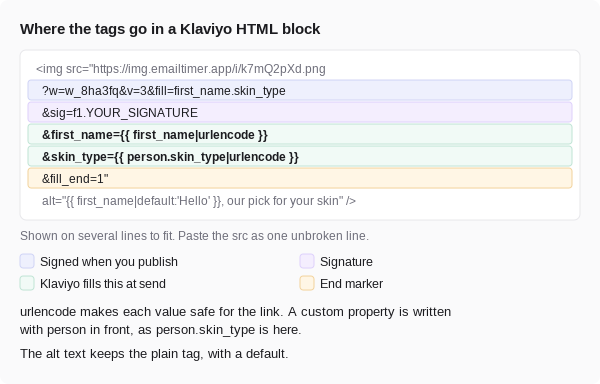
Use an HTML block. Klaviyo’s editor guide says to use it “when adding custom-coded elements, third-party features like countdown timers, or custom CSS”. Drag one into the email and paste the snippet the dashboard writes when you pick Klaviyo in the snippet panel, in the mode “Filled by Klaviyo when it sends”. With your own template, workspace and signature in place of the placeholders, it looks like this:
<img src="https://img.emailtimer.app/i/k7mQ2pXd.png?w=w_8ha3fq&v=3&fill=first_name.skin_type&sig=f1.YOUR_SIGNATURE&first_name={{ first_name|urlencode }}&skin_type={{ person.skin_type|urlencode }}&fill_end=1" width="600" height="200" alt="{{ first_name|default:'Hello' }}, our pick for your skin" style="display:block;border:0" />
Everything before sig is signed when you publish, including fill=first_name.skin_type, the list of fields Klaviyo may fill. After the signature come Klaviyo’s tags in that order, and fill_end=1 closes the list. A tracking parameter appended after fill_end=1 is ignored. The tag in alt keeps its plain form, because there Klaviyo fills it as text. Write alt text that says what the picture says, so a screen reader, or a reader with images off, still gets the greeting.
Klaviyo’s image block also has the Dynamic Image option, whose field is labelled “Dynamic variable or dynamic URL”. Klaviyo’s article shows it holding one variable that stores a whole image URL. It does not document a link with several tags inside it, so this page does not rely on it. The HTML block takes the snippet exactly as written.
Four profiles, rendered
Petal Lane is an invented skincare shop. Its image has two fields. first_name is a Name field whose fallback drops the name from the headline. skin_type is a Choice field with one option per skin type, and the product layer is set to Picked by field, so each option draws its own uploaded tile. The tiles were drawn in code for this page and stand in for your product shots. Every picture below came out of the renderer.
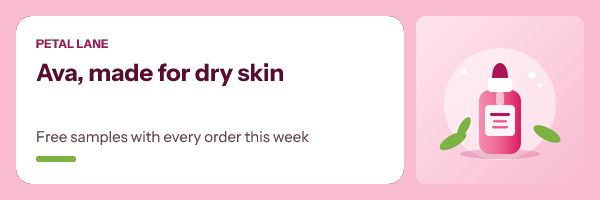
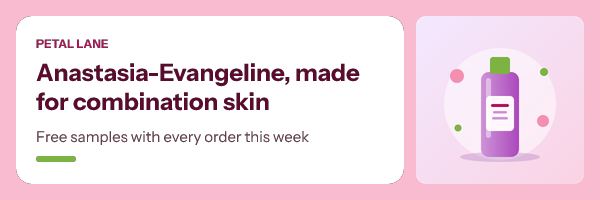
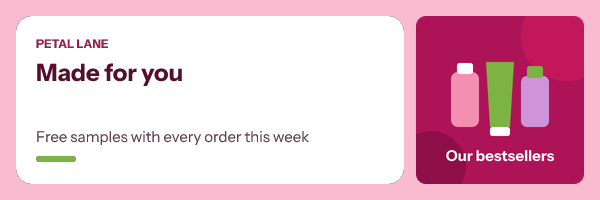
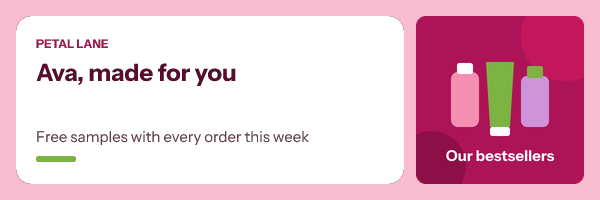
Plan for the fourth case. Klaviyo sends whatever is on the profile, and a sign-up form that once took free text leaves values like “oily-ish” behind. A Choice value that matches no option (compared without regard to case) draws the layer’s own image. The layer is never dropped, and no value is ever fetched from a URL. More designs built this way are on the examples page.
Flows, campaigns and event data
Klaviyo is direct about this: “Because event variables are based on a customer’s behavior, they can only be used in metric-triggered flow messages.” Campaigns and flows triggered by a list, a segment or a date property have profile properties only. So build a campaign image on first_name and person. properties, and keep event. tags for the flow that event triggers.
An abandoned checkout flow is where both meet. The name comes from the profile, the product handle from the Started Checkout event goes into a Choice field, and the line price into a Number field. The Choice list is the limit to plan around: up to 500 of your uploads, against a Klaviyo catalog that can hold 250,000 items. Map your bestsellers by handle. Anything else draws the layer’s own image. Name each tile file after its handle, and Add images from files creates one option per file, with the file name (without its extension) as the value. The trade-offs for carts are on cart and product images.
A countdown can join the picture. Choose Personalized image with a countdown, and a Date field can drive the countdown for each subscriber through “This date drives the countdown”, on every plan. Under “How your platform sends it”, paste a sample value from Klaviyo and the box names the format it reads. A date more than 90 days ahead counts as unusable by default. For a missing or unusable date you choose what happens: hide the timer, show the ended state, or count to the template’s own deadline. One link serves the whole send, so a countdown that starts at first open starts at the first open by anyone.
What a subscriber can change, and what stops abuse
The values after the signature are not signed. Anyone holding the email can edit their own copy of the link. That is the cost of letting Klaviyo fill fields at send time, so the limits matter.
Only the value of a listed field can change. The template, the workspace, the version and every signed value stay fixed, and a system name written after the signature makes the whole image come back blank. Each value must pass its field’s rules. A Name takes letters, marks, spaces and ' ’ - ., up to four words and 32 characters by default, so “J. R.” passes and “evil.com” does not. A Choice takes only your options. No text kind accepts @, so an email address is never drawn.
The bounds sit around that:
- Nothing is fillable until you tick “Your email platform can fill this” on the field. It starts off for Text, with a warning.
- Opening the image address in a browser tab, and link-preview bots, get the fallbacks.
- Each workspace has a daily ceiling on filled opens: 25 percent of the plan’s monthly included opens per UTC day, at least 1,000 (1,250 on Free), with a notice at 50 and 100 percent. Past it, images show the fallbacks and those opens are not billed.
- “Stop filling fields” pauses a template or the whole workspace. Every open shows the fallbacks within a minute, though copies cached elsewhere can keep a filled value for up to a day.
What remains, stated plainly: anyone holding the email can make a short, letters-only name that is on no list appear on their own copy of the image, and screenshot it. The bounds keep it short, one script, off QR codes and links, and stoppable in a minute.
A value in a link can be seen by whoever holds the email, by Klaviyo, by the recipient’s mail provider and by EmailTimer.app. For data that must stay out of links, use a recipient list (Growth and Agency) instead. Every rule is in the fill fields reference.
Test before you send
In the editor, the sample contacts come first. Three rows are yours to edit, and fixed stress rows cover the longest accepted name, an Arabic name, a Japanese name, nothing on file and Klaviyo’s tag left unfilled. Each renders through the production renderer with a line per field, such as “first_name: drawn”. The Japanese row is drawn in full, as it is in any template published from the editor.
In Klaviyo, preview with a real profile, and for a flow email with a recent event. Klaviyo adds a caution: “Preview emails are useful for inbox rendering checks, but some dynamic content does not behave the same way it does in a live send.” For a metric-triggered flow, it says “you must trigger the flow yourself by taking the trigger action” to get a live send with every event detail.
Then send a test to yourself. A profile with no first name shows your fallback, which is the fallback working. Copy the image address from the test email (a Gmail proxy address works) into Check a test email in the dashboard. It lists each field, what arrived and what was drawn. After the real send, Fill health counts drawn values, empty ones and each fallback reason per field, and raises a banner when more than 20 percent of a template’s filled opens in the last hour were unfilled tags.
How to set it up
- In the dashboard, choose Personalized image, or Personalized image with a countdown if a timer belongs in the same picture.
- Start from a starting design or a blank canvas. Upload your product tiles, background and logo from inside the editor.
- In the Fields tab, add
first_nameas a Name field andskin_typeas a Choice field with its options. Set a fallback for each and tick “Your email platform can fill this”. - Select the product image layer, set it to Picked by field, and pick an upload for each option. The layer’s own image covers anything unmatched.
- Check the sample contacts, including the stress rows, and publish.
- In the snippet panel, pick Klaviyo. “Filled by Klaviyo when it sends” is selected. Map each field to its Klaviyo property and copy the snippet.
- In Klaviyo, drag an HTML block into the email and paste the snippet.
- Preview with a real profile, send yourself a test, and paste the image address from it into Check a test email.
- Send, then watch Fill health for fields that arrive empty or unfilled.
Questions and answers
Can Klaviyo put a first name on an image by itself?
Not into the pixels. Klaviyo can set live text over a section background image, and its Dynamic Image option can swap a whole image per profile. Drawing the name into the artwork needs an image rendered for each request, which is what the snippet above does.
Why does my image show the fallback in a test send?
The profile or event you tested with has no value for that field, or the tag arrived unfilled. Either way the field’s fallback shows and the tag itself is never drawn. Paste the image address into Check a test email to see which field arrived empty and why.
Can the product image come from my Klaviyo catalog?
No. A Choice field picks from your own uploads in EmailTimer.app, up to 500, and nothing is fetched from a URL. Klaviyo’s own Dynamic Image covers a catalog image by URL, and its product blocks draw straight from the catalog.
Does it work in abandoned cart flows?
Yes. The event that triggers the flow, such as Started Checkout, can fill a product handle or a price, and the profile fills the name. Those event values exist only in the flow that event triggers, never in a campaign.
Is it on the free plan?
Yes, on every plan from the dashboard. The free plan covers 5,000 opens a month, and its daily ceiling on filled opens is 1,250. The API that mints the same links is on Growth and Agency, and a Klaviyo email does not need it. The plans are on pricing.
How is this different from the free Klaviyo countdown timer page?
The free Klaviyo countdown timer generator makes countdown timers only, and it never fills fields. A timer from the free generator works for 500 opens without an account, and for 1,000 once you sign in and claim it. A personalized image is built in the dashboard, where fields Klaviyo fills are on every plan.
Sources
- Django filter glossary (Klaviyo Developers), read on 26 September 2026
- How to insert a dynamic image in an email (Klaviyo Help Center), read on 26 September 2026
- Message personalization reference (Klaviyo Help Center), read on 26 September 2026
- How to add a first name to an email, SMS, or push message (Klaviyo Help Center), read on 26 September 2026
- How to use event data to personalize email and SMS flows (Klaviyo Help Center), read on 26 September 2026
- How to add a product block to an email (Klaviyo Help Center), read on 26 September 2026
- How to use product feeds and recommendations (Klaviyo Help Center), read on 26 September 2026
- How to add a background image to an email template or section (Klaviyo Help Center), read on 26 September 2026
- Remix an image in the email editor (Klaviyo Help Center), read on 26 September 2026
- Guide to the email template editor (Klaviyo Help Center), read on 26 September 2026
- How to preview and send test emails in Klaviyo (Klaviyo Help Center), read on 26 September 2026
- URL Standard, application/x-www-form-urlencoded parsing (WHATWG)
Related
Put a countdown in the campaign you are writing now
The free plan covers 5,000 opens a month with no card. Starter is $24 a month for 250,000.