
Marketo Engage replaces tokens in an image address as it sends, but a plain {{lead.First Name}} is not made safe for a URL. Create one Email Script token per field whose script is ${esc.url($lead.FirstName)}, put each token in the image link after its signature, the way personalized images in email work, and each lead’s name, company, session or badge code is drawn into your design when the image is fetched.
The design is yours, built on your own background and logo, with fields for the parts that change. You choose which fields Marketo may fill, and a value that is missing, unfilled or outside a field’s rules draws the fallback you set for that field. It works on every plan, Free included, from the dashboard. Every Marketo detail below comes from Adobe’s documentation, and the encoding detail from the Apache Velocity project’s, both read on 26 September 2026.
What Marketo Engage does with images on its own
Marketo has four ways to vary an image per person. Each one picks or places a picture somebody made beforehand.
| Marketo option | What changes per person | What it does not do |
|---|---|---|
| Dynamic Content | An element, such as an image, swapped per segment | Draw a lead’s own value; every lead in a segment sees the same picture |
| A token as the image address | The whole address, from a person field or a My Token | Make the picture; someone still creates and hosts one per lead or per program |
| An Email Script token | Whatever HTML a Velocity script prints, such as an address picked by a field’s value | Set text into pixels; a script prints text and markup |
| Generated images in the Email Designer | A new image per persona or buying group, made with Adobe Firefly or Gemini 2.5 Nano Banana | Change per lead at send; the image is made while you write the email |
Dynamic Content is the right tool when the picture changes by group. Adobe’s Understanding Dynamic Content describes a segmentation as subgroups built from a Smart List rule, such as an Industry segmentation with Healthcare and Technology segments. You make an element dynamic and give each segment its own version. Snippets work the same way for blocks you reuse across emails. Adobe recommends keeping dynamic elements “under 20 per email”.
A token can also be the whole address. Adobe’s Edit Elements in an Email says to use the image element’s External URL option for a Marketo token, and warns that “the image will appear broken in the editor, but will render in Preview mode and the Send Sample email.” That route needs a finished image address sitting in a field for every lead.
Generated images are made for a group, not for a lead. Adobe’s Generate content page says the feature “is not enabled by default” and needs Adobe’s Gen-AI terms agreed through your account team. It produces images for “a particular persona/buying group”, which then go out like any other image.
None of these sets Dana’s name and her company into one designed picture. If a dozen segment images cover your cases, stay inside Marketo. A rendered image earns its place when the changing part is a value that differs for nearly every lead.
One Email Script token per field
An Email Script token runs a Velocity script every time the email is sent and prints what the script returns. Adobe’s steps, from Create an Email Script Token: go to Marketing Activities, select a program, open the My Tokens tab, drag in an Email Script token, name it, and choose Click to Edit. Then use the tree on the right to drag in the fields the script reads.
The tree is the easy step to miss. Adobe notes that a field “becomes checked/active after you drag it into the script editor”, and warns: “If you are typing in tokens free-form ensure to check/activate all corresponding tokens in the tree or they will be treated as plain text and won’t work.” The developer guide puts it more bluntly: “Check the box in the script editor for the fields you are using, or they do not process”. If you type $lead.FirstName without ticking First Name, the image draws that field’s fallback, because what arrives is not a first name.
For a first name, the whole script is one line:
${esc.url($lead.FirstName)}
The badge example on this page fills four fields, so it needs four tokens. The last two read custom fields; the names shown are examples, so drag your own from the tree and let Marketo write the name.
| Field in the template | Kind | Marketo token | Script |
|---|---|---|---|
first_name |
Name | {{my.et_first_name}} |
${esc.url($lead.FirstName)} |
company |
Text | {{my.et_company}} |
${esc.url($lead.Company)} |
session |
Choice | {{my.et_session}} |
${esc.url($lead.summitSession)} |
badge |
Code | {{my.et_badge}} |
${esc.url($lead.summitBadge)} |
Name each token the way the snippet writes it after the signature: et_first_name for the field first_name. Keep the underscores. Adobe’s newer Email Designer requires camel case or underscores in token names, so a name with no spaces works in both editors.
What esc.url does to a value
$esc is Velocity’s EscapeTool, one of the tools Adobe lists as available to every script. The Apache documentation says url escapes “the characters in a String to be suitable to use as an HTTP parameter value” and “Uses UTF-8 as default character encoding”. Its own example turns hello here & there into hello+here+%26+there.
That output is what the renderer expects. A company called Marks & Spencer leaves Marketo as Marks+%26+Spencer, one value, and is drawn whole. The spaces arrive as +, which the renderer reads back as spaces. And because the encoding is UTF-8, an accented name such as Lucía keeps its accent.
Four one-line scripts also sit far below Adobe’s limit on script tokens: “The combined length of all Email Script Tokens in a given email may not exceed 100,000 bytes.”
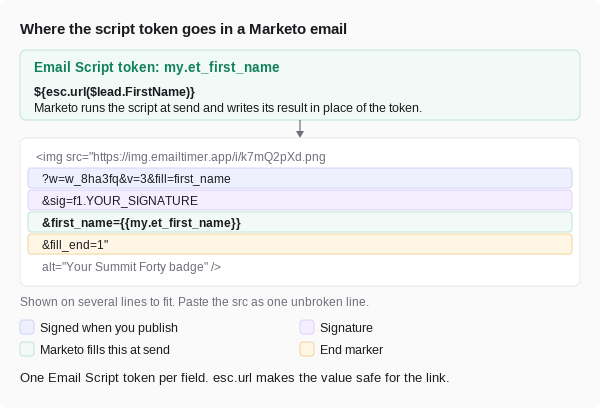
Where the tokens go in a Marketo email
Publish the design, open the snippet, and choose Marketo Engage. A template with fields Marketo can fill opens on the mode “Filled by Marketo Engage when it sends”. For the badge, the tag looks like this, with a placeholder where the signature goes:
<a href="https://summitforty.example/agenda" target="_blank" rel="noopener"><img src="https://img.emailtimer.app/i/k7mQ2pXd.png?w=w_8ha3fq&v=3&fill=badge.company.first_name.session&sig=f1.YOUR_SIGNATURE&badge={{my.et_badge}}&company={{my.et_company}}&first_name={{my.et_first_name}}&session={{my.et_session}}&fill_end=1" alt="Your Summit Forty badge" width="600" height="200" border="0" style="display:block; width:100%; max-width:600px; height:auto; border:0;" /></a>
Everything before sig is signed, including fill, the list of fields Marketo may fill, in ascending order. After sig come the four tokens in that same order, then fill_end=1. Only the value of a listed field can change. A system name such as &w= written after the signature makes the whole request fail, and the image comes back as a transparent pixel, a blank space in the email. Anything after fill_end=1 is ignored.
In Email Editor v2.0, paste the tag into the email’s HTML. Adobe’s Edit an Email’s HTML gives the path: select the email, click Edit Draft, then click Edit Code. Put the tag inside an element or a module. Adobe lists “Editing the contents of any Element” as safe, and “Changing anything in the code outside of an Element or Module” as what breaks an email from its template. If you would rather not edit code, the image element’s External URL option takes the address alone, tokens included, with the broken-in-the-editor warning quoted above.
Two cautions from Adobe’s pages apply here.
Keep the image out of a dynamic section when you send from a batch campaign. Using Dynamic Content in an Email says: “The use of variables within dynamic content in an email is only supported when using Trigger Campaigns. It is not supported when using Batch Campaigns.”
And Adobe’s developer guide asks you not to “print variables inside URL references”, listing <a href="http://{{my.link}}"> among its incorrect examples. Every example in that rule is a link that Marketo tracks for clicks. The tokens here sit in the image’s own address, and the link around the image stays a plain address. Prove it on your own instance with one sample send before the first real one, as you would for any new token.
Plain lead tokens are fine in the alt text, such as {{lead.First Name:default=there}}, because alt text is not an address. The newer Email Designer runs Velocity too, according to Adobe’s feature comparison, but the steps on this page are written for Email Editor v2.0. In the designer, insert the tokens through its personalization editor and check the first sample closely.
Four leads, rendered
The badge belongs to Summit Forty, a B2B conference invented for this page: plum and gold on a lilac ground. It declares four fields. first_name is a Name. company is Text, the one kind that is off until you tick “Your email platform can fill this”, and ticking it shows “Anyone who has the email can change this text. If you know every possible value, use Choice.” A company list has no fixed set of values, so Text is the right kind here. session is a Choice whose options are the values Marketo holds, each with the label to draw. badge is a Code, which the QR code carries inside the check-in address you wrote.
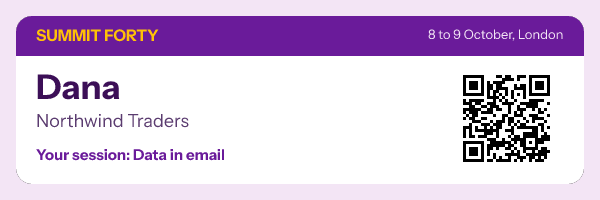
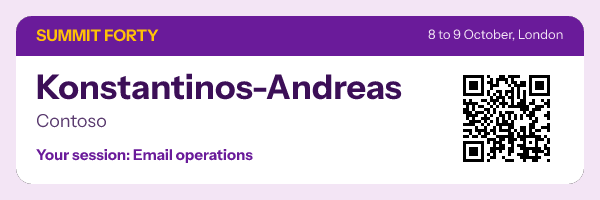
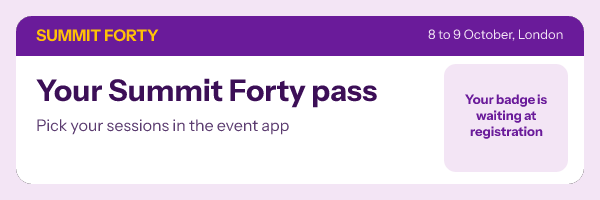
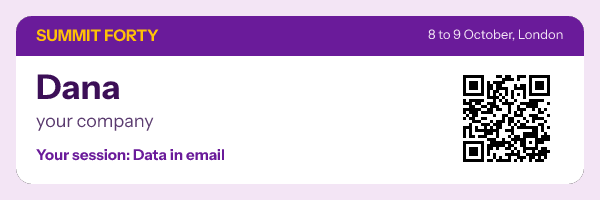
The literal token is never drawn. A preview where {{my.et_first_name}} was not filled counts as missing, so it shows your fallback. Arabic, Japanese, Chinese, Korean and the other scripts the fonts cover are drawn, in any template published from the editor. More designs, each with its fields listed, are on the rendered examples page.
Programs, smart campaigns and dates
Tokens belong to programs. Adobe’s developer guide: “To use a token, the email must be a child of the program that owns the token or inherit it from a marketing folder.” So create the four tokens once, in a marketing folder above your event programs, and every program under it inherits them. A program can override one locally. For engagement programs, Adobe notes that a child email of a default program resolves My Tokens “from the default program in which the child email resides”, so the tokens have to live there too.
Batch and trigger campaigns both run the scripts. A trigger campaign adds one thing: a script can read $TriggerObject, the record that fired the campaign, so a session code could come from a custom object registration rather than the person record.
A date that drives the countdown
Choose Personalized image with a countdown when you create the design, add a Date field, and tick “This date drives the countdown”. Each lead then counts down to their own date, such as the end of an early-bird rate held for them. The token is the same shape: ${esc.url($lead.earlyBirdEnds)}, with your own date field.
What Velocity prints for a date matters. Adobe’s scripting examples split a date field on the hyphen because it arrives as yyyy-MM-dd text, and parse it with $convert.parseDate. A value like 2026-11-04 is an ISO date, and a Date field reads it as it is. I found no Adobe page that says how a date-time field prints, or in which time zone. So send one sample, read the value Check a test email shows as arrived, and set the Date field’s “How your platform sends it” to match. A value with no offset is read in the field’s time zone.
A date more than 90 days ahead (settable up to 400), or before 2000, counts as unusable. A past date shows the ended state. A missing or unusable one does what you chose: hide the timer, which is the default for a new per-person timer, show the ended state, or count to the template’s own deadline.
One link serves the whole send, and that has a consequence. A countdown that starts at first open would start at the first open by anyone. A clock per person from their own first open needs a link per person, which is on Growth and Agency. For a date everyone shares, such as the conference’s opening keynote, you need no field at all: the template’s own deadline does it, and the Marketo countdown timer guide shows the My Token route for that.
What a lead can change, and what stops abuse
The values travel in the email, after the signature, so anyone holding the email can edit their own copy of the link and open it. The design assumes someone will try.
What they can change is narrow: only the fields you listed, and only within each field’s kind. A Name is letters, marks, spaces and ' ’ - ., up to four words. Text refuses @, ://, www. and more than 6 digits. A Choice is one of your options, and a Code is letters, digits, _ and -. A built-in blocklist, a “not a name” list (account, password, verify, refund, winner and the like) and your workspace’s own list of up to 500 terms catch what the kinds let through. A QR code takes a filled value only as a Code, Number or Choice inside the URL you wrote, and none of those alphabets can spell /, :, @, ?, # or &, so nobody can point your badge’s QR code somewhere else.
Then the bounds:
- Up to 8 fillable fields per template. A raw value over 768 characters, or a query over 4,096, shows the fallbacks.
- Opening the image link in a browser tab, and link-preview bots such as Slack’s and LinkedIn’s, get the fallbacks.
- A limit per IP address, a render lane for filled images, a bucket per template, and a daily ceiling per workspace: 25 percent of your plan’s monthly opens per UTC day, minimum 1,000 (1,250 on Free, 62,500 on Starter, 250,000 on Growth, 1,250,000 on Agency). You can set it from 0 to 100 percent, and a notice arrives the same day at 50 and at 100 percent.
- Stop filling fields, per template or per workspace, makes every open show the fallbacks within a minute. Copies already cached elsewhere can keep a filled value for up to a day.
Past the render lane, the per-template bucket or the daily ceiling, the image shows the fallbacks and the open is not billed.
The part that remains, stated plainly: someone holding the email can make a short, letters-only name that is on no list appear on their own copy of the image, and screenshot it. The bounds keep it short, letters only, one script, off QR codes and links, and stoppable in a minute.
A value in the link can be seen by whoever holds the email, by Marketo, by the lead’s mail provider and its proxies, and by EmailTimer.app. Field names that look like private data, such as password or card number, cannot be made fillable, and no text kind accepts @, so an email address is never drawn from a filled field. For anything that must stay out of links, use a recipient list or a link minted per lead, both on Growth and Agency. The full rules are in the reference for fields your email platform fills.
Test before you send
Start in the editor. Sample contacts render every row through the production renderer: three rows you edit, plus fixed stress rows for the longest accepted name, an Arabic name, a Japanese name, nothing on file, and Marketo’s own token left unfilled. Each row gets a line per field, such as “company: drawn”.
Then use Marketo’s Send Sample. Choose a person: Adobe’s tip is “If you want to resolve tokens as a specific person, choose said person in the person drop-down”, and the developer guide says to “Select an existing lead in the Lead field so the script processes correctly.” If a sample comes back showing your fallbacks, check that a person was chosen; a fallback there is the fallback working, not a fault. Email Preview with View As: Lead Detail is quicker for checking a script, and Adobe says it “also displays exceptions from script execution”. Send samples to one address at a time, because Adobe warns that with several, “they will all be visible to every recipient.”
Copy the image link from the sample you received, or the Gmail proxy address of the image, and paste it into Check a test email in the dashboard. It shows every field, what arrived and what was drawn. Do not judge by opening the link in a browser tab, which gets the fallbacks on purpose.
After the send, Fill health on the usage screen counts drawn, empty and each fallback reason per field over 24 hours and 7 days, with no values. It raises a banner when more than 20 percent of a template’s filled opens in the last hour were unfilled tags. If that banner appears after a Marketo send, check first that the email sits under the program or folder that owns the tokens.
How to set up personalized images in Marketo
- In the dashboard, create a design and choose Personalized image, or Personalized image with a countdown if the email also needs a deadline.
- Pick a starting design or a blank canvas. Upload your background and logo from inside the editor, set the canvas Background to Image, and add the logo as an image layer.
- In the Fields tab, add each field with its kind and what happens when it is empty or unusable: a fallback text, or hide the layer or its group.
- Tick “Your email platform can fill this” for each field Marketo fills. It is already ticked for every kind except Text.
- Put the badge field inside the QR code’s address.
- Check the Sample contacts, stress rows included, and fix any layer that overflows.
- Publish, open the snippet, choose Marketo Engage, keep the mode Filled by Marketo Engage when it sends, and check the mapping table.
- In Marketo, create one Email Script token per field in the program or folder, named as the snippet writes it, with
${esc.url($lead.FirstName)}or its equivalent and the field ticked in the tree. Save twice. - Open the email with Edit Draft, choose Edit Code, paste the tag inside an element, save and approve.
- Send Sample to yourself with a lead chosen, and paste the image link into Check a test email.
- Send, then watch Fill health. If you need to pause, Stop filling fields, on the template or for the whole workspace, shows the fallbacks within a minute.
The tag for every other platform is on merge tags in an image URL, and the Adobe products next door are on personalized images in Adobe Journey Optimizer and Adobe Campaign.
Questions and answers
Can I use {{lead.First Name}} directly in the image link?
For plain names it works. For a value with an & or a # it does not. The encoding setting Adobe documents for lead tokens, HTML Encode Tokens in Emails in Field Management, changes “&” to &. That is HTML encoding, and the HTML parser turns & back into & before the image is requested, so Marks & Spencer still splits at the & and the image draws that field’s fallback. An Email Script token with $esc.url encodes every value for a URL.
Why one script token per field?
The snippet writes one token after the signature for each field, in the order the signature fixed, so each token has one job: print one encoded value. A script that printed two values would have to write the & between them itself, unencoded, and a slip there damages both. Separate tokens can also be reused in any email under the folder that owns them.
Do My Tokens work?
Yes. An Email Script token is one type of My Token, next to Text, Date, Number and Rich Text, so it inherits like the others. One exception from Adobe: “My Tokens will not resolve when sending an email from Sales Insight on either Microsoft Dynamics or Salesforce”. A sales email sent that way shows your fallbacks.
Can the QR code on a badge carry a lead’s registration code?
Yes. Make the registration code a Code field and put it inside the QR code’s address, such as your check-in page. Code takes letters, digits, _ and -, up to 24 characters by default and 32 at most. Pricing lists what each plan includes.
What does a lead with no company see?
The company field’s fallback: on the Summit Forty badge, “your company”. You can instead hide the layer or its group, set per field in the Fields tab. The same happens when the field holds something the Text rules refuse, like a phone number.
Does Marketo’s Dynamic Content still have a place?
Yes, for choosing whole blocks by segment, such as a different hero image for healthcare and for technology leads. Put the personalized image in a part of the email that is not dynamic when you send from a batch campaign, since Adobe supports variables inside dynamic content only in trigger campaigns.
Which plan do I need?
Any plan, including Free, which covers 5,000 opens a month and 3 live images. You set up the fields from the dashboard, and the REST API can mint the same links on Growth and Agency. For a view of the whole enterprise decision, see choosing an image vendor for an enterprise email programme.
Sources
- Create an Email Script Token (Adobe Marketo Engage documentation), read on 26 September 2026
- Email Scripting (Adobe Marketo Engage developer documentation), read on 26 September 2026
- Email Scripting Examples (Adobe Marketo Engage developer documentation), read on 26 September 2026
- EscapeTool, VelocityTools API (The Apache Velocity Project), read on 26 September 2026
- Understanding Dynamic Content (Adobe Marketo Engage documentation), read on 26 September 2026
- Using Dynamic Content in an Email (Adobe Marketo Engage documentation), read on 26 September 2026
- Edit Elements in an Email (Adobe Marketo Engage documentation), read on 26 September 2026
- Edit an Email's HTML (Adobe Marketo Engage documentation), read on 26 September 2026
- Understanding My Tokens in a Program (Adobe Marketo Engage documentation), read on 26 September 2026
- Send a Sample Email (Adobe Marketo Engage documentation), read on 26 September 2026
- HTML Encode Tokens in Emails (Adobe Marketo Engage documentation), read on 26 September 2026
- Generate content in the Email Designer (Adobe Marketo Engage documentation), read on 26 September 2026
- Email Designer and Email Editor Feature Comparison (Adobe Marketo Engage documentation), read on 26 September 2026
- Personalization Tokens, email designer (Adobe Marketo Engage documentation), read on 26 September 2026
Related
Put a countdown in the campaign you are writing now
The free plan covers 5,000 opens a month with no card. Starter is $24 a month for 250,000.