
In Adobe Journey Optimizer, personalized images in email work by putting the image link in an HTML component and filling each field after the signature with the urlEncode helper function, as in {%= urlEncode(profile.person.name.firstName) %}, so each profile’s own values are drawn into your design when the image is fetched. Adobe Campaign can personalize an image address too. Its URL-safe expression is not confirmed here yet, so check it with a test send.
EmailTimer.app then checks every value against its field’s rules at the moment the mail client requests the image, and draws the field’s fallback for anything it cannot use. You build the image in the dashboard, on every plan including Free. The same HTML component can carry an Adobe Journey Optimizer countdown timer, and one picture can hold a guest’s name and a countdown together. Everything quoted from Adobe below was read on 26 September 2026.
What Adobe offers for images on its own
Adobe gives you several ways to vary an image per profile, and one of them draws text into a design. Check these before you add anything.
| Adobe feature | Product | What changes per profile | Where it stops |
|---|---|---|---|
| Dynamic Media templates | Journey Optimizer with Experience Manager as a Cloud Service | Text and images inside a template, set from profile attributes | Needs Dynamic Media Manager as a Cloud Service, and templates need Scene7 mode |
| Conditional content on a component | Journey Optimizer | Which variant of a component shows, an image included, by rule | Every variant is a picture someone made in advance |
| Offers with image representations | Journey Optimizer (Decision management, and the newer Decisioning) | Which offer’s image appears, picked by the decision engine | Images come from the Asset library or a URL; nothing is drawn |
| Personalized URLs | Journey Optimizer | Profile attributes inside a link’s address | Documented for links, not for image sources |
| Enable personalization on an image | Campaign Standard | The image address after a domain you type by hand | Picks a file by its path |
| Dynamic image served by Adobe Target | Campaign v8 | Which image appears when the email is opened, by Target audience | Adobe: “The integration only supports static images” |
Dynamic Media is the closest match, and the one to try first if you have it. Adobe Experience Manager’s Dynamic Media Templates page describes templates built from “image, text, shape, and countdown timer layers”, each of which can take parameters. Journey Optimizer’s Dynamic media page then lets you fill a template’s fields with the personalization editor, using “any attribute, such as the profile name, city, or other relevant details”. That is a profile value drawn into a design, entirely inside Adobe.
The entitlements decide whether it is open to you. Journey Optimizer says the integration “is only available for customers using Dynamic Media Manager as a Cloud Service”, and that Dynamic Media templates are “available exclusively in Dynamic Media Scene7 mode”. Scene7 mode is not accessible for Healthcare customers, so for them “content will not be rendered”. Experience Manager adds a second exclusion: “Customers with subscriptions to the Enhanced Security SKU cannot use any Dynamic Media capabilities, including Dynamic Media Templates.” The same licence question comes up for timers, and the Journey Optimizer countdown without AEM walks through it.
Conditional content and offers swap whole pictures. In the Email Designer you select a component and click Enable conditional content, then give each variant a rule. Adobe’s page says that when no rule matches, “the content component will display the content defined in the Default variant”. Decision management offers carry representations, and for an image placement the content comes “from the Adobe Experience Cloud Asset library” or from a URL you can personalize. Adobe’s own example sends “users who favor city vacations” the NYC skyline and beach lovers the Hawaii northshore. Decisioning, which Adobe calls its “next-generation decision framework”, works in email too. All of these choose between pictures that already exist. Four loyalty tiers across eight markets is thirty-two banners somebody has to make.
Personalized URLs are for links. Adobe documents them for three link types only: “External link, Unsubscription link and Opt-Out”. An image address is none of those, which matters later on this page.
Campaign picks files as well. Campaign Standard’s image properties include Enable personalization, which “allows you to customize the image source”. Adobe’s note: “The domain name (http://mydomain.com) cannot be personalized, it has to be entered manually. The rest of the URL can be personalized”, with http://mydomain.com/[Gender].jpg as the example. Campaign v8 with Adobe Target shows “a dynamic version of the content” when a recipient opens the email, chosen by Target audiences (country from the IP address, in Adobe’s walkthrough), and every version is an image you made.
If one of these covers your email, use it.
When you need a rendered image
Two cases sit outside that list. The first is text that belongs to the artwork when you do not have Dynamic Media in Scene7 mode: a guest’s name placed inside your design beside a destination tile, drawn as pixels so that Outlook for Windows shows what Apple Mail shows. The second is a name and a countdown to that guest’s own check-in date in one picture.
Every value arrives typed. A Name field takes letters and up to four words. A Choice field takes only the options you list, up to 500, and can pick one of your own uploads for an image layer. A value that fails its rules shows the field’s fallback. The literal tag is never drawn, and neither is a broken picture.
The personalized image tag for Adobe Journey Optimizer
Adobe’s string functions library documents urlEncode with the syntax {%= urlEncode(string) %}: string, as a function “used to url encode a string”. For a first name, the tag after the signature is therefore {%= urlEncode(profile.person.name.firstName) %}. EmailTimer.app lists Journey Optimizer as documented: the tag follows Adobe’s page as read on 29 September 2026. That page shows no example of it in use, inside an image address or anywhere else, which is one reason the proof in the testing section below matters.
Why urlEncode and not a plain expression
Adobe’s syntax page is explicit: “In Handlebars, the values returned by the {{expression}} are HTML-escaped.” Its own example is a name field holding “Mark & Mary”, which {{profile.person.name}} writes as Mark & Mary. Inside a src attribute, the mail client turns & back into & before it requests the image (that is how HTML reads character references in attributes). The link now has a raw & in the middle of a value, the value is split, and EmailTimer.app draws your fallback rather than “Mark”.
The triple-stash {{{ }}} removes the HTML escaping and encodes nothing, so it fails the same way. A URL-encoded value carries & as %26 and arrives whole. If Adobe’s encoder writes a space as +, EmailTimer.app reads it as a space.
Where it goes in the Email Designer
Use an HTML component. Adobe describes it as the place “to copy-paste the different parts of your existing HTML”: drag it where the image belongs, select Show the source code from the contextual toolbar, paste, and save.
The Image component is the wrong home. Its settings browse your assets, and Adobe recommends “using Adobe Assets instead of relying on a source URL for your images”. A link is wrong too. Besides the three link types above, Adobe states that “When editing a personalized URL in the personalization editor, helper functions and audiences membership are disabled for security reasons”, and urlEncode is a helper function.
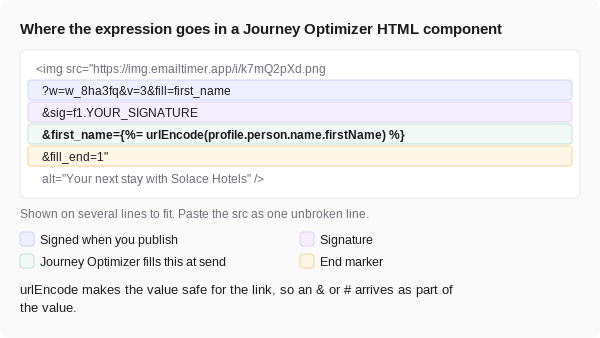
Pick Adobe Journey Optimizer in the snippet panel. A template with fields your platform can fill opens in the mode “Filled by Adobe Journey Optimizer when it sends”, and its mapping table takes each field’s profile attribute. With your own ids and signature in place of the placeholders, the Solace image further down looks like this:
<img src="https://img.emailtimer.app/i/k7mQ2pXd.png?w=w_8ha3fq&v=3&fill=city.first_name.nights&sig=f1.YOUR_SIGNATURE&city={%= urlEncode(profile.stay.city) %}&first_name={%= urlEncode(profile.person.name.firstName) %}&nights={{profile.stay.nights}}&fill_end=1" width="600" height="200" alt="Your next stay with Solace Hotels" style="display:block;border:0" />
Everything up to and including sig=f1.YOUR_SIGNATURE is signed when you publish. That covers fill=city.first_name.nights, the fields Journey Optimizer may fill, in the order their values follow. After the signature come Adobe’s expressions, and fill_end=1 closes the list. A parameter appended after fill_end=1 is ignored.
profile.stay.city and profile.stay.nights stand in for paths in your own schema; the profile namespace reaches the attributes your profile schema defines. nights is a whole number here, so it goes in as a plain expression. Digits need no encoding, and urlEncode is documented for strings. In alt and href, keep expressions in their plain {{ }} form, which Journey Optimizer fills as text.
Profile attributes and contextual attributes
The personalization editor lists both, under Adobe’s names. Profile attributes come from your profile schema and work in every journey and campaign. Contextual attributes, the event fields and journey properties, appear “when a channel action activity (Email, push, SMS) is used in a journey or campaign”. Adobe writes a numeric event ID in backticks inside {%= %}, as in its own context.journey.events.`1697323153`.timestamp example.
One catch shows up in testing. Adobe says that “When previewing a message or sending proofs, only profile personalization data is displayed.” A field filled from an event shows its fallback in a proof. That is expected.
Dates that drive the countdown
Choose Personalized image with a countdown, add a Date field and tick “This date drives the countdown”. Each profile then gets its own deadline, on every plan.
In Journey Optimizer, format the attribute as an ISO date, {%= formatDate(profile.stay.checkIn, "yyyy-MM-dd") %}, and paste a sample into the field’s “How your platform sends it” box, which names the format it reads. Use lower-case yyyy. Adobe’s pattern table marks Y as the week-based year and shows 31 December 2023 coming out as 2024. formatDate needs a date-time value; for an attribute stored as a string, Adobe says to convert it first with stringToDate() or toDateTime().
A date more than 90 days ahead counts as unusable, and a past date shows the ended state. For a missing or unusable date you choose: hide the timer, show the ended state, or count to the template’s own deadline. One link serves the whole send, so a countdown that starts at first open starts at the first open by anyone.
Adobe Campaign: v8 and Campaign Standard
The two products write personalization differently, so each paragraph here names one.
Campaign v8. Adobe documents a personalization field as <%=table.field%>, for example <%= recipient.lastName %>, and says the value “is inserted during the delivery analysis phase”. After the signature, the first name goes in raw: first_name=<%= recipient.firstName %>. EmailTimer.app lists Adobe Campaign as unconfirmed, so check it with a test send. A URL-safe form for Campaign has not been confirmed here.
Raw is safe for most values. Names and cities arrive whole. A value containing &, such as “Marks & Spencer”, is split at the &, and a # cuts the link short; either way the field shows your fallback, never a cut-off word. A delivery not sent as UTF-8 turns accented names such as Lucía into the fallback as well.
Campaign v8 also copies images. Its “Define the email content” page says an image “located on another server, even if this server is visible from the outside” is detected as Not yet online, that “During the analysis phase, the images are automatically uploaded to the server”, and that “The image URLs are modified”. A copy is one picture for everyone. The same page says the deployment wizard can “define URLs for which image detection is not enabled”, so their upload is Skipped, and that since release 8.9.3 the domains in your message content must be on the instance’s external URL allow list. Ask your Campaign administrator to put img.emailtimer.app (or your white-label image domain) on both, then confirm in a proof that the src still points there. The same two lists matter for an Adobe Campaign countdown timer, which is also drawn at the moment it is fetched.
Campaign Standard. Select the image, check Enable personalization, enter the image link in Source, and use the pencil beside Source to add personalization fields after the signature. Adobe’s rule that the domain must be typed by hand suits this link, because only the values after the signature change. This is unconfirmed too: check with a test send.
The other enterprise stack from Adobe, Marketo Engage, works through Email Script tokens and has its own page.
Four profiles, rendered
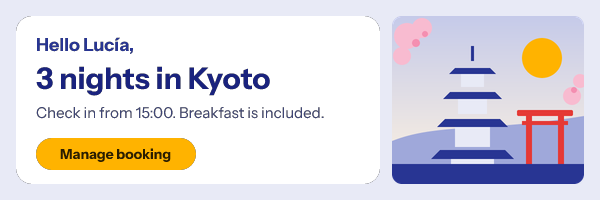
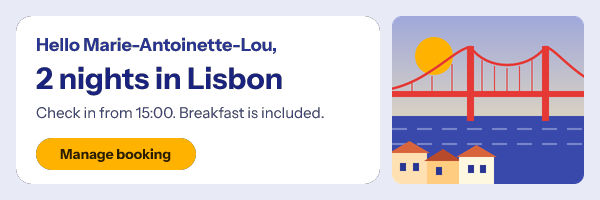
Solace Hotels is an invented hotel group. Its image has three fields. first_name is a Name field with the fallback “guest”. city is a Choice field with one option per destination, and the tile layer is set to Picked by field, so each option draws its own uploaded tile. nights is the length of the stay. The tiles were drawn in code for this page and stand in for your own photographs. Every picture below came out of the renderer.
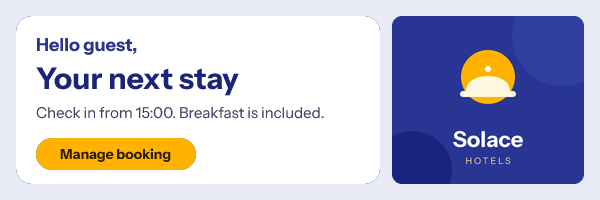
The fourth case is the one to plan for. A sign-up form that let people type anything leaves values like that on real profiles, and the Name rules keep them out of your artwork.
What a profile can change, and what stops abuse
The values after the signature are not signed. Anyone holding the email can edit their own copy of the link, which is the price of letting Journey Optimizer fill fields when it sends.
Only the value of a listed field can change. The template, workspace, version and every signed value stay fixed, and a system name written after the signature makes the whole image come back blank. Each value must pass its field’s rules: a Name is letters, marks, spaces and ' ’ - ., at most four words and 32 characters by default, so “J. R.” passes and “evil.com” does not. No text kind accepts @, so an email address is never drawn.
Around those rules sit the bounds:
- Nothing is fillable until you tick “Your email platform can fill this” on a field. It starts off for Text, with a warning.
- Opening the image address in a browser tab, and link-preview bots, get the fallbacks.
- A workspace has a daily ceiling on filled opens: 25 percent of the plan’s monthly included opens per UTC day, at least 1,000 (1,250 on Free), with a notice at 50 and 100 percent. Past it, images show the fallbacks and those opens are not billed.
- “Stop filling fields” pauses one template or the whole workspace. Every open shows the fallbacks within a minute, though copies cached elsewhere can keep a filled value for up to a day.
What remains, stated plainly: anyone holding the email can make a short, letters-only name that is on no list appear on their own copy of the image, and screenshot it. The bounds keep it short, one script, off QR codes and links, and stoppable in a minute.
A value in a link can be seen by whoever holds the email, by Adobe, by the recipient’s mail provider and by EmailTimer.app. Sensitive field names such as password or card number cannot be made fillable at all. For data that must stay out of links, use a recipient list or a link minted per profile and stored on a profile attribute (both on Growth and Agency). The rules in full are in the fill fields reference, and the tag for every other platform is on the merge tags page.
Test before you send
Start in the editor. The sample contacts give you three rows to edit and fixed stress rows: the longest accepted name, an Arabic name, a Japanese name, nothing on file, and Adobe’s own expression left unfilled. Each renders through the production renderer with a line per field, such as “first_name: drawn”. The Japanese row is drawn in full, as it is in any template published from the editor.
Then use Adobe’s tools. In Journey Optimizer, click Simulate content and choose Simulate content (AEP profiles) to preview with test profiles and send proofs, to up to ten recipients. Two things from Adobe’s pages save time. Context data only shows “in the context of a journey”, so event fields read empty in a proof. And frequency capping applies to proofs: a test profile that has hit its cap shows the proof as finished while no email arrives. In Campaign v8, the Preview tab with Test personalization renders the message for a chosen recipient. Campaign Standard warns that without a proof “some errors may not be detected and the email may not be sent”.
A profile with no first name shows your fallback in the proof, which is the fallback working. Copy the image address from the proof (a Gmail proxy address works) into Check a test email in the dashboard, which lists each field, what arrived and what was drawn. Opening that address in a browser tab instead shows the fallbacks, by design. After the real send, Fill health counts drawn values, empty ones and each fallback reason per field, and raises a banner when more than 20 percent of a template’s filled opens in the last hour were unfilled tags.
How to set it up in Journey Optimizer
- In the dashboard, choose Personalized image, or Personalized image with a countdown if a check-in date should count down in the same picture.
- Start from a starting design or a blank canvas, and upload your destination tiles, background and logo from inside the editor.
- In the Fields tab, add
first_nameas a Name field andcityas a Choice field with one option per destination, plus any other field you need. Set a fallback for each and tick “Your email platform can fill this”. - Select the tile layer, set it to Picked by field, and pick an upload for each option. The layer’s own image covers anything unmatched.
- Check the sample contacts, stress rows included, then publish.
- In the snippet panel, pick Adobe Journey Optimizer. “Filled by Adobe Journey Optimizer when it sends” is selected. Map each field to its profile attribute and copy the snippet.
- In the Email Designer, drag an HTML component where the image belongs, select Show the source code, paste the snippet and save.
- Preview with test profiles, send yourself a proof, and paste the image address from it into Check a test email.
- Publish the journey or campaign, then watch Fill health for fields that arrive empty or unfilled.
Questions and answers
Do I need Adobe Experience Manager for personalized images?
Not for this route. The image is rendered by EmailTimer.app and sits in an HTML component, so nothing comes from Experience Manager. Adobe’s own route, Dynamic Media templates filled with profile attributes, needs Dynamic Media Manager as a Cloud Service in Scene7 mode and is closed to the Enhanced Security SKU.
Can I use a Journey Optimizer expression inside the image address?
Yes, after the signature, for the fields your template lets the platform fill, written as {%= urlEncode(…) %}. An expression anywhere in the signed part, before sig, makes the image come back blank, and so does a system name such as w or v written after it.
What about Adobe Campaign Standard’s “Enable personalization”?
On its own it builds an image path per profile, which picks one of your files. With it switched on, the Source field can hold the image link with personalization fields after the signature. That use is unconfirmed here, so check it with a test send before a real one.
Does the image count against Adobe’s message quotas?
No. The image is not a message. Journey Optimizer sends one email as it always would, and the mail client then requests the image from EmailTimer.app. That request counts as an open on your EmailTimer.app plan, and an open where values arrived but none could be drawn is not billed.
How do dates from Adobe drive a countdown?
A Date field set to “This date drives the countdown” reads the date Journey Optimizer writes after the signature. Format it with formatDate and lower-case yyyy-MM-dd. A date more than 90 days ahead, or a missing one, does what you chose on the field: hide the timer, show the ended state, or count to the template’s own deadline.
Which Adobe product is this page about?
Adobe Journey Optimizer, with setup steps, plus Adobe Campaign v8 and Campaign Standard in their own section. Marketo Engage uses Email Script tokens and is covered on the Marketo page.
Sources
- String functions library (Adobe Journey Optimizer documentation), read on 29 September 2026
- Personalization syntax (Adobe Journey Optimizer documentation), read on 26 September 2026
- Add personalization (Adobe Journey Optimizer documentation), read on 26 September 2026
- Date time functions library (Adobe Journey Optimizer documentation), read on 26 September 2026
- Personalize URLs in emails (Adobe Journey Optimizer documentation), read on 26 September 2026
- Use the Email Designer content components (Adobe Journey Optimizer documentation), read on 26 September 2026
- Create dynamic content (Adobe Journey Optimizer documentation), read on 26 September 2026
- Get started with decision capabilities (Adobe Journey Optimizer documentation), read on 26 September 2026
- Add representations to an offer (Adobe Journey Optimizer documentation), read on 26 September 2026
- Work with dynamic media (Adobe Journey Optimizer documentation), read on 26 September 2026
- Dynamic Media Templates (Adobe Experience Manager documentation), read on 26 September 2026
- Preview and test your content (Adobe Journey Optimizer documentation), read on 26 September 2026
- Send proofs using test profiles data (Adobe Journey Optimizer documentation), read on 26 September 2026
- Add personalization fields (Adobe Campaign v8 documentation), read on 26 September 2026
- Define the email content (Adobe Campaign v8 documentation), read on 26 September 2026
- Work with Campaign and Adobe Target (Adobe Campaign v8 documentation), read on 26 September 2026
- Working with images (Adobe Campaign Standard documentation), read on 26 September 2026
- Personalizing email content (Adobe Campaign Standard documentation), read on 26 September 2026
- RFC 3986, Uniform Resource Identifier (URI) Generic Syntax (IETF)
- HTML Standard, character references in attribute values (WHATWG)
Related
Put a countdown in the campaign you are writing now
The free plan covers 5,000 opens a month with no card. Starter is $24 a month for 250,000.