
Iterable’s image block takes a Dynamic URL with Handlebars in it, which swaps the image file per user. To draw a user’s own name and favourite dish into one designed image, one of the dynamic images in email drawn at the fetch, put the image link in an HTML block and fill each field with the urlEncode block helper, as in {{#urlEncode}}{{firstName}}{{/urlEncode}}, when the campaign sends.
Iterable’s own dynamic images choose between pictures you made in advance. A rendered one draws the value into the pixels, over your own uploaded background and logo, and a user with nothing on file gets the fallback you set for that field. Every Iterable detail on this page comes from Iterable’s support centre, read on 26 September 2026, and where only a test send can settle a detail, the page says so.
What Iterable does with images on its own
Iterable has four ways to change an image per user. For plenty of emails, one of them is all you need.
The image block’s Dynamic URL field
The Drag and Drop Editor page describes it directly: “To add dynamic text to images in your template, like a birthday card image customized with the recipient’s name, turn on the Dynamic image toggle and enter a dynamic URL.” You drag in an image block, enable Dynamic image in its content properties, and paste an address into the Dynamic URL field. Iterable’s example ends in a Handlebars expression: https://example.com/images/?imageBanner={{firstName}}.
Iterable writes the value in when it sends. What comes back is up to the server at that address. Point it at your own image host and a field can choose between files you already made, such as one banner per loyalty tier. Drawing a name into a design needs something that renders the picture when it is requested, and Iterable’s page leaves that to “a dynamic image service”.
A snippet in the Dynamic URL field
For an address you reuse, like a logo or a seasonal header, the same field takes a snippet, on strict terms. “The snippet contains only the image URL, and no HTML code.” It lives in the Side by Side editor, and its name takes single quotes, as in {{snippet 'Calvin and Maya Logo' }}. The result “is only viewable when you preview your template.”
Dynamic Content Builder
Dynamic Content Builder writes the Handlebars for you. You set an if statement on a user property or on the event that triggered the send, add else if variants, and give each one “An image (maximum file size 20 MB and dimensions 1920 px width or height)”, text or a snippet, plus fallback content for users who match nothing. A block allows “a maximum of one if statement and five else if statements”, so it picks among up to six pictures made beforehand. One listed limitation matters here: “Dynamic Content Builder is not currently available in Iterable’s Drag and Drop template editor.”
Catalog
Catalog keeps your products, places or events inside Iterable, and “campaigns can use collections to search, at send time, the information stored in catalogs.” You define an item’s fields, so one of them can hold the address of the item’s photo for the template to write into an image tag. It is an add-on: “Contact your Iterable customer success manager to discuss adding Catalog to your plan.”
All four pick a picture that already exists. None of them draws a user’s own words into one. If a dozen banners cover your cases, stay inside Iterable. A rendered image earns its place when the changing part is text or a number that differs for nearly every user, like a first name beside the days since their last order.
The personalized image tag for Iterable
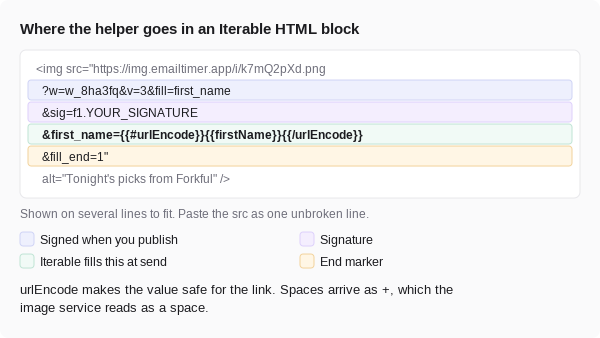
Each field that EmailTimer.app lets Iterable fill sits after the signature in the image link, wrapped in Iterable’s urlEncode block helper. Here is the whole tag for Forkful, a food delivery brand invented for this page, with three fields:
<a href="https://forkful.example/order" target="_blank" rel="noopener"><img src="https://img.emailtimer.app/i/k7mQ2pXd.png?w=w_8ha3fq&v=3&fill=days_since.dish.first_name&sig=f1.YOUR_SIGNATURE&days_since={{#urlEncode}}{{daysSinceOrder}}{{/urlEncode}}&dish={{#urlEncode}}{{favoriteDish}}{{/urlEncode}}&first_name={{#urlEncode}}{{firstName}}{{/urlEncode}}&fill_end=1" alt="Tonight's picks from Forkful" width="600" height="200" border="0" style="display:block; width:100%; max-width:600px; height:auto; border:0;" /></a>
The link has two halves. Everything before sig is signed, including fill, the list of fields Iterable may fill. After sig come Iterable’s values in that order, then fill_end=1. Only the value of a listed field can change. Put a system name such as &w= after the signature and the whole request fails, and the image comes back as a transparent pixel, a blank space in the email. Anything after fill_end=1, such as a tracking parameter, is ignored.
Merge tags in the alt text or in the link around the image keep their plain form, {{firstName}}, because neither one is the image link.
What urlEncode does to a value
Iterable’s encoding helpers reference says: “The #urlEncode block helper converts a string (or the value of a data field containing a string) to standard URL formatting. Spaces are replaced with plus signs (+)”. Its example turns “piña colada” into pi%C3%B1a+colada.
Both halves of that example suit the renderer. It reads + as a space, the way the WHATWG URL Standard decodes form data, so “Mary Jane” leaves Iterable as Mary+Jane and is drawn as “Mary Jane”. The ñ travels as UTF-8 percent escapes, so an accented name keeps its accent.
Leaving the helper off is where images go wrong. A raw & or # inside a value splits the link. The renderer notices the split, marks that value damaged, and draws your fallback rather than half a word. Braze has its own filter for the same job, and the Braze page covers it.
Two characters deserve a test send: an apostrophe, as in O’Brien, and an ampersand. Iterable’s Handlebars overview says double braces escape HTML. If {{firstName}} inside the helper turns the apostrophe into an HTML entity before it is encoded, the Name rules refuse the value and that user sees your fallback instead of their name. Check a test email, in the dashboard, shows you which one happened.
Event fields against profile fields
Iterable’s Handlebars guide is explicit. “At send time, if the campaign’s triggering event or API call contains a field with the same name as a field on the user’s profile, Iterable displays the value from the event field.” Its example puts firstName “Christopher” on the event and “Chris” on the profile: {{firstName}} gives Christopher, and {{profile.firstName}} gives Chris. It also says “Event and user profile field names are case-sensitive.”
So in a triggered campaign, decide which value the picture shows. For the profile’s, write {{#urlEncode}}{{profile.firstName}}{{/urlEncode}}.
Keep the tag on one line
The same guide warns that “whitespace characters such as spaces, tabs, and newlines are preserved by default in Iterable’s template editors. This can cause formatting issues, especially in use cases involving URLs”. Paste the tag as the dashboard writes it, on one line, and never break a line inside the helper.
Where it goes: an HTML block
The “Filled by Iterable when it sends” snippet is a full image tag with its link, alt text and size, so it belongs in an HTML block. Iterable says “Custom HTML and CSS is only possible within the HTML content block”, and that inside one you can “add Handlebars and snippets to personalize your message”. Its troubleshooting line points the same way: “If you have trouble getting dynamic content to work with a particular content block, try using an HTML block or a Text block.”
The Dynamic URL field is a poor home for it. The field takes an address only, and Iterable’s page shows it with a bare {{firstName}}, not a block helper. The same page warns that the link fields of the Paragraph, Title and List blocks “do not support snippets or Handlebars with special characters”, and a block helper is full of them. If you keep an image block anyway, paste only the address into Dynamic URL and prove the helper survives with a test send first.
In the WYSIWYG or Side by Side editor, paste the tag into the HTML source. Iterable suggests commenting out Handlebars that outputs nothing, but not an expression that outputs a value, which urlEncode does. Leave it uncommented.
Four users, rendered
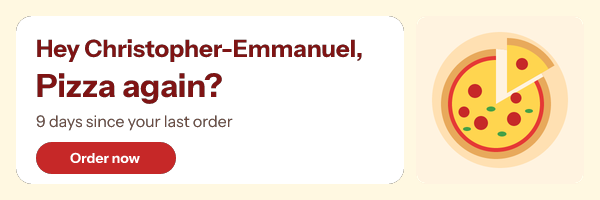
The Forkful card declares three fields. first_name is a Name field whose fallback is “there”. dish is a Choice field whose options are the dishes Forkful uploaded pictures for, and the tile layer is set to Picked by field, so the value chooses one of those uploads. days_since is a Number. One link, four Iterable users:
| User in Iterable | What Iterable sent | What was drawn |
|---|---|---|
| Leo | Leo, ramen, 21 |
“Leo, ramen again?”, the ramen tile, “21 days since your last order” |
| A 20-character hyphenated name | Christopher-Emmanuel, pizza, 9 |
The whole name inside the layout, the pizza tile |
| Nothing on file | three empty values | “Hungry?” and the layer’s own “Tonight’s picks” tile |
| A first name imported with HTML tags | <b>Leo</b>, ramen, 21 |
The fallback “there” where the name goes, with the dish and the days still drawn |

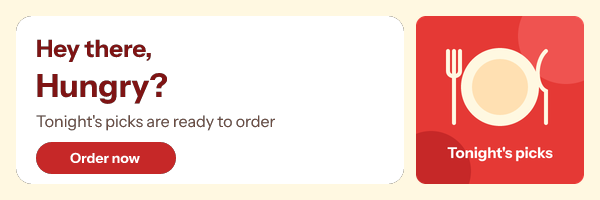

The literal tag is never drawn either. If a tag ever reaches the renderer unfilled, it counts as missing and shows your fallback. And a miss on Picked by field draws the layer’s own picture, so no user gets a gap. More designs, each with its fields listed, are on the rendered examples page.
Triggered campaigns and journeys
Iterable sends two kinds of campaign. “Blast campaigns are sent to a list of users (or multiple lists).” “Triggered campaigns are sent as needed to individual users. To send a triggered campaign, call Iterable’s API or create a journey.” The tag is the same in both. What changes is where a value can come from.
A blast has no triggering event, so it reads profile fields. A triggered campaign also has the fields of the event or API call that sent it. An order confirmation triggered by a purchase could fill dish from the order itself, with {{#urlEncode}}{{dishName}}{{/urlEncode}} or whatever your event calls the field, while a follow-up three days later in a journey reads the profile. This is where the precedence rule bites. An event field with the same name as a profile field wins, unless you write profile..
One link serves the whole send. Each user’s values differ, and the signed half does not, which matters once you add a countdown. Choose Personalized image with a countdown, add a Date field and tick “This date drives the countdown”, and each user counts down to their own date, such as the end of their free delivery week. A date more than 90 days ahead, or before 2000, counts as unusable, and a missing or unusable date hides the timer unless you choose the ended state or the template’s own deadline instead. Paste a date from a real Iterable profile into the field’s “How your platform sends it” box, which names the format it reads.
A clock that starts at each person’s own first open needs a link per person, on Growth and Agency: through a filled link it would start at the first open by anyone. The Iterable countdown timer guide covers per-person links.
What a user can change, and what stops abuse
Anyone who has the email can edit the values in their own copy of the link and open it. That is the trade for letting Iterable fill fields at send, and the design assumes someone will try.
What they can change is narrow: only the fields you listed, and only within each field’s kind. A Name is letters, marks, spaces and ' ’ - ., up to four words and 32 characters by default. A Choice is one of your options. Text, the one kind that can carry a sentence, stays unfillable until you tick “Your email platform can fill this” for it, and ticking it shows a warning. A built-in blocklist, a “not a name” list (password, verify, refund, winner and the like) and your own list of up to 500 terms catch what the kinds let through. The renderer never fetches anything from outside your workspace, so no value can point the picture at another address, and a QR code takes a filled value only as a Code, Number or Choice inside the URL you wrote.
Then the bounds:
- Up to 8 fillable fields per template. A raw value over 768 characters, or a query over 4,096, shows the fallbacks.
- Opening the image link in a browser tab, and link-preview bots such as Slack’s and WhatsApp’s, get the fallbacks.
- A limit per IP address, a separate render lane for filled images, a bucket per template, and a daily ceiling per workspace. The ceiling is 25 percent of your plan’s monthly opens per UTC day, minimum 1,000 (1,250 on Free, 62,500 on Starter, 250,000 on Growth, 1,250,000 on Agency). You can set it from 0 to 100 percent, and a notice arrives the same day at 50 and at 100 percent.
- Stop filling fields, per template or per workspace, makes every open show the fallbacks within a minute. Copies already cached elsewhere can keep a filled value for up to a day.
Past the render lane, the per-template bucket or the daily ceiling, the image shows the fallbacks and the open is not billed.
The part that remains, stated plainly: someone holding the email can make a short, letters-only name that is on no list appear on their own copy of the image, and screenshot it. The bounds keep it short, letters only, one script, off QR codes and links, and stoppable in a minute.
A value in the link can be seen by whoever holds the email, by Iterable, by the user’s mail provider and its proxies, and by EmailTimer.app. Iterable’s encoding helpers page makes the general point: “it’s best practice not to expose personal data in a URL.” A first name or a favourite dish is modest. Field names that look like private data, such as password or card number, cannot be made fillable, and no text kind accepts @, so an email address is never drawn from a filled field. For anything that must stay out of links, use a recipient list, where the link carries only an opaque token, or a link minted per user, both on Growth and Agency. The full rules are in the reference for fields your email platform fills.
Test before you send
Start in the editor. Sample contacts render every row through the production renderer: three rows you edit, plus fixed stress rows for the longest accepted name, an Arabic name, a Japanese name, nothing on file, and Iterable’s own tag left unfilled. Each row gets a line per field, such as “first_name: drawn”. The Japanese row is drawn in full, as it is in any template published from the editor.
Then send an Iterable proof. Sending Test Messages explains that a proof to yourself resolves Handlebars “using data from your Iterable profile”, while a proof sent from the Preview page uses “the loaded user data when sending the test message, including any manual edits you have made.” The second is the useful one. Load a user, set their first name to Mary Jane and send. Then set it to O'Brien and send again.
Copy the image link from each proof and paste it into Check a test email. It shows every field, what arrived and what was drawn. Do not judge by opening the link in a browser tab, which gets the fallbacks on purpose, or by Iterable’s design view, where Handlebars has not run. A proof to yourself with no first name on your profile shows your fallback, which is the fallback working.
After launch, Fill health on the usage screen counts drawn, empty and each fallback reason per field over 24 hours and 7 days, with no values. It raises a banner when more than 20 percent of a template’s filled opens in the last hour were unfilled tags. A rising empty count on one field is worth checking too: Iterable field names are case-sensitive, and a name it cannot find arrives empty.
How to set it up
- In the dashboard, create a design and choose Personalized image, or Personalized image with a countdown if the email also needs a deadline.
- Upload your background and logo from inside the editor (PNG, JPEG, GIF or WebP, up to 5 MB). Set the canvas Background to Image and pick the upload, then add the logo as an image layer.
- In the Fields tab, add each field with its kind and fallback: First name as Name with “there”, Dish as Choice, Days since order as Number. “Your email platform can fill this” is already ticked for these kinds.
- On the tile layer, choose Picked by field, pick Dish, and use Add images from files to make one option per dish picture.
- Check the Sample contacts, stress rows included, and fix any layer that overflows.
- Publish, open the snippet, choose Iterable, and keep the mode Filled by Iterable when it sends.
- In the mapping table, type the Iterable field behind each template field:
firstName,favoriteDish,daysSinceOrder, orprofile.firstNamewhere an event could carry the same name. - In Iterable, drag an HTML block into the template and paste the tag in, on one line.
- Send a proof from the Preview page with a loaded user, and paste the image link from it into Check a test email.
- Schedule the blast, or activate the triggered campaign.
Moving from another platform, or sending from more than one? The merge tag guide has the tag for each of them.
Questions and answers
Can Iterable’s Dynamic URL field do this alone?
It can choose between pictures that already exist, such as one banner per tier on your own image host. It cannot draw a user’s name into a design, because Iterable only writes the value into the address. The server behind the address decides what comes back.
Why does a space arrive as a plus sign?
Iterable’s urlEncode helper replaces spaces with plus signs, as standard form encoding does. The renderer reads + as a space, so “Mary Jane” is drawn with its space.
Which wins, an event field or a profile field?
The event field, whenever the triggering event or API call carries a field with the same name, according to Iterable’s Handlebars guide. Write {{profile.firstName}} inside the helper to use the profile’s value.
Can the dish image come from my Iterable catalog?
No. A Choice field picks one of your own uploads in EmailTimer.app, up to 500 options, and the renderer never fetches an image from an address. Iterable still decides which one: any value it writes into the dish field that matches an option, ignoring case, picks that option’s picture.
What does a user with no data see?
The fallback you set for each field: a default word, a hidden layer or a hidden group. A missing dish draws the layer’s own picture, so nobody gets a gap. An open with every field empty still counts as an open.
Is there a limit on fields?
Eight fillable fields per template. A single value over 768 characters, or a query over 4,096, shows the fallbacks.
Which plan do I need?
Any plan, including Free, which covers 5,000 opens a month. You set up the fields from the dashboard, and the REST API can mint the same links on Growth and Agency. The countdown generator is a separate tool. A timer from the free generator works for 500 opens without an account, and for 1,000 once you sign in and claim it. It makes countdown timers only and never fills fields. Pricing lists what each plan adds.
Sources
- Drag and Drop Editor (Iterable Support Center), read on 26 September 2026
- Handlebars Reference: Encoding and Hashing Helpers (Iterable Support Center), read on 26 September 2026
- Personalizing Templates with Handlebars (Iterable Support Center), read on 26 September 2026
- Handlebars Overview (Iterable Support Center), read on 26 September 2026
- Generating Merge Tags with Dynamic Content Builder (Iterable Support Center), read on 26 September 2026
- Catalog Overview (Iterable Support Center), read on 26 September 2026
- Campaigns Overview (Iterable Support Center), read on 26 September 2026
- Sending Test Messages (Iterable Support Center), read on 26 September 2026
- URL Standard, application/x-www-form-urlencoded parsing (WHATWG)
Related
Put a countdown in the campaign you are writing now
The free plan covers 5,000 opens a month with no card. Starter is $24 a month for 250,000.